FAQ Overview

Office 365

Go to category

Office 365 Exchange Migration Template

Stage Initial
Collect Mailbox Numbers & Sizes Get-Mailbox | Get-MailboxStatistics | Sort totalitemsize -desc | ft displayname, totalitemsize, itemcount  | Out-File C:\Temp\mailboxsize.txt  
Collate a list of Distribution groups (Non-standard or modified)  
Confirm Internet speed/status - Upgrade if necessary  
Start initial Office 365 Migration  
Confirm Mailboxes to be migrated, converted to Distribution groups, deleted, etc. with the client  
Confirm Calendar permission configuration (Who is allowed to see who, All users access All calendars, etc.)  
Confirm Public Folder Status - If the total size of the Public folder is 20GB or less, transfer using the PST method (Scripted Migration is the preferred method) https://docs.microsoft.com/en-us/exchange/collaboration-exo/public-folders/batch-migration-of-legacy-public-folders  
Confirm total costs to client Mailbox Licence p/user Signature costs if offsite solution now required Confirm users who require more than 50GB storage  
Discuss expected interruption to business and organise migration date Ensure user expectations of interruptions are explained  
Obtain written go-ahead for installation to proceed  
Organise Office 365 licences  
Disable Password Expiry  
Confirm Installed Outlook Versions (Site visit or via TV)  
Confirm the current Patch status of all workstations (Site visit or via TV)  
Migration day  
Change MX record to send mail to Office 365 prior to site visit  
Remove Autodiscover details from Local Exchange Set-ClientAccessServer –Identity yourservername –AutoDiscoverServiceInternalUri $null  
Stop Outlook connecting to the Old Exchange server
HKEY_CURRENT_USER\Software\Microsoft\Office\16.0\Outlook\AutoDiscover
     Add DWORD: ExcludeScpLookup      Set Value: 1
 
Confirm mail now flowing to Office 365  
Setup users who must have mail access to access the Office 365 web portal Ensure that they know not to move mail into folders during the migration to reduce the chance of email duplication  
Start PST export on each workstation, or from Exchange Management console If local place either on "Outlook Files" or C:\Temp Name file username_yyyymmdd.pst  
Once PST Backup is complete, change Autodiscover details in local and public DNS systems  
Run IPConfig /FLUSHDNS on the workstation prior to configuring the new Outlook Profile  
Perform IP Flush on Sophos router Network > DNS, Flush Cache  
Create a new Outlook profile and configure it for Office 365  
Connect additional PST files as required  
Setup Signature  
Close Outlook and edit/correct NK2 and Autostream files - Remove old Exchange entries  
Change SMTP details for Scanners, Printers, UPS systems, Backup Software, Phone systems  
   
Day after migration  
Site visit required by a primary technician for customer hand-holding and work completion - Second tech required if several items still need to be addressed  
Stop onsite Exchange services and set to manual  


2022-07-14 06:54
Jason Cole

Office 365 IMAP Exchange Migration Template

Stage Initial
Collect Mailbox Numbers & Sizes from the email control panel  
Collate a list of Distribution groups, alias or redirectors  
Confirm Internet speed/status - Upgrade if necessary  
Start initial Office 365 Migration using Office 365 online Migration Wizard  
Confirm Mailboxes to be migrated, converted to Distribution groups, deleted, etc. with the client  
Confirm Calendar permission configuration (Who is allowed to see who, All users access, All calendars, etc.)  
Confirm total costs to client Mailbox Licence p/user Signature costs if offsite solution now required Confirm users who require more than 50GB storage  
Discuss expected interruption to business and organise migration date Ensure user expectations of interruptions are explained  
Obtain written go-ahead for installation to proceed  
Organise Office 365 licences  
Disable Password Expiry  
Confirm Installed Outlook Versions (Site visit or via TV)  
Confirm the current Patch status of all workstations (Site visit or via TV)  
Change current Outlook to use supplier/ISP domain mail details (e.g. change mail.domain.com to mail.bigpond.com)  
Migration day  
Change MX record to send mail to Office 365 prior to the site visit  
Confirm mail now flowing to Office 365  
Setup users who must have mail access to access the Office 365 web portal Ensure that they know not to move mail into folders during the migration to reduce the chance of email duplication  
Start PST export on each workstation, or from the Exchange Management console If local place either on "Outlook Files" or C:\Temp Name file username_yyyymmdd.pst   Check if Outlook is using additional PST files  
Once PST Backup is complete, change Autodiscover details on the public DNS systems  
Change the old mail server from "Local Mail Exchanger" to "Remote Mail exchanger"  
If having connection issues, run IPConfig /FLUSHDNS on the workstation prior to configuring the new Outlook Profile  
Perform IP Flush on Sophos router Network > DNS, Flush Cache  
Create a new Outlook profile and configure it for Office 365  
Connect additional PST files as required  
Import PST backup file  
Setup Signature  
Close Outlook and edit/correct NK2 and Autostream files - Remove old Exchange entries if any exist  
Change SMTP details for Scanners, Printers, UPS systems, Backup Software, Phone systems  
Day after migration  
Site visit required by the primary technician for customer hand-holding and work completion Second tech required if several items still need to be addressed  
Organise cancellation of old POP accounts  

2022-07-14 06:56
Jason Cole

Office 365 Install/Update issue - Sophos

Issue: Office 365 does not install or update when Sophos web filtering is enabled

Solution:

  1. Log into Sophos UTM
  2. Go to Web Protection -> Filtering options
  3. Click New Exception List
  4. Configure the following
    1. Name Microsoft Software CDN
    2. Select the following
      1. MIME type Blocking
      2. Antivirus
      3. Block by download size
      4. SSL Scanning
      5. Certificate trust check
      6. Do not display Download/Scan progress page
    3. Certificate date check
    4. For All requests select "Matching these URLs"
      1. Enter the following URLs
      2. officecdn.microsoft.com.edgesuite.net
      3. officecdn.microsoft.com
  5. Save the exception

2022-08-16 02:00
Jason Cole

Office 365 Message Encryption

Office 365 Email: Message Encryption and Security

By Rosemarie Withee, Ken Withee, Jennifer Reed

Before the explosion of cloud technologies such as Office 365, organizations had control over their data that resided within the perimeter of their on-premises data centres. The identity of the users, the devices they used, the applications they ran, and the company data were all confined within this parameter and controlled by the IT team.

Nowadays, however, we operate in a boundary-less world. we check email from our personal devices, we do our work at the office or at home — or even at the beach — and we use cloud services outside the perimeter of an organization’s data centre. we do these things because we want to be productive, but sometimes this productivity can mean sacrificing security.

In Office 365, you can continue to do the things you do to be productive while at the same time stay secure. In Exchange Online (the technology driving your email), for example, you can encrypt your email so that only the intended recipients of the message will be able to read it. You can apply protection to your email so if it’s confidential, the email can only be read by people within your organization. If someone accidentally forwards or copies a recipient outside of the organization on an email marked confidential, that recipient will get the email but he or she won’t be able to read it.

These security features for protecting email are available through the Office 365 Message Encryption (OME) service.

Licensing requirements for Office 365 Message Encryption

Office 365 Message Encryption (OME) is part of the Office 365 subscriptions listed as follows. There is no need to purchase additional licenses for users when the following subscriptions are assigned to them:

  • Office 365 E3 and E5 (Enterprise)
  • Office 365 A1, A3, and A5 (Education)
  • Office 365 G3 and G5 (Government)
  • Enterprise Mobility + Security E3
  • Microsoft 365 E3

If a user’s license is not for any of these subscriptions, you can purchase a standalone subscription called Azure Information Protection Plan 1 for $2 per user per month to enable OME as long as the user’s current license is any one of the following subscriptions:

  • Exchange Online Plan 1 or Plan 2
  • Office 365 F1 or E1
  • Office 365 Business Premium or Business Essentials

Enabling Office 365 Message Encryption

If you’ve purchased Office 365 licenses with OME capabilities after February 2018, OME is automatically configured and your users can start using the service.

If you purchased Office 365 license prior to February 2018, you need to enable Azure Rights Management (Azure RMS) from the Office 365 portal. After enabling Azure RMS, Microsoft will automatically configure OME in your Office 365 tenant. Here are the steps to enable Azure RMS:

  1. Log on to the Office 365 portal with a Global Administrator account and then click the Admin icon.
  2. Click Settings from the menu on the left panel.
  3. Click Services & Add-ins and then select Microsoft Azure Information Protection from the list of services.
  4. Click Manage Microsoft Azure Information Protection settings from the pane.
    You will be asked to authenticate with your Office 365 credentials.
  5. In the Rights Management page, click the Activate button.
  6. Before closing the page, verify that the Rights Management Is Activated notification is displayed with the green check mark next to it.

Rights management is activated in Office 365.

Sending an encrypted email in Office365

With OME enabled in your Office 365 tenant, users can immediately start sending encrypted emails to recipients within or outside the organization based on the default policies available in OME. Depending on your subscription and the functionalities Microsoft has rolled out, you will find two or more pre-configured encryption policies. The two default policies in the Office 365 E3 or the Azure Information Protection Plan 1 subscriptions available are Encrypt and Do Not Forward.

To apply these policies to an email using the Outlook desktop app, follow these steps:

  1. In the Outlook desktop application, compose a new email and add the recipients.
  2. From the ribbon, click Options.
  3. Click the Permission button and then select the appropriate encryption policy.
  4. Click Send to send your email.

To apply these policies to an email in Outlook Online, follow these steps:

  1. Compose a new email and add the recipients.
  2. From the ribbon, click Protect.
  3. Click Change Permissions from the notification bar to display the available options and then select the appropriate encryption policy.
  4. Click Send to send your email.

Using the Encrypt policy

When you use the Encrypt policy, the email message will be encrypted on its way to the recipient. Once it reaches the recipient, the message will be decrypted so that it’s readable.

Using the Encrypt policy does not prevent the recipient from forwarding the email to someone else. The recipient can print out the email, post it on social media, or frame it on his or her wall. If additional protection is required, the Global Admin for the Office 365 Portal will need to create custom policies.

Currently, Outlook Online, Outlook for iOS, and Outlook for Android will automatically display the decrypted message on the screen. For other email applications, the email will provide a link to allow the recipient to read the decrypted message. There are plans underway to expand the list of supported applications in the near future including the Outlook desktop application, which is currently in preview.

Reading an encrypted message in non-supported apps.

Using the Do Not Forward policy

The Do Not Forward policy also encrypts the email message on its way to the recipient, but it has an additional policy restricting the recipients from forwarding the email to someone else. If any of the recipients forward the email to others, new recipients who try to open the email will get a message saying that they don’t have permission to view the message.

Do Not Forward policy error message.

Making Outlook and Office 365 work for you

As a cloud service, Office 365 has intelligent experiences designed to help you prioritize work so you can be productive. Built-in AI in Outlook allows you to re-focus your energy on what’s important. And when Outlook misbehaves, there is a built-in tool to help you troubleshoot common Outlook issues without the need to engage your support team.

Filtering out the noise with Focused Inbox

Exchange Online in Office 365 has built-in spam and spoof filters that block known unwanted and malicious emails from reaching your mailbox. Yet even with filters, our mailboxes can still end up being bloated with an email from the pizza place, our cable provider, and our favourite shopping site. When you’re trying to be productive, it’s easy to get distracted by legitimate but unimportant emails.

The Outlook desktop application and Outlook Online come with a functionality called Focused Inbox to address that challenge. Focused Inbox helps with mailbox management by acting as an automatic sorter that puts all your important emails into the Focused tab and the less important ones in the Other tab.

The Focused Inbox.

Built-in AI in Office 365 determines what email goes into what tab. Email from the contacts you interact with a lot will go to the Focused tab while bulk email from your shopping site will go to the Other tab to filter out the noise. You can also train the AI to fine-tune the categorization by moving email that ends up in the wrong tab. The more you train the AI, the better it will learn your behaviours to ensure that your inbox feels just right for you.

Diagnosing common Outlook problems with SARA

One of the advantages Microsoft has in running cloud services is its access to error logs and signals from the devices and users interacting with the system. Those logs and signals are transmitted to Microsoft databases where they are monitored and analyzed. Based on those insights, Microsoft is able to improve its service or create self-service solutions for customers.

SARA is short for Support and Recovery Assistant, a diagnostics tool built into Outlook. It’s a handy tool that automatically fixes common errors users have encountered in Office 365, such as Outlook problems, Office installations, and more.

Common Outlook problems SARA can troubleshoot.

If you are experiencing any of these issues and want to run SARA, follow these steps:

  1. In the Outlook desktop application, click File from the ribbon.
  2. From the backstage left panel, click Support.
  3. Click Support Tool to install SARA.
    This action will connect to the Office 365 systems and will download the tool.
  4. Once the tool finishes downloading and starts running, follow the prompts based on the issue you are trying to resolve.
    Depending on your issue, the process could take a few minutes to half an hour.

About the Book Author

Rosemarie Withee is President of Portal Integrators and Founder of Scrum Now with offices in Seattle, WA and Laguna, Philippines. Ken Withee is a Microsoft Certified Technology Specialist in SharePoint, SQL Server, and .NET. Jennifer Reed is a Microsoft Certified Professional in Office 365 Administration and founder of Cloud611.

Source: https://www.dummies.com/software/microsoft-office/office-365-email-message-encryption-and-security/

2022-07-14 07:01
Jason Cole
Office 365 POP Exchange Migration Template

Stage Initial
Collect Mailbox Numbers & Sizes from the mail control panel  
Collate list of Distribution groups, alias or redirectors  
Confirm Internet speed/status - Upgrade if necessary  
Confirm Mailboxes to be migrated, converted to Distribution groups, deleted, etc. with client  
Confirm Calendar permission configuration (Who is allowed to see who, All user access All calendars, etc.)  
Confirm total costs to client Mailbox Licence p/user Signature costs if offsite solution now required Confirm users who require more than 50GB storage  
Discuss expected interruption to business and organise migration date Ensure user expectations of interruptions are explained  
Obtain written go ahead for installation to proceed  
Organise Office 365 licences  
Disable Password Expiry  
Confirm Installed Outlook Versions (Site visit or via TV)  
Confirm current Patch status of all workstations (Site visit or via TV)  
Change current Outlook to use supplier/ISP domain mail details (e.g. change mail.domain.com to mail.bigpond.com)  
Migration day  
Change MX record to send mail to Office 365 prior to the site visit  
Confirm mail now flowing to Office 365  
Setup users who must have mail access to access the Office 365 web portal Ensure that they know not to move mail into folders during the migration to reduce the chance of email duplication  
Start PST export on each workstation, or from Exchange Management console If local place either on "Outlook Files" or C:\Temp Name file username_yyyymmdd.pst  
Once PST Backup is complete, change Autodiscover details on the public DNS systems  
Change the old mail server from "Local Mail Exchanger" to "Remote Mail exchanger"  
If having connection issues, run IPConfig /FLUSHDNS on the workstation prior to configuring the new Outlook Profile  
Perform IP Flush on Sophos router Network > DNS, Flush Cache  
Create a new Outlook profile and configure it for Office 365  
Connect additional PST files as required  
Import PST backup file  
Setup Signature  
Close Outlook and edit/correct NK2 and Autostream files - Remove old Exchange entries if any exist  
Change SMTP details for Scanners Printers, UPS systems, Backup Software, Phone systems  
Day after migration  
Site visit required by the primary technician for customer hand-holding and work completion - Second tech required if several items still need to be addressed  
Organise cancellation of old POP accounts  

2022-07-14 07:04
Jason Cole

Bulk change Microsoft 365 Licences

If you have a text file with a list of User Principal Names (UPNs) that you want to change, you can use a PowerShell script to read the file and change the licenses for each user. Here’s an example:

# Connect to your Microsoft 365 tenant
# Use either Connect-MsolService or Connect-AzureAD depending on the module you're using

# Define the SKU IDs for the E3 and E5 licenses
$e3License = "contoso:ENTERPRISEPACK"
$e5License = "contoso:ENTERPRISEPACK_E5"

# Read the UPNs from the file
$upns = Get-Content -Path "C:\temp\e3_users.txt"

# Loop through each UPN and change the license
foreach ($upn in $upns) {
    Set-MsolUserLicense -UserPrincipalName $upn -AddLicenses $e5License -RemoveLicenses $e3License
}

In this script, replace "contoso:ENTERPRISEPACK_E5" and "contoso:ENTERPRISEPACK" with the actual SKU IDs of your E5 and E3 licenses respectively.
Also, ensure that you have enough E5 licenses available in your tenant before running this script.

This script assumes that the file at C:\temp\e3_users.txt contains one UPN per line.
If your file is formatted differently, you may need to adjust the Get-Content command accordingly.

2023-11-03 07:39
Jason Cole

Azure

Go to category

Sophos XG Firewall v18 to Azure VPN Gateway IPSEC Connection

Step 1: Create Azure Local Network Gateway (with XG public IP details)

The local network gateway typically refers to your on-premises location. You'll need the public IP address of your On-Prem Sophos XG firewall and your On-Prem Private IP address spaces.

Please note that this configuration assumes that the public IP address is directly configured on the On-Prem XG firewall. Your configuration will be slightly different if your On-Prem XG firewall sits behind a NAT device.

  1. Go to the Azure Portal: https://portal.azure.com and sign in with your credentials.
  2. Click on "Create a resource".
  3. In the search box, type "Local Network Gateway".
  4. Select "Local Network Gateway" and click on "Create".
  5. In the "Create local network gateway" blade, configure the following and then click on "Create":

    • Name: On_Premises_Sophos_XG_Firewall (You can give this any preferred name).
    • Endpoint: IP address
    • IP address: Specify the public IP address of your Sophos XG firewall.
    • Address space: Specify the address ranges for the network that your On-Prem local network represents. In our scenario, this is 10.100.0.0/16.
    • Subscription: Verify that the correct subscription is selected for the deployment.
    • Resource Group: Select the resource group that you want to use. You can either create a new resource group or select an existing one.
    • Location: Select the location that this object will be created in.

Step 2: Create a Gateway Subnet

The VPN gateway will be deployed into a specific subnet of your network called the 'GatewaySubnet'.The size of the GatewaySubnet that you specify depends on the VPN gateway configuration that you want to create. While it is possible to create a GatewaySubnet as small as /29, it is recommend to create a larger subnet that includes more addresses by selecting /27 or /28 to be able to accommodate future configurations.

  1. In the Azure Portal: https://portal.azure.com, click on "More Services".
  2. In the search box, type "Virtual Networks" and select the "Virtual Networks" option.
  3. Click on the virtual network for which you want to create a virtual network gateway.
  4. In the "Virtual networks" blade, under "Settings", click on "Subnets".
  5. In the "Subnets" blade, click on "+ Gateway subnet" to add a new Gateway subnet.
  6. In the "Add Subnet" blade, configure the CIDR range of the new Gateway subnet and click "Save". In our scenario, this is 10.1.1.0/24.

Step 3: Create the VPN Gateway

  1. In the Azure Portal: https://portal.azure.com, click on "Create a resource".
  2. In the search box, type "Virtual network gateway".
  3. Select "Virtual network gateway" and click on "Create".
  4. In the "Create virtual network gateway" blade, configure the following:

    • Subscription: Verify that the correct subscription is selected for the deployment.
    • Instance details
      • Name: This will be the name of the gateway object you are creating.
      • Region: Select the same location as your virtual network (Otherwise the virtual network will not be displayed on the list).
      • Gateway type: VPN
      • VPN type: Route-based (this is a MUST to be able to use IKEv2).
      • SKU: Select the gateway SKU from the dropdown. For more information about gateway SKUs, see Gateway SKUs.
      • Generation: Generation 1
      • Virtual network: Choose the virtual network to which you want to add this gateway (if the virtual network that you want is not displayed on the list, verify that you have selected the right location in the "Region" parameter above).
    • Public IP address:
      • Public IP address: Create New
      • Public IP address Name: Enter a Name for the public IP address resource.
      • Leave other settings as default.
      • Click on "Review + Create"
      • Click on "Create"
      • Creating a gateway can take up to 45 minutes!
  5. After the VPN gateway creation has completed successfully, obtain it's public IP address (this will be needed in step 5).
    • In the Azure Portal, click on "More services" and search for "Virtual network gateways". Then click on "Virtual network gateways".
    • Click on the VPN Gateway that you just created.
    • In the "VPN Gateway" blade, in the "Overview" section, make a note of the public IP address of the gateway.
    • This will be used in step 5.

Step 4: Create the VPN connection (Azure)

  1. In the Azure Portal: https://portal.azure.com, click on "More Services" and search for "Virtual network gateways". Then click on "Virtual network gateways".
  2. Select the VPN gateway that you created earlier.
  3. In the "VPN Gateway" blade, in the "Settings" section, click on "Connections", then click on "+ Add".
  4. In the "Add connection" blade, configure the following:
    • Name: Sophos_Xg_OnPrem_To_Azure (Input your preferred name)
    • Connection type: Site-to-site (IPSec)
    • Virtual network gateway: The value is fixed because you are connecting from this gateway
    • Local network gateway
      • Click "Choose a local network gateway
      • In the "Choose a local network gateway"  blade, select the local network gateway that you created earlier.
    • Shared key (PSK): Input a complex shared key. The value here must match the value that we will use on our on-premises Sophos XG firewall.
    • IKE Protocol: IKEv2
    • The remaining values for SubscriptionResource Group, and Location are fixed.
    • Click OK to create your connection. You'll see Creating Connection flash on the screen.

Step 5: Download and extract needed information from the configuration file (Azure)

  1. In the Azure Portal: https://portal.azure.com, click on "More services" and search for "Virtual network gateways". Then click on "Virtual network gateways".
  2. Select the VPN gateway that you created earlier.
  3. In the "VPN Gateway" blade, in the "Settings" section, click on "Connections", then select the connection that you created earlier.
  4. Click on the "Download configuration" button. This configuration file contains the needed information to configure the VPN connection on the XG Firewall.
  5. In the "Download configuration" blade, select the following:
    • Device vendor: Generic Samples
    • Device family: Device Parameters
    • Firmware version: 1.0
    • Click on "Download configuration".
  6. Open the downloaded file and make a note of the following:
    • Scroll down to the "Tunnel interface (VTI) configuration" section.
    • Make a note of the interface tunnel IP address and subnet mask
    • Also, make a note of the MSS value.
    • Both values will be needed for the configuration of the "xfrm tunnel interface" on the Sophos XG.

Step 6: Create the VPN connection (Sophos XG Firewall)

  1. Log into the WebAdmin of your On-Premises Sophos XG firewall.
  2. Under "Configure", click on "VPN" → "IPSEC Connections" → "Add".
  3. Configure the following settings:
    • General Settings
      • Name: Input any preferred name.
      • Connection type: Tunnel interface
      • IP version: Dual
      • Gateway type: Initiate
      • Activate on save: Selected
      • Description: Add a description for the connection.
    • Encryption
      • Policy: Microsoft Azure
      • Authentication Type: Preshared key
      • Preshared key: Enter the same preshared key that you entered when creating the VPN connection on Azure.
      • Repeat preshared key: Confirm the above preshared key.
    • Gateway settings
      • Listening interface: Select the WAN interface of the Sophos XG Firewall.
      • Gateway address: Input the public IP of the Azure VPN gateway that you noted in Step 3 (5).
      • Local ID: IP Address
      • Remote ID: IP Address
      • Local ID: Enter the public IP of the OnPrem Sophos XG firewall.
      • Remote ID: Input the public IP of the Azure VPN gateway that you noted in Step 3 (5).
      • There is no option to configure the "Local Subnet" and "Remote Subnet". They will both be set to "0.0.0.0/0".
    • Advanced
      • Leave default settings.
    • Click "Save".
    • Click "OK" when prompted about the "Preshared key".
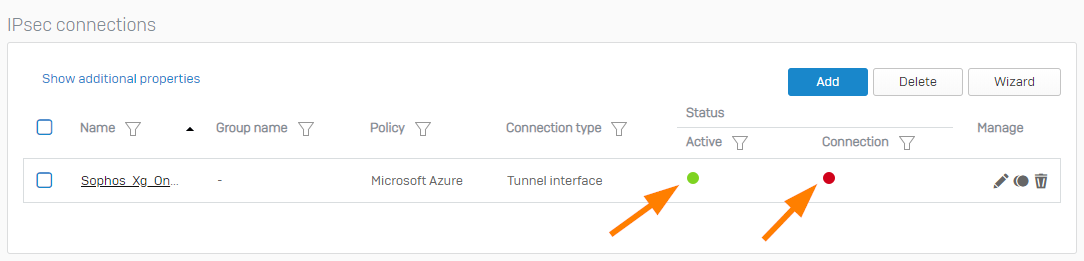
    • The connection should now be active. Click on the "red" button under Connection to enable the connection.

    • When prompted if you're sure that you want to connect, click "OK".

Step 7: Create firewall rules to allow inbound and outbound traffic through the VPN (Sophos XG Firewall)

  1. Log into the WebAdmin of your On-Premises Sophos XG Firewall.
  2. Under "Protect", click on "Rules and policies" → "Add firewall rule" → "New firewall rule".
  3. In the "Add Firewall Rule" window, configure the incoming firewall rule as follows:
    • Rule status: None
    • Rule name: azure_to_onprem
    • Action: Accept
    • Rule position: Top
    • Rule group: None
    • Log firewall traffic: Selected
    • Source
      • Source zones: LAN and VPN
      • Source networks and devices: Any
      • During scheduled time: Leave default setting
    • Destination & services
      • Destination zones: LAN and VPN
      • Destination networks: Any
      • Services: Any
    • Leave other settings as default.
      • You can configure the security checks of the XG for the traffic if you want to.
    • Click on "Save".

Step 8: Configure the xfrm tunnel interface (Sophos XG Firewall)

  1. Log into the WebAdmin of your On-Premises Sophos XG Firewall.
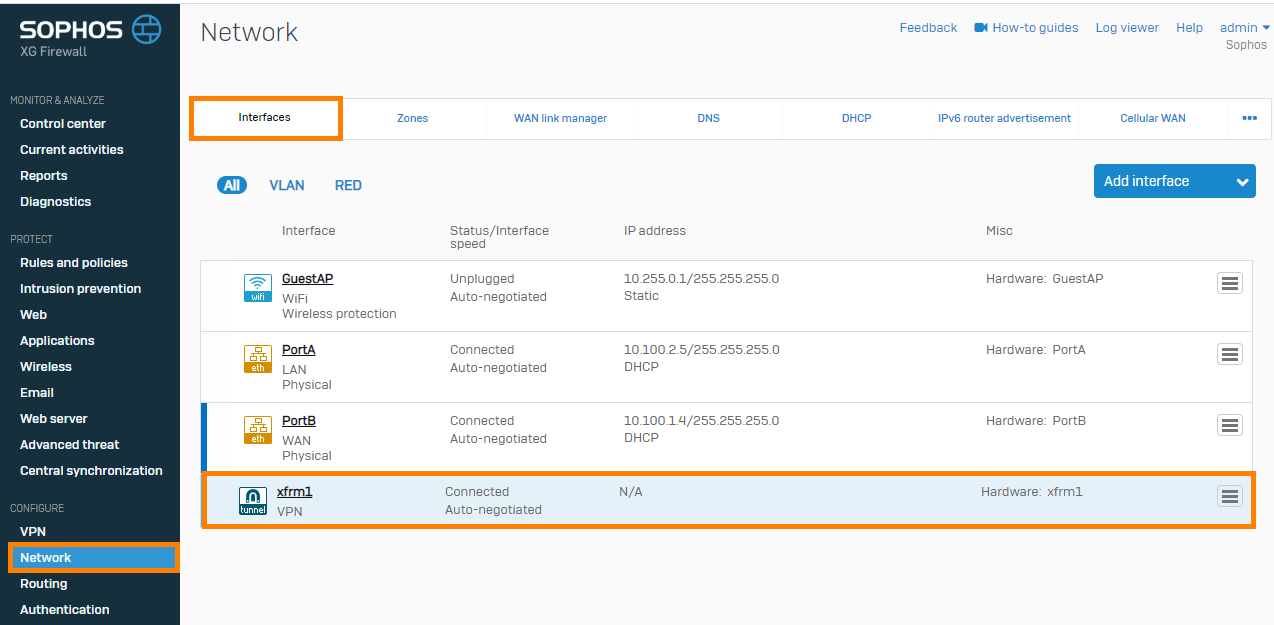
  2. Under "Configure", click on "Network" → under "Interfaces", click on the xfrm interface.


  3. In the "Network" configuration window, configure the following:
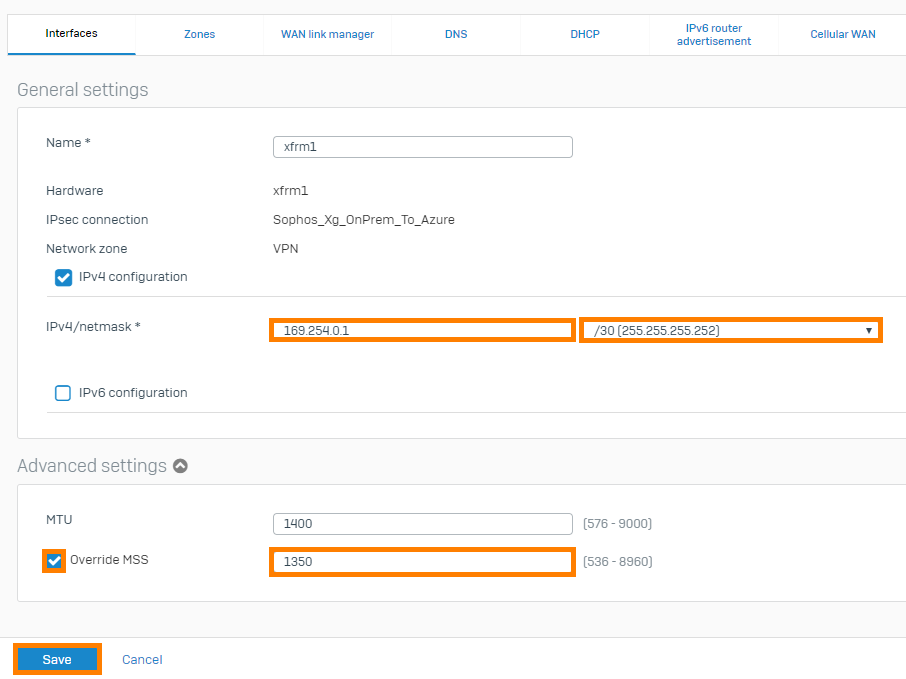
    • IPv4/netmask: Enter the IP address and select the subnet mask that you made a note of in Step 5 (6).
    • Expand "Advanced settings".
      • Select "Override MSS" and enter the MSS value that you made a note of in Step 5 (6).
    • Click on "Save"


    • In the "Update interface" prompt, click "Update interface".

Step 9: Configure static routing to the Azure network (Sophos XG Firewall)

  1. Log into the WebAdmin of your On-Premises Sophos XG Firewall.
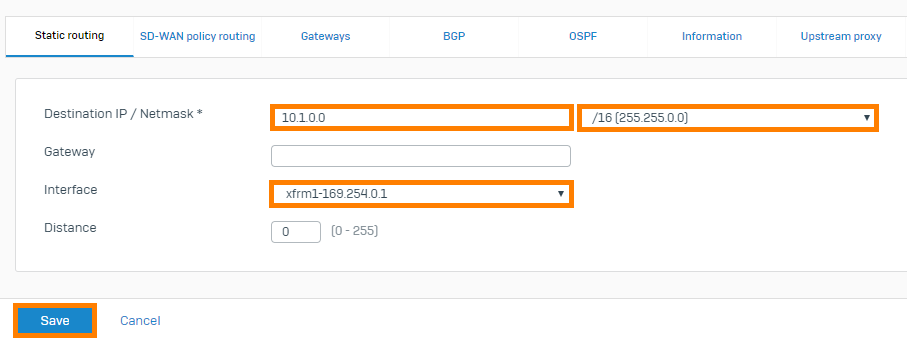
  2. Under "Configure", click on "Routing" → under "Static Routing", click on "Add".
  3. In the "Add unicast route" window, configure the following:
    • Destination IP/Netmask: Enter the network IP and subnet mask of your Azure virtual network.
    • Gateway: You can either leave this empty
      • OR enter the second IP address in the network that you made a note of in Step 5 (6). For example, the XG's tunnel interface in my case is "169.254.0.1" in a "/30" network so the only other IP in that network is "169.254.0.2". I can enter this if I choose.
    • Interface: Select the XG's xfrm tunnel interface.
    • Distance: Leave default setting.
    • Click on "Save"

Step 10: Verify the VPN connection

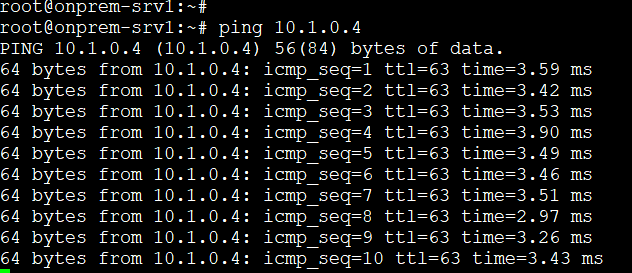
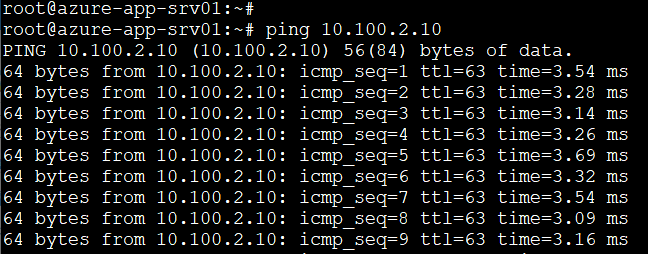
  1. Do a connectivity test from an on-premise instance to an Azure VM.


  2. Do a connectivity test from an Azure VM to an on-premise instance.


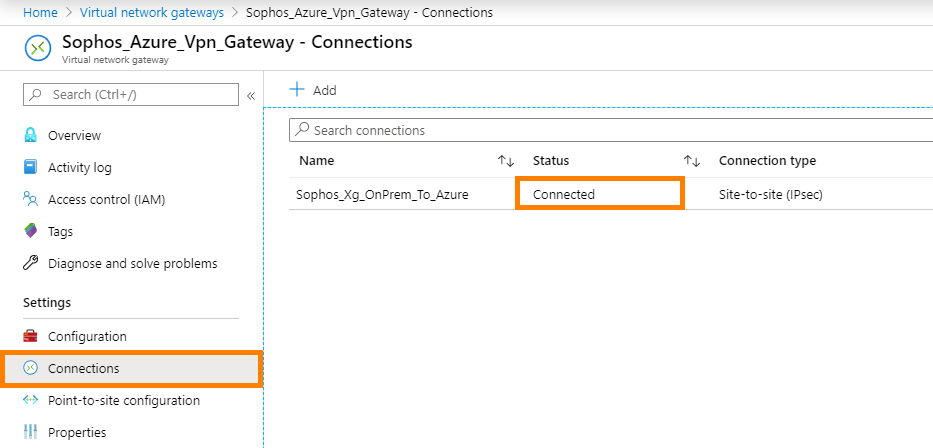
  3. In the Azure Portal: https://portal.azure.com, go to "Virtual network gateways" and select the virtual network that you connected to.
  4. In the "VPN Gateway" blade, in the "Settings" section, click on "Connections".
  5. In the "VPN Gateway - Connections" blade, ensure that the status of the connection is "Connected"


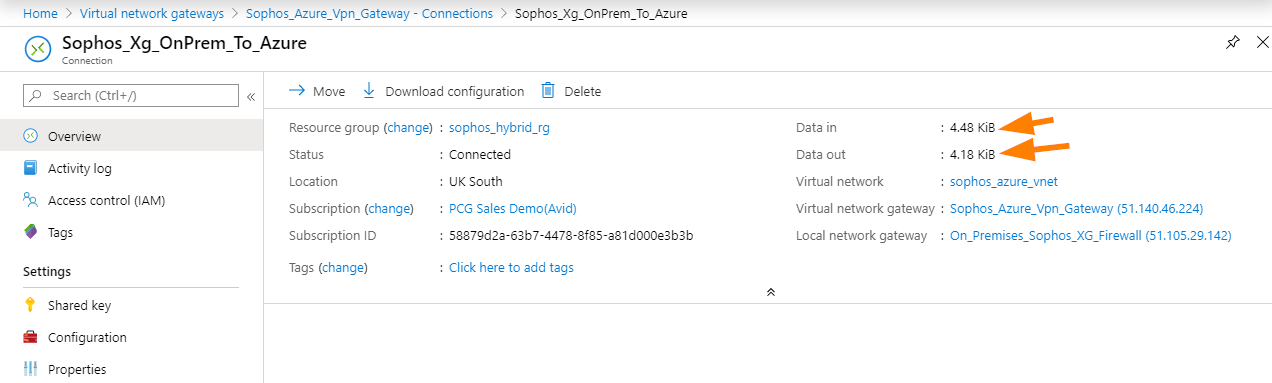
  6. Click on the connection and ensure that you're seeing data flow.
    • If you see 0B doesn't mean that the connection is not working, it just means that there's no data flow detected on the Azure side.

Things to watch out for

  1. Network Security Groups in Azure
    • If there's a network security group that's configured to block ports that you're attempting to connect on. This will cause issues.
  2. Route Table configuration in Azure
    • By default, the VPN Gateway automatically advertises the VPN subnets to the vNet route tables but watch out if you have user-defined routes that could override this.

Source: https://community.sophos.com/sophos-xg-firewall/f/recommended-reads/126356/sophos-xg-firewall-v18-to-azure-vpn-gateway-ipsec-connection


2025-02-11 05:27
Jason Cole

Add additional S2S connections to a VNet: Azure portal

Prerequisites

Verify the following items:

  • You are NOT configuring a new coexisting ExpressRoute and VPN Gateway Site-to-Site connection.
  • You have a virtual network that was created using the Resource Manager deployment model with an existing connection.
  • The virtual network gateway for your VNet is RouteBased. If you have a PolicyBased VPN gateway, you must delete the virtual network gateway and create a new VPN gateway as RouteBased.
  • None of the address ranges overlap for any of the VNets that this VNet is connecting to.
  • You have compatible VPN device and someone who is able to configure it. See About VPN Devices. If you aren't familiar with configuring your VPN device, or are unfamiliar with the IP address ranges located in your on-premises network configuration, you need to coordinate with someone who can provide those details for you.
  • You have an externally facing public IP address for your VPN device.

Configure a connection

  1. From a browser, navigate to the Azure portal and, if necessary, sign in with your Azure account.

  2. Select All resources and locate your virtual network gateway from the list of resources and select it.

  3. On the Virtual network gateway page, select Connections.

    VPN gateway connections

  4. On the Connections page, select +Add.

  5. This opens the Add connection page.

    Add connection page

  6. On the Add connection page, fill out the following fields:

    • Name: The name you want to give to the site you are creating the connection to.
    • Connection type: Select Site-to-site (IPsec).

Add a local network gateway

  1. For the Local network gateway field, select Choose a local network gateway. This opens the Choose local network gateway page.

  2. Select + Create new to open the Create local network gateway page.

    Create local network gateway page

  3. On the Create local network gateway page, fill out the following fields:

    • Name: The name you want to give to the local network gateway resource.
    • Endpoint: The public IP address of the VPN device on the site that you want to connect to, or the FQDN of the endpoint. If you want to create a connection to another VPN gateway, you can use the IP address of the other gateway in this field.
    • Address space: The address space that you want to be routed to the new local network site.
  4. Select OK on the Create local network gateway page to save the changes.

Add the shared key

  1. After creating the local network gateway, return to the Add connection page.
  2. Complete the remaining fields. For the Shared key (PSK), you can either get the shared key from your VPN device, or make one up here and then configure your VPN device to use the same shared key. The important thing is that the keys are exactly the same.

Create the connection

  1. At the bottom of the page, select OK to create the connection. The connection begins creating immediately.
  2. Once the connection completes, you can view and verify it.

View and verify the VPN connection

In the Azure portal, you can view the connection status of a VPN gateway by navigating to the connection. The following steps show one way to navigate to your connection and verify.

  1. In the Azure portal menu, select All resources or search for and select All resources from any page.

  2. Select to your virtual network gateway.

  3. On the blade for your virtual network gateway, click Connections. You can see the status of each connection.

  4. Click the name of the connection that you want to verify to open Essentials. In Essentials, you can view more information about your connection. The Status is 'Succeeded' and 'Connected' when you have made a successful connection.

    Screenshot to verify the connection.

Next steps

Once your connection is complete, you can add virtual machines to your virtual networks

Source: https://docs.microsoft.com/en-us/azure/vpn-gateway/vpn-gateway-howto-multi-site-to-site-resource-manager-portal

2022-09-05 08:50
Jason Cole

Microsoft Graph PowerShell SDK

Open PowerShell and prepare for installation

Set-ExecutionPolicy -ExecutionPolicy RemoteSigned -Scope CurrentUser
Set-PSRepository -Name PSGallery -InstallationPolicy
Trusted

Ensure the following PowerShell modules are installed.

# Install Microsoft.Graph module
Install-Module Microsoft.Graph -Scope CurrentUser

# Install Microsoft.Graph.Beta module
Install-Module Microsoft.Graph.Beta -Scope CurrentUser

Install Microsoft.Graph.Authentication module
Install-Module Microsoft.Graph.Authentication -Scope CurrentUser 

Connect to Microsoft.Graph

Connect-MgGraph -Scopes "User.Read.All","Group.ReadWrite.All","Organization.Read.All"

Source: Install the Microsoft Graph PowerShell SDK | Microsoft Learn
Source: Get started with the Microsoft Graph PowerShell SDK | Microsoft Learn

2023-11-07 01:48
Jason Cole

Change Office 365 licences CLI

In this example, we are changing from E3 to E5 licences for a list of users

Connect to your Microsoft 365 tenant using Microsoft Graph
https://wiki.jraustralia.com/index.php?action=faq&cat=2&id=92&artlang=en

Create a file called C:\temp\e3_users.txt with a single line for every user UPN who is moving to an E5 licence.

Note:

You need to replace "TenantName:ENTERPRISEPACK" and "TenantName:ENTERPRISEPACK_E5" with your actual tenant’s name and license name.
To find out the tenant name run: Get-MgOrganization | ft DisplayName
To list available licence names run: Get-MgSubscribedSku | ft SkuPartNumber


# Define the SKU IDs for the E3 and E5 licenses
$e3License = "TenantName:ENTERPRISEPACK"
$e5License = "TenantName:ENTERPRISEPACK_E5"

# Read the UPNs from the file
$upns = Get-Content -Path "C:\temp\e3_users.txt"

# Loop through each UPN and change the license
foreach ($upn in $upns) {
    # Get the user
    $user = Get-MgUser -UserId $upn

    # Remove the E3 license
    $user | Set-MgUserLicense -UserId $upn -RemoveLicenses $e3License -Confirm:$false

    # Add the E5 license
    $user | Set-MgUserLicense -UserId $upn -AddLicenses $e5License -Confirm:$false
}

You can combine the command to add and remove a licence in one go
Set-MgUserLicense -UserId $upn -AddLicenses $e5License -RemoveLicenses $e3License -Confirm:$false

2023-11-07 02:12
Jason Cole

Conditional Access for Expired AD Users

This article describes two methods to block access for expired Active Directory (AD) accounts using Microsoft Entra ID.


Option 1: Conditional Access Based on a Synced Attribute

Step 1: Tag Expired Users in Active Directory

Use the following PowerShell script to mark expired accounts by setting extensionAttribute1 to "Expired":

Get-ADUser -Filter * -Properties accountExpires | Where-Object {
    $_.accountExpires -ne 0 -and ([datetime]::FromFileTime($_.accountExpires) -lt (Get-Date))
} | ForEach-Object {
    Set-ADUser $_ -Replace @{extensionAttribute1="Expired"}
}

Step 2: Sync the Attribute to Microsoft Entra ID

  1. Open Entra Connect Sync Rules Editor.
  2. Create a new Inbound Sync Rule:
    • Name: Sync extensionAttribute1
    • Connected System: Active Directory
    • Connected System Object Type: user
    • Metaverse Object Type: person
    • Link Type: Join
    • Precedence: Higher than default rules
  3. Add a Transformation:
    • FlowType: Direct
    • Source: extensionAttribute1
    • Target Attribute: extensionAttribute1
  4. Run a full sync using PowerShell:
    Start-ADSyncSyncCycle -PolicyType Initial
    

Step 3: Create a Conditional Access Policy

  1. Go to Microsoft Entra admin center → Protection → Conditional Access.
  2. Click New policy.
  3. Name the policy: Block Expired Users.
  4. Configure Assignments:
    • Users: All users or a specific group
    • Cloud apps: All apps or specific ones (e.g., RDS)
  5. Set Conditions:
    • Filter for users:
      user.extensionAttribute1 -eq "Expired"
      
  6. Configure Access controls:
    • Grant: Block access
  7. Enable the policy.

Option 2: Dynamic Group + Conditional Access

Step 1: Tag and Sync Expired Users

Use the same PowerShell script and sync rule from Option 1.

Step 2: Create a Dynamic Group in Entra ID

  1. Go to Microsoft Entra admin center → Groups → New group.
  2. Set the following:
    • Group type: Security
    • Membership type: Dynamic User
    • Name: Expired AD Users
  3. Add a Dynamic Membership Rule:
    (user.extensionAttribute1 -eq "Expired")
    

Step 3: Create a Conditional Access Policy

  1. Go to Conditional Access → New policy.
  2. Name the policy: Block Expired Users via Group.
  3. Configure Assignments:
    • Users: Select the group Expired AD Users
    • Cloud apps: All or specific apps
  4. Configure Access controls:
    • Grant: Block access
  5. Enable the policy.

PowerShell Script Reference

Get-ADUser -Filter * -Properties accountExpires | Where-Object {
    $_.accountExpires -ne 0 -and ([datetime]::FromFileTime($_.accountExpires) -lt (Get-Date))
} | ForEach-Object {
    Set-ADUser $_ -Replace @{extensionAttribute1="Expired"}
}

2025-07-09 04:20
Jason Cole

Azure - Azure AD

Go to category

AzureAD Disable Security Defaults

  • Log into the 365 Admin Portal
  • From the left menu select "Azure Active Directory admin center"
  • From the left menu Select "Azure Active Directory"
  • Select "Properties" from the next menu
  • Click on "Manage Security defaults"
  • Change "enable Security defaults" to "NO"

2022-06-29 04:25
Jason Cole

Migrate Domain Joined to Azure AD

Well, there is a tool from ForensIT that migrate your machine and its user profile residing on local machine from domain or local to Azure AD join. You will need to create a deployment package using the wizard it provides and at the end it will create .exe file. Deploy that exe file either through GPO or through SCCM whichever works for you. Now one of thing here is, if you create provisioning package (.pkgg) file that is ask at one point, this .pkgg file can be created using Windows Configuration designer tool. Basically you will be able to automate the whole process of even joining the machine to Azure AD. So download windows configuration design tool (its free from MS and available in Windows Store) and follow the wizard very easy. At the end you will have .pkgg file. Use this file in ForensIT tool when it ask you to provide this at somepoint in wizard. At the end, you will .exe and all good.


When this .exe is run.

it will migrate the domain profile to Azure AD user profile such that all the settings, apps, desktop data everything stay as-is

it will disjoin the machine from the local AD

it will auto join the machine to azure ad using the provisioning package you created using WCD

you will need to reboot machine twice

that's it and you will have your machine fully Azure AD joined and with user profile and data intact!

Source: https://techcommunity.microsoft.com/t5/microsoft-entra-azure-ad/device-migration-from-on-prem-ad-to-azure-ad/m-p/1165192/page/2

2022-11-16 08:21
Jason Cole

Conditional Access for Expired AD Users

This article describes two methods to block access for expired Active Directory (AD) accounts using Microsoft Entra ID.


Option 1: Conditional Access Based on a Synced Attribute

Step 1: Tag Expired Users in Active Directory

Use the following PowerShell script to mark expired accounts by setting extensionAttribute1 to "Expired":

Get-ADUser -Filter * -Properties accountExpires | Where-Object {
    $_.accountExpires -ne 0 -and ([datetime]::FromFileTime($_.accountExpires) -lt (Get-Date))
} | ForEach-Object {
    Set-ADUser $_ -Replace @{extensionAttribute1="Expired"}
}

Step 2: Sync the Attribute to Microsoft Entra ID

  1. Open Entra Connect Sync Rules Editor.
  2. Create a new Inbound Sync Rule:
    • Name: Sync extensionAttribute1
    • Connected System: Active Directory
    • Connected System Object Type: user
    • Metaverse Object Type: person
    • Link Type: Join
    • Precedence: Higher than default rules
  3. Add a Transformation:
    • FlowType: Direct
    • Source: extensionAttribute1
    • Target Attribute: extensionAttribute1
  4. Run a full sync using PowerShell:
    Start-ADSyncSyncCycle -PolicyType Initial
    

Step 3: Create a Conditional Access Policy

  1. Go to Microsoft Entra admin center → Protection → Conditional Access.
  2. Click New policy.
  3. Name the policy: Block Expired Users.
  4. Configure Assignments:
    • Users: All users or a specific group
    • Cloud apps: All apps or specific ones (e.g., RDS)
  5. Set Conditions:
    • Filter for users:
      user.extensionAttribute1 -eq "Expired"
      
  6. Configure Access controls:
    • Grant: Block access
  7. Enable the policy.

Option 2: Dynamic Group + Conditional Access

Step 1: Tag and Sync Expired Users

Use the same PowerShell script and sync rule from Option 1.

Step 2: Create a Dynamic Group in Entra ID

  1. Go to Microsoft Entra admin center → Groups → New group.
  2. Set the following:
    • Group type: Security
    • Membership type: Dynamic User
    • Name: Expired AD Users
  3. Add a Dynamic Membership Rule:
    (user.extensionAttribute1 -eq "Expired")
    

Step 3: Create a Conditional Access Policy

  1. Go to Conditional Access → New policy.
  2. Name the policy: Block Expired Users via Group.
  3. Configure Assignments:
    • Users: Select the group Expired AD Users
    • Cloud apps: All or specific apps
  4. Configure Access controls:
    • Grant: Block access
  5. Enable the policy.

PowerShell Script Reference

Get-ADUser -Filter * -Properties accountExpires | Where-Object {
    $_.accountExpires -ne 0 -and ([datetime]::FromFileTime($_.accountExpires) -lt (Get-Date))
} | ForEach-Object {
    Set-ADUser $_ -Replace @{extensionAttribute1="Expired"}
}

2025-07-09 04:20
Jason Cole

Windows

Go to category

BGInfo Notes

@Echo off
 
C:\Support\Software\BGInfo\BGInfo.exe C:\Support\Software\BGInfo\BGINFO.bgi /Timer:0 /Silent /NoLicPrompt
 
EXIT


Correct Multiple monitor issues

Add this registry item

HKEY_CURRENT_USER\SOFTWARE\Microsoft\Windows NT\CurrentVersion\AppCompatFlags\Layers

Value Name: {Path}\BGInfo.exe ← change path to suit location of BGInfo

Value type: REG_SZ

Value data: ~ HIGHDPIAWARE

-----------------------------------------

ISSUE: High Resolution Screen not adjusting wallpaper as required Which led me to this KB:

Disable DPI virtualization for the application.

To do this, right-click the application’s shortcut and then click Properties.

On the Compatibility tab, select Disable Display Scaling On High DPI Settings, and then click OK.

https://support.microsoft.com/en-us/kb/2900023

'You still have to get into the Background settings and change Wallpaper Position to Stretch, or else I think it will centre the wallpaper, but it gets rid of the autonomous tiling behavior for me.'


Computername: <Host Name>

CPU: <CPU>

Memory: <Memory>

Free Space: <Free Space>

OS Version: <OS Version> - <OS Release>

User Name: <Logon Domain>\<User Name>

Supplied by IT Support


OS Version Detection

Pre 1909

HKEY_LOCAL_MACHINE\SOFTWARE\Microsoft\Windows NT\CurrentVersion\ReleaseID

Post 1909

HKEY_LOCAL_MACHINE\SOFTWARE\Microsoft\Windows NT\CurrentVersion\DisplayVersion


2022-06-29 04:27
Jason Cole

Common Support Folder Setup

Create a folder on C: Drive called Support

  1. Change security
    1. Disable Inheritance
    2. Setup users to Full access
  2. Share folder as Support
    1. Full Access for Everyone
  3. Create sub folders
    1. Logs
    2. Software
    3. Scripts

Logs folder to contain Logs from Scripts etc.

Software folder contains software packages we use

This can become, or be replaced by a general 'Installs' folder

Scripts folder contains all scripts we use, within their own folder to reduce confusion

Run below to create the above structure automatically on C Drive

(Hint: Copy all and paste in elevated CMD window)


MKDIR C:\Support\Logs\Logon\Users
MKDIR C:\Support\Logs\Logon\Computers
MKDIR C:\Support\Logs\Mapping
MKDIR C:\Support\Logs\LocalLogon
MKDIR C:\Support\Software
MKDIR C:\Support\Scripts
ICACLS C:\Support /grant:R "Administrators":F /inheritance:e
ICACLS C:\Support /grant "Authenticated Users":F
ICACLS C:\Support /grant "Support":F
ICACLS C:\Support /inheritance:d
NET SHARE Support=C:\Support /grant:everyone,FULL

2022-06-29 04:28
Jason Cole

Convert MBR to GPT

Run MBR2GPT in Full Windows OS to Convert MBR to GPT

MBR2GP tool is designed to be run in a Windows Preinstallation Environment (Windows PE) environment command prompt, but can also be run from the full Windows 10 operating system (OS) by using the /allowFullOS option.

1. Run Command Prompt (Admin) on your Windows 10.

2. Type command lines below and press enter after each one.

mbr2gpt /validate /allowFullOS

mbr2gpt /convert /allowFullOS

2022-06-29 04:39
Jason Cole

icacls Permission Command Line

Add Full permission to the Folder

icacls Folder /grant User:(OI)(CI)F /T

Remove 'Grant' Permission from Folder

icacls Folder /remove:G User

Remove 'Deny' Permission from Folder for User

icacls Folder /remove:D User

Remove inheritance

icacls Folder /inheritance:R

Remove inheritance but keep current permissions

icacls Folder /inheritance:D

Enable Inheritance & traverse directories

icacls Folder /inheritance:E /T

2023-10-09 04:37
Jason Cole

NSSM

Installation

1. Install Sophos SSL VPN Service as shown in "SSL Client Connection Setup"

2. Test SSL connection as OK before proceeding

3. Remove OpenVPN startup from registry
    HKLM\Software\WOW64Node\Microsoft\Windows\CurrentVersion\RUN\openvpn-gui

4. Create Batch file for service to use
    a. C:\EVITSupport\Scripts\SSL VPN\SophosCLIENTNAME.CMD
    e.g. C:\EVITSupport\Scripts\SSL VPN\SophosTLC.CMD

    b. Enter the following details changing the ovpn file name to suit
    "C:\Program Files (x86)\Sophos\Sophos SSL VPN Client\bin\openvpn-gui.exe" --config_dir "C:\Program Files (x86)\Sophos\Sophos SSL VPN Client\config\" --connect [email protected]

5. Download NSSM (Non-Sucking Service Manager)
    https://nssm.cc/download

6. Run the following command (first have nssm in C:\Program Files (x86)\Sophos\Sophos SSL VPN Client\conf and cd to that location as admin in cmd.
Then run following command
    a. .\nssm install SophosCLIENTNAME

7. In Application Tab enter
    Path:   C:\EVITSupport\Scripts\SSL VPN\SophosCLIENTNAME.CMD
    Startup directory   C:\EVITSupport\Scripts\SSL VPN

8. Under Details Tab enter
    Display Name    CLIENTNAME SSL Client AutoConnect
    Description CLIENTNAME SSL Client AutoConnect

9. Click Install Service

10. Under c:\programfiles (x86)\Sophos\config\USER
Drag user config to desktop, edit, under auth-pass make it auth-pass.txt
Make a pass.txt file with VPN username in top line and password line below.
Drag contents back into c:\programfiles (x86)\Sophos\config\

11. Restart workstation and confirm remote access

2022-08-16 01:46
Jason Cole

Power Config Command Line

AC Power commands

powercfg /change standby-timeout-ac 0

powercfg /change monitor-timeout-ac 0

powercfg /change hibernate-timeout-ac 0

Battery Power commands

powercfg /change standby-timeout-dc 0

powercfg /change monitor-timeout-dc 0

powercfg /change hibernate-timeout-dc 0

AC and DC determine 'on battery' and 'plugged in'

while 0 disables these options using a number for minutes will set the timeout

2022-07-27 04:03
Jason Cole

Remove Labtech

1. Services.msc

  1. Click Start, and select Control Panel.
  2. Select Administrative Tools.
  3. Click Services.
  4. Select ‘LabTech Monitoring Services’ and stop the service.
  5. Select ‘LabTech Monitoring Services CheckUp Util’ and stop the service.
  6. From a command prompt, run the following two commands to remove the services from the service list.
    • ‘sc delete ltservice’
    • ‘sc delete ltsvcmon’

2. Registry Editor

  1. From the registry editor remove the registry keys located underHKLM\Software\LabTech. If running a 64-bit OS, remove keys that may exist under HKLM\Software|Wow6432Node\LabTech.

3. Task Manager

  1. Right-click task bar.
  2. Select Start Task Manger.
  3. Under Processes tab, select ‘LTTray.exe’.
  4. Click End Process.

4. LTSvc file

  1. Go to c:\Windows.
  2. Right-click LTSvc and select Delete.
  3. Restart the machine.

2022-07-27 04:31
Jason Cole

Take Ownership of Files

Take Ownership of Folder and files

Takeown /A /R /D Y /F “Folder

2022-07-27 04:49
Jason Cole

Migrate Domain Joined to Azure AD

Well, there is a tool from ForensIT that migrate your machine and its user profile residing on local machine from domain or local to Azure AD join. You will need to create a deployment package using the wizard it provides and at the end it will create .exe file. Deploy that exe file either through GPO or through SCCM whichever works for you. Now one of thing here is, if you create provisioning package (.pkgg) file that is ask at one point, this .pkgg file can be created using Windows Configuration designer tool. Basically you will be able to automate the whole process of even joining the machine to Azure AD. So download windows configuration design tool (its free from MS and available in Windows Store) and follow the wizard very easy. At the end you will have .pkgg file. Use this file in ForensIT tool when it ask you to provide this at somepoint in wizard. At the end, you will .exe and all good.


When this .exe is run.

it will migrate the domain profile to Azure AD user profile such that all the settings, apps, desktop data everything stay as-is

it will disjoin the machine from the local AD

it will auto join the machine to azure ad using the provisioning package you created using WCD

you will need to reboot machine twice

that's it and you will have your machine fully Azure AD joined and with user profile and data intact!

Source: https://techcommunity.microsoft.com/t5/microsoft-entra-azure-ad/device-migration-from-on-prem-ad-to-azure-ad/m-p/1165192/page/2

2022-11-16 08:21
Jason Cole

VMware player only showing 2 cores in Windows

VMware player only allocates CPUs and not cores

Windows Desktop OS can only use 2 CPUs, thus only 2 cores are shown in Task Manager

Add/modify the following lines in the .VMX file to show 4 or more cores to Windows Desktop OS
numvcpus = "4"
cpuid.coresPerSocket = "2"

2023-10-24 09:07
Jason Cole

Reset Windows Update

Start CMD shell with Administrator rights

Run the following:

net stop bits /Y
net stop wuauserv /Y
net stop appidsvc /Y
net stop cryptsvc /Y
Del “%ALLUSERSPROFILE%\Application Data\Microsoft\Network\Downloader\*.*” /Q
rmdir %systemroot%\SoftwareDistribution /S /Q
rmdir %systemroot%\system32\catroot2 /S /Q
regsvr32.exe /s atl.dll
regsvr32.exe /s urlmon.dll
regsvr32.exe /s mshtml.dll
netsh winsock reset
netsh winsock reset proxy
net start bits
net start wuauserv
net start appidsvc
net start cryptsvc

2023-09-27 05:51
Jason Cole

Correct / Update SFC Scan cache

Is SFC /ScanNow is not able to correct files, this is due to the local cache files not being updated to the current version of Windows

Check SFC Cache files
DISM /Online /Cleanup-Image /ScanHealth

Correct SFC Cache files
DISM /Online /Cleanup-Image /Restorehealth

If issues, run from a local source image
Mount Currently installed Windows ISO
DISM /Online /Cleanup-Image /Restorehealth /Source:D:\Sources /LimitAccess

2023-09-22 04:51
Jason Cole

IIS SMTP Service Crashing When Accessing Settings

Editing IIS 6.0 Manager Settings to Prevent Crashes

To prevent the SMTP management window from crashing when right-clicking on the SMTP virtual server, follow these steps:

  1. Stop Services:

    • Stop the SMTPSVC service (Display Name: "Simple Mail Transfer Protocol (SMTP)").
    • Stop the IISADMIN service (Display Name: "IIS Admin Service").
  2. Edit metabase.xml:

    • Navigate to C:\Windows\System32\inetsrv\MetaBase.xml.

    • Locate the relevant configuration section IIsSmtpServer    Location ="/LM/SmtpSvc/1".

    • Add the following attributes within the  section:

      <IIsSmtpServer    Location ="/LM/SmtpSvc/1"
          RelayIpList="127.0.0.1"
      />
  3. Save the metabase.xml File:

    • Save the changes to the metabase.xml file.
  4. Restart Services:

    • Start the IISADMIN service.
    • Start the SMTPSVC service.
  5. Verify Changes:

    • Open the Internet Information Services (IIS) 6.0 Manager (InetMgr6.exe) and verify that it operates normally.

Additional Considerations

  • These steps have been tested on several new installations of Windows Server 2022 and have consistently worked.
  • For upgraded systems, note that the SMTP service may not be installed post-upgrade. You will need a backup of the settings to apply after reinstalling the service.
  • Tip: Set the SMTPSVC service to start "Automatically" as it is set to "Manual" by default.

2026-01-06 01:45
Jason Cole

PowerShell Commands for Time Zones

PowerShell Commands for Time Zones

1. Set-TimeZone

The Set-TimeZone cmdlet allows you to set the system time zone to a specified value. You can use either the time zone ID or the time zone name. Here are some examples:

Example 1: Set the time zone by ID

Set-TimeZone -id "E. Australia Standard Time"

This command sets the time zone on the local computer to E. Australia Standard Time. The ID corresponds to the specific time zone you want to set. In this case, it’s the time zone for Eastern Australia.

Example 2: Set the time zone by name

Set-TimeZone -Name 'E. Australia Standard Time' -PassThru

In this example, we set the time zone to E. Australia Standard Time using its name. Note that the name parameter must match either the StandardName or DaylightName properties of the TimeZoneInfo object. The actual time zone names can vary based on the culture settings in Windows.

2. Get-TimeZone

The Get-TimeZone cmdlet retrieves information about the current time zone or provides a list of available time zones.

Example 1: Get the current time zone

Get-TimeZone

This command displays information about the current time zone on your system.

Example 2: Get time zones that match a specified string

Get-TimeZone -Name "*pac*"

The wildcard search retrieves all time zones containing the specified string (in this case, “pac”). For instance, it might return time zones like:

  • Pacific Standard Time (Mexico)
  • (UTC-08:00) Pacific Time (US & Canada)
  • Pacific Standard Time
  • SA Pacific Standard Time
  • Pacific SA Standard Time
  • West Pacific Standard Time
  • Central Pacific Standard Time

Example 3: Get all available time zones

Get-TimeZone -ListAvailable

This command provides a comprehensive list of all available time zones.


Sources:

  1. Set-TimeZone - Microsoft Learn
  2. Get-TimeZone - Microsoft Learn
  3. Setting the Time Zone through PowerShell - MonoVM
  4. How to set TimeZone using Powershell - Stack Overflow
 

2024-08-13 01:53
Jason Cole

CMD Commands for Time Zones

Managing Time Zones with tzutil

1. Display Current Time Zone

To retrieve information about the current time zone, use the following command:

tzutil /g

This will display the current time zone ID. For example, if you’re in the Brisbane zone, it will show:

E. Australia Standard Time

2. List Available Time Zones

To view a list of all valid time zone IDs and their display names, run:

tzutil /l

The output will show pairs of display names and corresponding time zone IDs. For instance:

(UTC+10:00) Brisbane
E. Australia Standard Time

3. Set Time Zone

To set the system time zone, use the /s switch followed by the desired time zone ID.
You can also disable Daylight Saving Time adjustments using the _dstoff suffix (where applicable):

Example: Set to E. Australia Standard Time (Brisbane)

tzutil /s "E. Australia Standard Time"

Example: Set to AUS Eastern Standard Time (Canberra, Melbourne, Sydney) with DST disabled

tzutil /s "AUS Eastern Standard Time_dstoff"

Remember to run these commands with administrative privileges.


References:

  1. tzutil - Microsoft Learn
  2. How to change Time Zone using Tzutil Utility
  3. Error changing time zone in Windows Server 2019: Use the command line or PowerShell instead
  4. How to Set Timezone from Command Prompt in Windows
 

2024-04-02 01:30
Jason Cole

How to Identify Your RDS License Server

Using PowerShell to Find Your RDS License Server

  1. Open PowerShell: Press Win + X and select “Windows PowerShell” or “Windows PowerShell (Admin)” from the menu.

  2. Run the Command:

    • Type the following command and press Enter:
    (Get-WmiObject -Namespace root\CIMV2\TerminalServices Win32_TerminalServiceSetting).GetSpecifiedLicenseServerList()
    

    This command queries the WMI (Windows Management Instrumentation) namespace to retrieve information about the specified license server.

  3. Review the Output:

    • The output will display the license server(s) configured for your RDS environment.
    • If you see multiple servers, they will be listed sequentially.

Verifying the License Server

  • Once you have the license server information, verify it against your licensing documentation or contact your system administrator to ensure accuracy.

2024-04-03 03:49
Jason Cole

Setup Taskbar when Windows Workstation/Server Unregistered

This will configure the user desktop on an unlicensed Windows Workstation/System

The following registry entries should be added and Explorer.exe restarted

HKEY_CURRENT_USER\Software\Microsoft\Windows\CurrentVersion\Explorer\Advanced
TaskbarGlomLevel = dword:00000002 -> Combine Taskbar icons when the taskbar is full 
HideFileExt = dword:00000000 -> Show File Extensions
NavPaneExpandToCurrentFolder = dword:00000001 -> Expand to open folder in Navigation pane

Restart Explorer.exe to allow the changes to become active.

To show all icons and notifications on the task bat run
explorer shell:::{05d7b0f4-2121-4eff-bf6b-ed3f69b894d9}

The above can be executed by a CMD script. (Reg and CMD batch files available)

@Echo off
Echo Running script in folder %~dp0
c:\Windows\System32\regedt32.exe /s %~dp0\taskbar_setup.reg
taskkill /f /im explorer.exe
start explorer.exe
Timeout 3
explorer shell:::{05d7b0f4-2121-4eff-bf6b-ed3f69b894d9}
exit /b

2025-02-11 05:20
Jason Cole

Installing and Uninstalling Programs in Safe Mode

Installing and Uninstalling Programs in Safe Mode

Introduction

Safe Mode is a diagnostic mode in Windows that starts the operating system with a minimal set of drivers and services. This can be useful for troubleshooting issues. However, by default, the Windows Installer service is not available in Safe Mode, which can prevent the installation or uninstallation of programs. This guide will show you how to enable the Windows Installer service in Safe Mode.

Steps

  1. Open an Elevated Command Prompt in Safe Mode
    • Boot your computer into Safe Mode.
    • Open an elevated command prompt.
    • You can do this by searching for cmd in the Start menu, right-clicking on Command Prompt, and selecting Run as administrator.
  2. Add the Windows Installer Service to Safe Mode

    Copy and paste the following commands into the elevated command prompt one at a time, pressing Enter after each command:

    REG ADD "HKLM\SYSTEM\CurrentControlSet\Control\SafeBoot\Minimal\MSIServer" /VE /T REG_SZ /F /D "Service"
    REG ADD "HKLM\SYSTEM\CurrentControlSet\Control\SafeBoot\Network\MSIServer" /VE /T REG_SZ /F /D "Service"
    net start msiserver
        

    The first two commands add the “Service” registry value to include the Windows Installer service in Safe Mode. The third command starts the Windows Installer service.

  3. Close the Elevated Command Prompt

    Once the commands have been executed successfully, close the elevated command prompt.

  4. Install or Uninstall Programs

    You should now be able to install and uninstall programs while in Safe Mode.

Conclusion

By following these steps, you can enable the Windows Installer service in Safe Mode, allowing you to manage your programs even when troubleshooting your system. This can be particularly useful for removing problematic software or installing essential updates.

2026-01-06 01:31
Jason Cole

IIS SMTP Service Crashing When Sending Email

Editing IIS 6.0 to Prevent Crashes when Sending Emails

To prevent the SMTP Service from crashing when sending email, follow these steps:

Stop Services

  • Stop the SMTPSVC service (Display Name: Simple Mail Transfer Protocol (SMTP)).
  • Stop the IISADMIN service (Display Name: IIS Admin Service).

Edit metabase.xml

  1. Navigate to C:\Windows\System32\inetsrv\MetaBase.xml.
  2. Locate the relevant configuration section IIsSmtpServer    Location ="/LM/SmtpSvc/1".
  3. Add/modify the following attributes:
    <IIsSmtpServer    Location ="/LM/SmtpSvc/1"
        RelayIpList="127.0.0.1"
        MaxConnections="20"
        ConnectionTimeout="60"
    />

Save the metabase.xml File

Save the changes to the metabase.xml file.

Restart Services

  • Start the IISADMIN service.
  • Start the SMTPSVC service.

Verify Changes

Open the Internet Information Services (IIS) 6.0 Manager (InetMgr6.exe) and verify that it operates normally.

Additional Considerations

  • These steps have been tested on several new installations of Windows Server 2022 and have consistently worked.
  • For upgraded systems, note that the SMTP service may not be installed post-upgrade. You will need a backup of the settings to apply after reinstalling the service.
  • Tip: Set the SMTPSVC service to start Automatically as it is set to Manual by default.

2026-01-06 01:45
Jason Cole

How to Disable the Blur Effect on the Windows Logon Screen

The Windows logon screen features an Acrylic blur effect, which adds a frosted glass appearance to the background image.
While this visual feature enhances aesthetics, some users prefer a clear background for performance or personal preference.
This article outlines two methods to disable the blur effect.


Applicable Versions

  • Windows 10 (version 1903 and later)
  • Windows 11
  • Editions: Pro, Enterprise, Education (Group Policy method); All editions (Registry method)

Method 1: Using Group Policy Editor

Note: This method is available only on Windows Pro, Enterprise, and Education editions.

Steps:

  1. Press Win + R, type gpedit.msc, and press Enter.
  2. Navigate to:
    Computer Configuration > Administrative Templates > System > Logon
  3. Double-click Show clear logon background.
  4. Select Enabled.
  5. Click OK to apply the change.
  6. Restart your computer.

Method 2: Using Registry Editor

Note: This method works on all Windows editions, including Home.

Steps:

  1. Press Win + R, type regedit, and press Enter.
  2. Navigate to:
    HKEY_LOCAL_MACHINE\SOFTWARE\Policies\Microsoft\Windows\System
  3. If the System key does not exist:
    • Right-click on Windows, select New > Key, and name it System.
  4. Inside the System key:
    • Right-click and select New > DWORD (32-bit) Value.
    • Name the value: DisableAcrylicBackgroundOnLogon.
    • Set its value to 1.
  5. Close the Registry Editor.
  6. Restart your computer.

Result

After applying either method, the login screen will display a clear background image instead of the blurred effect.

2025-07-25 01:31
Jason Cole

Windows Registry: DateTime Servers

Summary

This article documents how Windows stores and presents the list of available Internet time (NTP) servers in the Date and Time Control Panel, and how to set the default server selection via the registry. It covers the registry path, value semantics, example configuration, deployment guidance, and related considerations.


Registry Location

  • Path: HKEY_LOCAL_MACHINE\SOFTWARE\Microsoft\Windows\CurrentVersion\DateTime\Servers
  • Scope: Machine-wide
  • Purpose: Populates the drop-down list of NTP servers shown in Control Panel → Date and Time → Internet Time → Change settings… and controls which entry is selected by default.

Value Semantics

Within …\DateTime\Servers, values are organised as:

  • Default (REG_SZ): The numeric index (as a string) of the currently selected server from the list.
    Example: @ = "1" means the server labelled "1" is selected by default in the UI.
  • Numbered REG_SZ values (1, 2, 3, …): Each numbered value contains a server hostname (or FQDN).
    Example:
    • "1" = "clock.isc.org"
    • "2" = "north-america.pool.ntp.org"

Important:
This registry key affects the UI list and default selection. It does not itself configure the Windows Time (W32Time) service’s operational peers (which are controlled by HKLM\SYSTEM\CurrentControlSet\Services\W32Time\Parameters\NtpServer and related policy keys). However, when users click Update now or use the Internet Time UI, Windows will attempt to synchronize with the selected server.


Example Configuration (.reg)

Windows Registry Editor Version 5.00

[HKEY_LOCAL_MACHINE\SOFTWARE\Microsoft\Windows\CurrentVersion\DateTime\Servers]
@="1"
"1"="clock.isc.org"
"2"="north-america.pool.ntp.org"

Behavior:

  • The Internet Time settings dialogue will show two choices: clock.isc.org and north-america.pool.ntp.org.
  • The default selection (highlighted when opening the dialogue) will be clock.isc.org (index "1").

Typical Use Cases

  • Standardising the UI list of NTP servers for end-users across an organisation.
  • Pre-selecting a preferred server so users see a vetted choice by default.
  • Complementing W32Time configuration (e.g., via Group Policy) with a curated UI list.

How to Deploy

Option A — Import the .reg File

  1. Save the above snippet as DateTimeServers.reg.
  2. Run as Administrator:
    • Double-click the file and accept the prompt, or
    • Execute via command line:
      reg import DateTimeServers.reg

Option B — Use PowerShell

$base = 'HKLM:\SOFTWARE\Microsoft\Windows\CurrentVersion\DateTime\Servers'
New-Item -Path $base -Force | Out-Null

# Set default selection to index "1"
New-ItemProperty -Path $base -Name '(default)' -Value '1' -PropertyType String -Force | Out-Null

# Populate list entries
New-ItemProperty -Path $base -Name '1' -Value 'clock.isc.org' -PropertyType String -Force | Out-Null
New-ItemProperty -Path $base -Name '2' -Value 'north-america.pool.ntp.org' -PropertyType String -Force | Out-Null

Note: Setting '(default)' requires this specific name to target the default value in PowerShell.


Verification

  1. Open Control Panel → Date and Time → Internet Time → Change settings….
  2. Confirm the server dropdown lists:
    • clock.isc.org
    • north-america.pool.ntp.org
  3. Confirm the default selection matches the index set in @ (e.g., "1"clock.isc.org).
  4. (Optional) Click Update now to test reachability/sync.

Interaction with Windows Time (W32Time)

  • The UI list is not the authoritative configuration for continuous time sync in domain or service scenarios.
  • For service-level peers, configure:
    • HKLM\SYSTEM\CurrentControlSet\Services\W32Time\Parameters\NtpServer
    • HKLM\SYSTEM\CurrentControlSet\Services\W32Time\TimeProviders\NtpClient\SpecialPollInterval
    • Or via Group Policy:
      Computer Configuration → Administrative Templates → System → Windows Time Service → Time Providers
  • In Active Directory domains, members typically sync from the domain hierarchy (PDC Emulator). The Internet Time UI is often hidden/disabled for domain-joined machines.

Best Practices & Considerations

  • Prefer pool addresses (e.g., *.pool.ntp.org) for resiliency.
  • Firewall: Allow outbound UDP 123 to reach public NTP servers (if using Internet servers).
  • Security/Trust: For regulated environments, use internal NTP sources (GPS-backed or upstream-stratum) and restrict external NTP.
  • Latency & Accuracy: Choose geographically close pools (e.g., oceania.pool.ntp.org for AU/NZ environments) to improve stability.
  • Domain-Joined Machines: Rely on AD time hierarchy unless policy dictates external NTP.
  • Monitoring: Use w32tm /query /status and w32tm /query /peers to inspect operational sync status.

Troubleshooting

  • Sync fails via UI:
    • Check DNS resolution (nslookup <server>).
    • Verify UDP 123 outbound is permitted.
    • Test with w32tm /stripchart /computer:<server> /samples:5 /dataonly.
  • UI list not updating:
    • Confirm registry values under …\DateTime\Servers are present and of type REG_SZ.
    • Reopen the Internet Time dialogue to refresh.
  • Domain-joined behaviour:
    • UI may be disabled by policy. Review GPOs under Windows Time Service.

Related Keys & Commands

  • Service peers:
    HKLM\SYSTEM\CurrentControlSet\Services\W32Time\Parameters\NtpServer
  • NTP Client settings:
    HKLM\SYSTEM\CurrentControlSet\Services\W32Time\TimeProviders\NtpClient\SpecialPollInterval
  • Commands:
    w32tm /query /status
    w32tm /query /peers
    w32tm /resync

Change History

  • Added servers: clock.isc.org, north-america.pool.ntp.org
  • Default selection: Index "1" (clock.isc.org)

Appendix: Original Registry Entry

Windows Registry Editor Version 5.00

[HKEY_LOCAL_MACHINE\SOFTWARE\Microsoft\Windows\CurrentVersion\DateTime\Servers]
@="1"
"1"="clock.isc.org"
"2"="north-america.pool.ntp.org"

2026-01-05 02:17
Jason Cole

Disk Cleanup using DISM: Component Store Cleanup (StartComponentCleanup & ResetBase)

The Deployment Imaging Servicing and Management (DISM) tool can service Windows images and the online operating system. The /StartComponentCleanup option reduces the size of the WinSxS (component store) by removing superseded versions of components. Optionally, the /ResetBase switch can further reduce size by making the current component versions the new baseline (permanently removing the ability to roll back to earlier versions of those components).


Quick Summary

  • dism /online /cleanup-image /startcomponentcleanup — Removes superseded component versions and performs a standard cleanup.
  • /resetbase — Permanently sets current versions as baseline and removes the ability to uninstall prior updates.

Prerequisites

  • Administrator privileges are required.
  • Run in an elevated Command Prompt or PowerShell.
  • Ensure sufficient free disk space (cleanup can temporarily require extra space while processing).
  • Close applications that may be updating system components.

Syntax

DISM /Online /Cleanup-Image /StartComponentCleanup [/ResetBase] [/NoRestart] [/Quiet]

Parameters

/Online
Targets the currently running operating system.
/Cleanup-Image
Specifies image maintenance operations.
/StartComponentCleanup
Removes superseded (older) component versions from the WinSxS store to reduce size.
/ResetBase
Irreversible: sets current component versions as the baseline; prevents uninstall of updates superseded by the cleanup.
/NoRestart
Prevents automatic restart if a reboot would be required.
/Quiet
Suppresses verbose output.

Recommended Usage

Standard Cleanup (Safe)

dism /online /cleanup-image /startcomponentcleanup

Use this regularly to keep the component store trimmed. It should not affect the ability to uninstall updates.

Aggressive Cleanup with Baseline Reset (Irreversible)

dism /online /cleanup-image /startcomponentcleanup /resetbase

Use this sparingly—typically after a maintenance window when the system is stable and updates have been vetted. After running with /resetbase, previously superseded updates cannot be uninstalled.


When to Use Each Option

Scenario Recommended Command Notes
Routine maintenance to reduce WinSxS size /startcomponentcleanup Safe; retains ability to uninstall most updates.
Locked-in baseline after successful patch cycle /startcomponentcleanup /resetbase Irreversible; cannot remove older/superseded updates afterward.
Automated/silent execution /startcomponentcleanup /quiet /norestart Use in scripts; schedule during low-usage windows.

Examples

1) Basic Cleanup

cmd
dism /online /cleanup-image /startcomponentcleanup

2) Cleanup Without Auto-Restart

cmd
dism /online /cleanup-image /startcomponentcleanup /norestart

3) Aggressive Cleanup (Reset Baseline)

cmd
dism /online /cleanup-image /startcomponentcleanup /resetbase

4) Silent Mode for Scripts

cmd
dism /online /cleanup-image /startcomponentcleanup /quiet /norestart

Operational Notes

  • Performance: Cleanup can take several minutes; longer on systems with extensive update history.
  • Disk Space: Expect savings in the WinSxS folder; the actual reduction depends on the number of superseded components.
  • Logging: Review %WINDIR%\Logs\DISM\dism.log for detailed diagnostics.
  • Servicing Stack: If DISM errors, ensure the latest Servicing Stack Update (SSU) is installed.

Best Practices

  1. Run sfc /scannow first if you suspect component corruption.
  2. Follow with dism /online /cleanup-image /restorehealth if SFC reports issues that it cannot fix.
  3. Use /startcomponentcleanup regularly (e.g., monthly) after Patch Tuesday.
  4. Reserve /resetbase for systems with proven stability where rollback is not needed.
  5. Schedule during maintenance windows and monitor dism.log.

Troubleshooting

Error 0x800f081f (source files not found)
Point DISM to repair sources or run /restorehealth first. Example:
dism /online /cleanup-image /restorehealth
Access denied
Ensure the shell is running as Administrator.
Cleanup yields minimal savings
There may be few or no superseded components; savings vary by update history.

Frequently Asked Questions (FAQ)

Does /resetbase delete all updates?

No. It removes older/superseded component versions and sets current versions as the baseline. You cannot uninstall those superseded updates afterward.

Will I need to reboot?

Not always. Some cleanups require a restart. Use /norestart to prevent automatic reboot in unattended scenarios and plan a controlled restart later.

Is this the same as Disk Cleanup?

No. Disk Cleanup targets various files (temp, thumbnails, etc.). DISM focuses on the component store (WinSxS) used by servicing and updates.


Change Control Template (Optional)

Title: WinSxS Component Store Cleanup (DISM)
System: 
Window: 
Command(s):
  dism /online /cleanup-image /startcomponentcleanup [/resetbase] [/quiet] [/norestart]
Backout Plan: Not applicable when using /resetbase (irreversible)
Validation:
  - Check %WINDIR%\Logs\DISM\dism.log
  - Verify system stability and disk space reduction

References

  • https://learn.microsoft.com/windows-hardware/manufacture/desktop/dism-operationsMicrosoft Docs: DISM Operations
  • https://learn.microsoft.com/windows-hardware/manufacture/desktop/clean-up-the-winSxS-folderMicrosoft Docs: Clean up the WinSxS folder

2026-01-27 03:13
Jason Cole

Windows - Scripts

Go to category

Create Users Folders Script

Scripermissionsons not worknig as expected

Creates user folder as user logs in with Administrator and user permissions

@Echo off
if exist \\SERVER\USers$\%USERNAME%\ GOTO END
 
:CREATE
MKDIR \\SERVER\Users$\%USERNAME%
icacls \\SERVER\Users$\%USERNAME% /Inheritance:R
TAKEOWN /F \\SERVER\Users$\%USERNAME% /A /R /D Y
icacls \\SERVER\Users$\%USERNAME% /grant Support:(OI)(CI)F
icacls \\SERVER\Users$\%USERNAME% /grant Administrators:(OI)(CI)F
icacls \\SERVER\Users$\%USERNAME% /grant %USERNAME%:(OI)(CI)F
EXIT
 
:END
EXIT

2022-06-29 04:43
Jason Cole

Local Admin Policy

Create a new Group Policy called Local Admin Policy under the Workstation OU folder

* Do not place in the root of AD Group Policy *

Set up, or copy, a batch file called Local_Admin.ps1 and set to run at startup for Computers only

Ensure the file is placed in the default SYSVOL Location

# Administrator Password
$password = "CustomPassword"

# Create SecureString
$secpassword = ConvertTo-SecureString $password -AsPlainText -Force

# Enable the local Administrator account
Net user Administrator /active:yes

# Set password and account settings for Administrator
Set-LocalUser -Name Administrator -Password $secpassword -AccountNeverExpires
Set-LocalUser -Name Administrator -PasswordNeverExpires $true

# Create additional accounts
New-LocalUser -Name "Support" -Password $secpassword -Description "Administrative user account" -AccountNeverExpires

# Set password never expires for additional accounts
Set-LocalUser -Name "Support" -PasswordNeverExpires $true

# Add Additional accounts to Administrators group
Add-LocalGroupMember -Group "Administrators" -Member "Support"

# Delete Existing Local Account called 'Temp'
Remove-LocalUser -Name "Temp"


Batch file Solution
Set up, or copy, a batch file called Local_Admin.CMD and set to run at startup for Computers only

@Echo off
 
:: Deactivate old Local Admin Accounts
NET USER Supervisor /ACTIVE:NO
NET USER SetupUser /ACTIVE:NO
NET USER Install /ACTIVE:NO
 
::Activate local Administrator account and set a password
NET USER Administrator /ACTIVE:YES /PASSWORDCHG:NO
NET USER Administrator "StrongPassword1" /ADD /PASSWORDCHG:NO /Y
NET USER Administrator "StrongPassword1"
 
::Create new Local Admin accounts
NET USER InstallUser "StrongPassword2" /ADD /PASSWORDCHG:NO /Y
NET USER InstallUser "StrongPassword2"
NET USER Support "StrongPassword3" /ADD /PASSWORDCHG:NO /Y
NET USER Support "StrongPassword3"
 
::Set new local Admin accounts to never expire
wmic UserAccount where Name='InstallUser' set PasswordExpires=False
NET USER InstallUser /EXPIRES:NEVER
NET USER InstallUser /ACTIVE:YES
 
wmic UserAccount where Name='Support' set PasswordExpires=False
NET USER Support /EXPIRES:NEVER
NET USER Support /ACTIVE:YES
 
wmic UserAccount where Name='Administrator' set PasswordExpires=False
NET USER Administrator /EXPIRES:NEVER
NET USER Administrator /ACTIVE:YES
 
::Configure new account with local Administrator Rights
NET LOCALGROUP Administrators InstallUser /ADD
NET LOCALGROUP Administrators Support /ADD
 
EXIT

2025-11-05 00:18
Jason Cole

Log Drive Maps and Printers

Requires:

Shared C:\Support folder on the server

Folder X:\Support\Logs\Mapping

Notes:

Setup scripts (Log_Mapping.ps1) for Group Policy under User Configuration


# Set site Variables
$Server = "SERVERNAME"
$Share = "Support"

# Create required Folders
New-Item -ItemType Directory -Path "\\$Server\$Share\Logs\Mapping" | Out-Null

# Prepare Log File
"===========================================================================================" | Out-File "\\$Server\$Share\Logs\Mapping\$env:USERNAME.TXT" -Append
"$env:USERNAME Logged onto $env:COMPUTERNAME on $(Get-Date) at $(Get-Date -Format T)" | Out-File "\\$Server\$Share\Logs\Mapping\$env:USERNAME.TXT" -Append

# Get the mapped drive information
"Mapped Drives:" | Out-File "\\$Server\$Share\Logs\Mapping\$env:USERNAME.TXT" -Append
"`n" | Out-File "\\$Server\$Share\Logs\Mapping\$env:USERNAME.TXT" -Append
Get-PSDrive | Where-Object {$_.DriveType -eq '3'} | ForEach-Object {
$drive = $_.Name
$path = $_.Root

# Append the information to a file on a server
"$env:USERNAME Logged onto $env:COMPUTERNAME on $(Get-Date) at $(Get-Date -Format T)" | Out-File "\\$Server\$Share\Logs\Mapping\$env:USERNAME.TXT" -Append
}

# Get the installed printer information
Get-WmiObject -Class Win32_Printer | Select-Object Name, SystemName, ShareName | Format-Table | Out-String | Out-File "\\$Server\$Share\Logs\Mapping\$env:USERNAME.TXT" -Append

# Get Profile Folder Location
Get-ItemProperty -Path "HKCU:\Software\Microsoft\Windows\CurrentVersion\Explorer\User Shell Folders" -Name "Personal" | Select-Object -ExpandProperty "Personal" | Out-File "\\$Server\$Share\Logs\Mapping\$env:USERNAME.TXT" -Append
Get-ItemProperty -Path "HKCU:\Software\Microsoft\Windows\CurrentVersion\Explorer\User Shell Folders" -Name "Desktop" | Select-Object -ExpandProperty "Desktop" | Out-File "\\$Server\$Share\Logs\Mapping\$env:USERNAME.TXT" -Append
Get-ItemProperty -Path "HKCU:\Software\Microsoft\Windows\CurrentVersion\Explorer\User Shell Folders" -Name "My Music" | Select-Object -ExpandProperty "My Music" | Out-File "\\$Server\$Share\Logs\Mapping\$env:USERNAME.TXT" -Append
Get-ItemProperty -Path "HKCU:\Software\Microsoft\Windows\CurrentVersion\Explorer\User Shell Folders" -Name "My Pictures" | Select-Object -ExpandProperty "My Pictures" | Out-File "\\$Server\$Share\Logs\Mapping\$env:USERNAME.TXT" -Append
Get-ItemProperty -Path "HKCU:\Software\Microsoft\Windows\CurrentVersion\Explorer\User Shell Folders" -Name "My Video" | Select-Object -ExpandProperty "My Video" | Out-File "\\$Server\$Share\Logs\Mapping\$env:USERNAME.TXT" -Append
"Logon Server: $env:logonserver" | Out-File "\\$Server\$Share\Logs\Mapping\$env:USERNAME.TXT" -Append

EXIT

2024-06-28 09:16
Jason Cole

Log Windows Version

Requires:

Shared C:\Support folder on the server

Folder X:\Support\Logs\System_Versions

Notes:

Setup scripts (OSVer.ps1) for Group Policy under User Configuration


# Set site Variables
$URL = "db.jraustralia.com/files/WinVerDB.zip"
$SERVER = "ServerName"
$SHARE = "Support"
$Workingfolder = (gi $env:temp).fullname

# If Powershell to old to run Excpand-Archive, use this value as an alert
$OSVer = "PS_Too_Old"

# Update CSV File
Invoke-WebRequest -Uri $URL -OutFile "$Workingfolder\WinVerDB.zip"
Expand-Archive "$Workingfolder\WinVerDB.zip" "$Workingfolder" -Force

# Prepare Locations
New-Item -ItemType Directory -Path "\\$SERVER\$SHARE\Logs\System_Versions"

# Determine Windows Build Number
$OSBuild = (Get-WmiObject Win32_OperatingSystem).BuildNumber

# Determine Windows Version from Build Number using WinVerDB.csv
$OSVer = Select-String -Path "$Workingfolder\WinVerDB.csv" -Pattern $OSBuild | Select-Object -ExpandProperty Line | Select-String -Pattern '^[^,]*' -AllMatches | Select-Object -ExpandProperty Matches | Select-Object -ExpandProperty Value

# Locate Windows Product Name from Registry
$ProductName = (Get-ItemProperty 'HKLM:\SOFTWARE\Microsoft\Windows NT\CurrentVersion').ProductName

# Write details to file
$FileContent = "$OSVer $ProductName"
Set-Content -Path "\\$SERVER\$SHARE\Logs\System_Versions\$OSVer`_$env:COMPUTERNAME.TXT" -Value $FileContent

EXIT

2025-02-11 05:19
Jason Cole

Logging user LogOn and LogOff

Requires:

Server:

Shared Support folder on the server

Folder X:\Support\Logs\Logon\Users

Folder X:\Support\Logs\Logon\Computers

Workstation:

Folder X:\Support\Logs\LocalLogon

Notes:

Setup two scripts (Logon.CMD and Logoff.CMD) for Group Policy under User Configuration


Logon.ps1

Set site Variables
$Server = "SERVERNAME"
$Share = "Support"

# Get Variables
$username = $env:USERNAME
$computerName = $env:COMPUTERNAME
$date = Get-Date -Format "dd/MM/yyyy"
$time = Get-Date -Format "HH:mm:ss"

# Query Session
$sessionInfo = quser $username | Select-String '>'
$sessionNum = ($sessionInfo -split '\s+')[2]
$clientName = (Get-ItemProperty "HKCU:\Volatile Environment\$sessionNum").ClientName

# Create local logon directory if it doesn't exist
New-Item -ItemType Directory -Path "C:\$Share\Logs\LocalLogon" -ErrorAction SilentlyContinue

# Create Log files
Add-Content "\\$Server\$Share\Logs\logon\Users\$username.TXT" "$username logged on to $computerName at $time on $date from $clientName"
Add-Content "\\$Server\$Share\Logs\logon\Computers\$computerName.TXT" "$username logged on to $computerName at $time on $date from $clientName"

Add-Content "C:\$Share\Logs\LocalLogon\$username.TXT" "$username logged on to $computerName at $time on $date from $clientName"
Add-Content "C:\$Share\Logs\LocalLogon\$computerName.TXT" "$username logged on to $computerName at $time on $date from $clientName"

Exit


LogOff.ps1

Set site Variables
$Server = "SERVERNAME"
$Share = "Support"

# Get Variables
$username = $env:USERNAME
$computerName = $env:COMPUTERNAME
$date = Get-Date -Format "dd/MM/yyyy"
$time = Get-Date -Format "HH:mm:ss"

# Query Session
$sessionInfo = quser $username | Select-String '>'
$sessionNum = ($sessionInfo -split '\s+')[2]
$clientName = (Get-ItemProperty "HKCU:\Volatile Environment\$sessionNum").ClientName

# Create local logon directory if it doesn't exist
New-Item -ItemType Directory -Path "C:\$Share\Logs\LocalLogon" -ErrorAction SilentlyContinue

# Create Log files
Add-Content "\\$Server\$Share\Logs\logon\Users\$username.TXT" "$username logged off $computerName at $time on $date from $clientName"
Add-Content "\\$Server\$Share\Logs\logon\Computers\$computerName.TXT" "$username logged off $computerName at $time on $date from $clientName"

Add-Content "C:\$Share\Logs\LocalLogon\$username.TXT" "$username logged off $computerName at $time on $date from $clientName"
Add-Content "C:\$Share\Logs\LocalLogon\$computerName.TXT" "$username logged off $computerName at $time on $date from $clientName"

Exit


2023-05-10 08:59
Jason Cole

NSSM

Installation

1. Install Sophos SSL VPN Service as shown in "SSL Client Connection Setup"

2. Test SSL connection as OK before proceeding

3. Remove OpenVPN startup from registry
    HKLM\Software\WOW64Node\Microsoft\Windows\CurrentVersion\RUN\openvpn-gui

4. Create Batch file for service to use
    a. C:\EVITSupport\Scripts\SSL VPN\SophosCLIENTNAME.CMD
    e.g. C:\EVITSupport\Scripts\SSL VPN\SophosTLC.CMD

    b. Enter the following details changing the ovpn file name to suit
    "C:\Program Files (x86)\Sophos\Sophos SSL VPN Client\bin\openvpn-gui.exe" --config_dir "C:\Program Files (x86)\Sophos\Sophos SSL VPN Client\config\" --connect [email protected]

5. Download NSSM (Non-Sucking Service Manager)
    https://nssm.cc/download

6. Run the following command (first have nssm in C:\Program Files (x86)\Sophos\Sophos SSL VPN Client\conf and cd to that location as admin in cmd.
Then run following command
    a. .\nssm install SophosCLIENTNAME

7. In Application Tab enter
    Path:   C:\EVITSupport\Scripts\SSL VPN\SophosCLIENTNAME.CMD
    Startup directory   C:\EVITSupport\Scripts\SSL VPN

8. Under Details Tab enter
    Display Name    CLIENTNAME SSL Client AutoConnect
    Description CLIENTNAME SSL Client AutoConnect

9. Click Install Service

10. Under c:\programfiles (x86)\Sophos\config\USER
Drag user config to desktop, edit, under auth-pass make it auth-pass.txt
Make a pass.txt file with VPN username in top line and password line below.
Drag contents back into c:\programfiles (x86)\Sophos\config\

11. Restart workstation and confirm remote access

2022-08-16 01:46
Jason Cole

Rebuild Windows Search

Create a folder called folder C:\Support\Scripts\Rebuild_Windows_Search

Create a Batch file called Rebuild_Search.CMD and place in the Copy the following code

@Echo Off
Net Stop WSearch
Net Stop WSearch
del "%ProgramData%\Microsoft\Search\Data\Applications\Windows\Windows.edb"
Net Start WSearch
Net Start WSearch

EXIT

Setup Scheduled Task to run Batch file every Week on Saturday Night

This will allow the system to rebuild Windows Search prior to Monday's start

Alternatively, copy these files to C:\Support\Scripts\Rebuild_Windows_Search

Import the XML into Task Scheduler and confirm settings

2022-07-27 04:29
Jason Cole

Set Affinity

Some RDS systems require control over CPU usage.

This is usually done by restricting core usage to certain programs

As Affinity is not saved, a program will start using all available cores when it is started

To set Affinity on a semi-permanent basis the following PowerShell command should be run every 5 minutes

Get-Process OUTLOOK, | ForEach-Object { $_.ProcessorAffinity=252}

Get-Process IEXPLORE | ForEach-Object { $_.ProcessorAffinity=252}

Get-Process CHROME | ForEach-Object { $_.ProcessorAffinity=252}

Get-Process TEAMS | ForEach-Object { $_.ProcessorAffinity=252}

These command sets Outlook, Internet Explorer, Chrome and Teams to only run on Cores 2,3,4,5,6 & 7

Leaving Cores 0 & 1 to process background tasks.

Use one command per app as the entire command will fail if an app is not running causing the other apps to not have their Affinity adjusted

These notes relate to an 8-core system, adjust the affinity number to suit a system with a different core count

Setup:

  1. Create a file called Set_Affinity.ps1
  2. Copy the following, changing the Process Names as required (e.g. NOT Outlook.exe)
    1. Get-Process OUTLOOK | ForEach-Object { $_.ProcessorAffinity=252}
    2. Get-Process IEXPLORE | ForEach-Object { $_.ProcessorAffinity=252}
    3. Get-Process CHROME | ForEach-Object { $_.ProcessorAffinity=252}
    4. Get-Process TEAMS | ForEach-Object { $_.ProcessorAffinity=252}
  3. Place it in the folder C:\Support\Scripts\Affinity
  1. Create a New Scheduled Tasks called Set Affinity
    1. Set to Run Daily starting at 7:00AM
    2. Program to Run: powershell.exe
    3. Arguments: -ExecutionPolicy Bypass -File "c:\Support\Scripts\Affinity\Set_Affinity.ps1"
    4. Security: Run whether the user is logged in or not
    5. Privileges: Run with the highest Privileges
    6. Edit the trigger to repeat the task every 30 minutes
    7. Under Settings ensure the Stop the task if it runs longer than 1 Hour

Test the schedule.

Open PowerShell with Admin rights

Run the following command to list the current Affinity

 get-process outlook,iexplore,chrome | FT Name, ProcessorAffinity -autosize

This will show a value of 255 on an 8-core system

Manually run the script in Task Scheduler

When complete run the above command again and ensure it is set as required

2022-07-27 04:48
Jason Cole

Windows 10 Version Switcher

Run batch file to change the Windows 10 Version

Support Version

  • Home -> Pro, Education VL, Enterprise VL
  • Pro -> Pro VL, Education VL, Enterprise VL
  • Pro VL -> Pro, Education VL, Enterprise VL
  • Education VL -> Pro, Pro VL, Enterprise VL
  • Enterprise VL -> Pro, Pro VL, Education VL

Source: https://github.com/TerryHuangHD/Windows10-VersionSwitcher 

2022-07-27 07:52
Jason Cole

SMTP Telnet test

Telnet may need to be installed

telnet mail.domain.com 25

EHLO mail.domain.com
MAIL FROM:[email protected]
RCPT TO:[email protected]
DATA
Subject: Test Message

This is a test message sent using telnet.

.

^ Don't miss the full stop
The message should be accepted for delivery and arrive at the expected destination

2023-03-17 06:01
Jason Cole

Robocopy Example

The example below shows lines already REM'd out to ensure they do not run should you execute the batch file by accident.
Remove the REM command to enable the line to execute

Multiple lines are present, as an example. Excess lines can be removed, or duplicated if more are required

/R:0 - Do not retry failed files
/W:0 - Do not wait between failed files
/COPYALL - Copy all security descriptors
/NP - Do not show progress
/NDL - Do not show directory listing
/TEE - Send output to screen
/XJ - Excludes junction points, preventing folder loops.
/log+:"c:\XXX\XXX.TXT" - Append log information file - Create if not existing

@Echo off

Set log=%date:~10,4%%date:~7,2%%date:~4,2%_%time:~0,2%%time:~3,2%

REM C:\Windows\System32\Robocopy.exe \\SERVERNAME\RedirectedFolders E:\Data\RedirectedFolders /mir /COPYALL /r:0 /w:0 /np /ndl /tee /xj /log+:"C:\Temp\Migration\Logs\Data_Log_%log%.TXT"
REM C:\Windows\System32\Robocopy.EXE \\SERVERNAME\software$ E:\Data\Software /mir /COPYALL /r:0 /w:0 /np /ndl /tee /xj /log+:"C:\Temp\Migration\Logs\Data_Log_%log%.TXT"
REM C:\Windows\System32\Robocopy.EXE \\SERVERNAME\Profiles$ E:\Data\Profiles /mir /COPYALL /r:0 /w:0 /np /ndl /tee /xj /log+:"C:\Temp\Migration\Logs\Data_Log_%log%.TXT"


EXIT /b

2025-07-01 02:35
Jason Cole

Rename folders due to Folder Name too Long.

When folders are too long deleting can be difficult.
Renaming the folder will fix it, but can take a while on several folders and folder depth.

Create the following batch file (CMD) and it will run in the folder it is placed in.


@echo off
setlocal enabledelayedexpansion

set "folderPath=%~dp0"
set "counter=1"

echo About to make changes to this folder: "%folderPath%"
echo.
set /p "confirmation=Press Y to continue, or N to stop: "

if /i "%confirmation%" neq "Y" (
    echo Operation cancelled. No changes were made.
    exit /b
)

for /r "%folderPath%" /d %%F in (*) do (
    ren "%%F" "!counter!"
    set /a "counter+=1"
)

echo.
echo All folders renamed in the main folder and subfolders.

Exit /b

2023-07-24 07:06
Jason Cole

Generate a Certificate from a Windows CA using certreq

This guide details the process of submitting a Certificate Signing Request (CSR) to a Microsoft Active Directory Certificate Services (AD CS) environment using the certreq command-line tool.
This specific example requests a certificate based on a custom template named "Infrastructure".


1. Prerequisites

Before proceeding, ensure the following are in place:

  • You have a Certificate Signing Request (CSR) file. In this guide, we will use iDRAC.csr.
  • Your Active Directory Certificate Services environment has a configured certificate template named Infrastructure.
    This custom template is typically based on the 'Web Server V2' template and has been adjusted as required to suit the site's needs.
  • You have the necessary permissions to request certificates using the "Infrastructure" template.

2. Obtaining the Certificate Authority Name

To submit the request, you must first identify the correct configuration string for your Certificate Authority (CA).

Instructions

  1. Open a Command Prompt or PowerShell on a domain-joined machine.
  2. Run the following command:
    certutil -getconfig
  3. The command will return the configuration string for the CA. The output will look similar to this:
    Config String: "CA.domain.local\Widgets Issuing CA 01"
    CertUtil: -getconfig command completed successfully.
  4. Copy the Config String value (including the quotes) for use in the next step.

3. Submitting the Certificate Request

With the CA's configuration string, you can now submit your CSR and specify the template to be used.

Instructions

  1. Open a Command Prompt or PowerShell in the same directory as your CSR file.
  2. Execute the following command, replacing the -config value with the one you obtained in the previous step.
    certreq -submit -config "CA.domain.local\Widgets Issuing CA 01" -attrib "CertificateTemplate:Infrastructure" iDRAC.csr iDRAC.cer
  3. If the submission is successful, the CA will issue a certificate based on the "Infrastructure" template, and it will be saved as iDRAC.cer in the same directory.

Command Breakdown

The table below explains each component of the certreq command used.

Parameter Argument Description
-submit (N/A) An action that specifies the submission of a certificate request to a CA.
-config "CA.domain.local\Issuing CA 01" The configuration string of the target Certificate Authority that will process the request.
-attrib "CertificateTemplate:Infrastructure" Specifies request attributes. In this case, it instructs the CA to use the "Infrastructure" certificate template to generate the certificate.
iDRAC.csr (Input File) The path to the CSR file being submitted.
iDRAC.cer (Output File) The path to save the newly issued certificate file.

2026-04-28 01:25
Jason Cole

Office 365 - Outlook

Go to category

Connect Outlook 2013 to Office 365

Open Mail Management from Control Panel and create a new Profile

Select Manual Setup

Enter the following details

Server: outlook.office365.com

Username: [email protected]

User Cached Exchange Mode: Enable

Mail to Keep Offline: 12 Months

Click on More Settings

Select Security Tab

Logon Network Security: Anonymous Authentication

Select Connection Tab

Connect to Microsoft Exchange HTTP: Enable

Click on Exchange Proxy Settings to set proxy

https://outlook.office365.com

Connect using SSL Only: Enable

Only connect to proxy servers that have this principle name in their certificate: MSSTD:outlook.com

On fast Networks, Connect using HTTP....: Enabled

On slow Networks, Connect using HTTP....: Enabled

Use this authentication when connecting.....: Basic Authentication

Outlook is now configured and ready to start

You will be prompted for credentials at first start-up

Source: https://guides.appriver.com/m/8585/l/142450-manual-configuration-outlook-2013

2022-06-29 04:47
Jason Cole

Connect Outlook 2016 to Exchange 2010

Check that the network is not set to Public!

  1. Go to Windows "Settings"
  2. Click on "Network and Internet"
  3. Click on "Ethernet"
  4. Click on your Ethernet adapter
  5. Make sure "Private" is selected, not "Public"
  6. Try again after the change

When configuring a new Outlook profile in Outlook 2016 to Exchange 2010

Outlook will connect to Office 365 first

To stop this make these two registry changes and restart the workstation

{Create Keys as required}

HKEY_CURRENT_USER\Software\Microsoft\Office\16.0\Outlook\AutoDiscover

"ExcludeHttpsRootDomain"=dword:00000001

HKEY_CURRENT_USER\Software\Policies\Microsoft\office\16.0\outlook\autodiscover

"ExcludeExplicitO365Endpoint"=dword:00000001

Remove (or set value to 0) these entries when migrating to Office 365


2022-06-29 04:47
Jason Cole

Disable Select All (CTRL+A) in Outlook

Add the following registry entry

Key: HKEY_CURRENT_USER\SOFTWARE\Policies\Microsoft\office\16.0\outlook\DisabledShortcutKeysCheckBoxes

Create new String Value (REG-SZ)

Name: CtrlA

Value: 65,8

Close and Re-Open Outlook

2026-05-14 00:51
Jason Cole

Increase PST or OST File size above 50GB

Update below registry entries from the default to the recommended values to double the OST/PST files

HKEY_CURRENT_USER\Software\Microsoft\Office\XX.0\Outlook\PST

Outlook 2010: 14.0
Outlook 2013: 15.0
Outlook 2016: 16.0
Outlook 2019: 16.0
Outlook 365: 16.0


Default Values

REG_DWORD Decimal Hex Size
MaxLargeFileSize 51200 C800 50 GB
WarnLargeFileSize 48640 be00 47.5 GB
MaxFileSize 2075149312 7bb04400 1.93 MB
WarnFileSize 1950368768 74404400 1.82 MB


Increased Values (Recommend increase)

REG_DWORD Decimal Hex Size
MaxLargeFileSize 102400 19000 100 GB
WarnLargeFileSize 97280 17C00 95 GB
MaxFileSize 4150298624 F7608800 3.87 MB
WarnFileSize 3942783692 EB021ACC 3.67 MB


Notes:
The MaxLargeFileSize registry entry and the WarnLargeFileSize registry entry refer to a UNICODE formatted (new Large format) file in MB.
The MaxFileSize registry entry and the WarnFileSize registry entry refer to an ANSI formatted (an earlier Microsoft Outlook format) file in Bytes.

source: https://support.microsoft.com/en-us/topic/how-to-configure-the-size-limit-for-both-pst-and-ost-files-in-outlook-2f13f558-d40e-9c2a-e3b6-02806fa535f4 

2025-11-03 03:11
Jason Cole

Outlook PST stuck in repair mode

If Outlook states that the PST file is corrupt but scans show that it is OK you may need to force the issue with Outlook

  1. In the registry go to: HKEY_CURRENT_USER\SOFTWARE\Microsoft\Office\16.0\Outlook\PST
    1. Change 16.0 to suit the installed version of Outlook
  2. Delete the following two keys: LastCorruptStore and PromptRepair
  3. Start Outlook

2022-07-27 04:02
Jason Cole

Enabling Manual Archiving in Outlook via Registry

Introduction

Manual archiving in Outlook allows users to organize and store their emails and other items manually, rather than relying solely on automatic archiving.
This guide will walk you through the steps to enable manual archiving by modifying the Windows Registry.

Steps to Enable Manual Archiving

  1. Open the Registry Editor
    • Press Win + R to open the Run dialog box.
    • Type regedit and press Enter. This will open the Registry Editor.

  2. Navigate to the Outlook Preferences Key
    • In the Registry Editor, navigate to the following path:
    • HKEY_CURRENT_USER\SOFTWARE\Microsoft\Office\16.0\Outlook\Preferences

  3. Modify the disablemanualarchive Value
    • Look for the disablemanualarchive entry in the right pane. If it doesn’t exist, you’ll need to create it:
      • Right-click in the right pane, and select New > DWORD (32-bit) Value.
      • Name the new value disablemanualarchive.
    • Double-click the disablemanualarchive entry.
    • Set the value data to 0 and click OK.

  4. Close the Registry Editor
    • Close the Registry Editor and restart Outlook for the changes to take effect.

Conclusion

By following these steps, you have enabled manual archiving in Outlook.
You can now manually archive your emails and other items as needed.

2025-02-11 05:24
Jason Cole

Exchange

Go to category

Exchange Upgrade from CU12 to CU22

Install .Net Framework 4.7.1 using MSU installer

https://www.catalog.update.microsoft.com/Search.aspx?q=KB4033369

Install VC++ 2013 runtime

https://www.microsoft.com/en-us/download/details.aspx?id=40784

Download Exchange 2013 CU22

https://www.microsoft.com/en-us/download/details.aspx?id=57069

Update Active Directory Schema

setup.exe /prepareAD /IAcceptExchangeServerLicenseTerms

Install CU22

Run Setup.exe in GUI mode i.e. no switches, just double click ssetup.exe

Notes:

In case you receive this error in the readiness check:

“All Unified Messaging language packs other than US English (en-US) must be uninstalled before you can upgrade the Mailbox server role. Detected language packs: es-ES"

Run: setup.exe /RemoveUmLanguagePack:es-ES

Adjust to relevant language pack in error message

Then rerun setup

2022-06-29 05:07
Jason Cole

Stop Outlook connecting to old Onsite Exchange

HKEY_CURRENT_USER\Software\Microsoft\Office\16.0\Outlook\AutoDiscover
     Add DWORD: ExcludeScpLookup
     Set Value: 1

2022-08-16 01:52
Jason Cole

DKIM and DMARC setup

DomainKeys Identified Mail (DKIM) Setup

DKIM requires the creation of a couple of public CNAME DNS records.
Microsoft Exchange will provide the necessary details for the public DNS.

Here is the basic format of the CNAME entries:

  • Hostname: selector1._domainkey
    Points to address or value: selector1-domain-com._domainkey.domain-com.onmicrosoft.com

  • Hostname: selector2._domainkey
    Points to address or value: selector2-domain-com._domainkey.domain-com.onmicrosoft.com

To obtain these details, attempt to enable DKIM.
This will initially fail as the keys do not exist.
However, the error message will provide the required CNAME records.

Add the CNAMEs to your public DNS.
After approximately 15 minutes, try enabling DKIM again.

Domain-based Message Authentication, Reporting & Conformance (DMARC) Setup

For DMARC, create a shared mailbox and a TXT record on your public DNS.
A shared mailbox, such as [email protected], can be created and set up to forward to yourself or a distribution list.
This allows for the removal of your forward when no longer needed to see every email while keeping a record of messages as a log.

To create the DMARC record, use the wizard from MX Toolbox.
https://mxtoolbox.com/DMARCRecordGenerator.aspx 

Click the ‘Show advanced’ option and set every optional value.

While these values are optional, some major mail services, such as Yahoo and iiNet, may fail and drop email if the optional entries are not present.
If a specific optional entry is not important, select the ‘relax’ option which is the default value.

Delete any pre-filled email addresses and add the email you setup e.g.: [email protected].
Every change will update the grey box to the right, this is the DNS TXT entry you need to add to your public DNS.

Repeat the above steps for every domain from which emails are sent.

2024-03-19 01:14
Jason Cole

Exchange - Scripts

Go to category

Export Exchange to PST

How to Export Individual Mailboxes to PST
Configure user performing the export (Usually Admin or EVITSupport) to be a part of the 'Mailbox Export Role'
Open Exchange Management Console (EMC)

New-ManagementRoleAssignment -Role "Mailbox Import Export" -User "Admin"
	Reopen EMS

New-MailboxExportRequest -Mailbox <user> -FilePath \\servername\share\user.pst
Get-MailboxExportRequest | Get-MailboxExportRequestStatistics

How to Export PST of List of Users from a txt file
New-ManagementRoleAssignment -Role "Mailbox Import Export" -User "Admin"
	Reopen EMS
	
$Export = Get-Content .\Mailbox.txt
$Export|%{$_|New-MailboxExportRequest -FilePath "\\servername\pst\$($_.alias).pst"}
Get-MailboxExportRequest | Get-MailboxExportRequestStatistics

Delete Mailbox Export Requests
Once completed the mailbox request can be deleted
To get a list of running requests run:
Get-MailboxExportRequest |ft status, identity -AutoSize

Run  the following to delete individual tasks run:
 Remove-MailboxExportRequest -identity "<identity>"

Alternatively remove ALL completed tasks with:
Get-MailboxExportRequest -Status Completed | Remove-MailboxExportRequest

How to Export All the Mailboxes to PST
New-ManagementRoleAssignment -Role "Mailbox Import Export" -User "Admin"
	Reopen EMS
	
$Export = Get-Mailbox
$Export|%{$_|New-MailboxExportRequest -FilePath "\\servername\pst\$($_.alias).pst"}
Get-MailboxExportRequest | Get-MailboxExportRequestStatistics

How to Export All the Mailboxes with Specific folders
New-ManagementRoleAssignment -Role "Mailbox Import Export" -User "Admin"
$Export = Get-Mailbox
	Specifying folders Inbox and Sent Items
$Export|%{$_|New-MailboxExportRequest -IncludeFolders "#Sentitems#,"#inbox#" -FilePath \\servername\pst\$($_.alias).pst}

2022-07-14 05:48
Jason Cole

SMTP Telnet test

Telnet may need to be installed

telnet mail.domain.com 25

EHLO mail.domain.com
MAIL FROM:[email protected]
RCPT TO:[email protected]
DATA
Subject: Test Message

This is a test message sent using telnet.

.

^ Don't miss the full stop
The message should be accepted for delivery and arrive at the expected destination

2023-03-17 06:01
Jason Cole

Disable/Enable Exchange Services

This script 'Stop_Exchange_Services.CMD' will Set all Exchange services to Manual

then stop the services themselves (Run as Admin!)


This script 'Start_Exchange_Services.CMD' will set all Exchange services to their default start values

then start all services (Run as Admin!)

2025-02-11 06:24
Jason Cole

Routing

Go to category

Telstra APN Names

Code Service Type APN
GPTCOMB3 Access to Internet telstra.internet
GPDWLES3 Access to Internet through a proxy / iPhone telstra.iph
GPWAPB3 Access to internet and Telstra WAP portal telstra.wap
GPMMSB3 Access to Telstra picture messaging telstra.mms
GPPCPAC3 Access to Internet with 15 min idle timeout. telstra.pcpack
GPDPACK3 Access to Internet with 2 hour idle timeout telstra.datapack
GPTEXB3 Access to Internet with a dynamic real IP address telstra.extranet
GPCORPB3 Access to Internet with Telstra Wireless IP WAN and fixed IP telstra.corp


2022-07-27 04:51
Jason Cole

Add additional S2S connections to a VNet: Azure portal

Prerequisites

Verify the following items:

  • You are NOT configuring a new coexisting ExpressRoute and VPN Gateway Site-to-Site connection.
  • You have a virtual network that was created using the Resource Manager deployment model with an existing connection.
  • The virtual network gateway for your VNet is RouteBased. If you have a PolicyBased VPN gateway, you must delete the virtual network gateway and create a new VPN gateway as RouteBased.
  • None of the address ranges overlap for any of the VNets that this VNet is connecting to.
  • You have compatible VPN device and someone who is able to configure it. See About VPN Devices. If you aren't familiar with configuring your VPN device, or are unfamiliar with the IP address ranges located in your on-premises network configuration, you need to coordinate with someone who can provide those details for you.
  • You have an externally facing public IP address for your VPN device.

Configure a connection

  1. From a browser, navigate to the Azure portal and, if necessary, sign in with your Azure account.

  2. Select All resources and locate your virtual network gateway from the list of resources and select it.

  3. On the Virtual network gateway page, select Connections.

    VPN gateway connections

  4. On the Connections page, select +Add.

  5. This opens the Add connection page.

    Add connection page

  6. On the Add connection page, fill out the following fields:

    • Name: The name you want to give to the site you are creating the connection to.
    • Connection type: Select Site-to-site (IPsec).

Add a local network gateway

  1. For the Local network gateway field, select Choose a local network gateway. This opens the Choose local network gateway page.

  2. Select + Create new to open the Create local network gateway page.

    Create local network gateway page

  3. On the Create local network gateway page, fill out the following fields:

    • Name: The name you want to give to the local network gateway resource.
    • Endpoint: The public IP address of the VPN device on the site that you want to connect to, or the FQDN of the endpoint. If you want to create a connection to another VPN gateway, you can use the IP address of the other gateway in this field.
    • Address space: The address space that you want to be routed to the new local network site.
  4. Select OK on the Create local network gateway page to save the changes.

Add the shared key

  1. After creating the local network gateway, return to the Add connection page.
  2. Complete the remaining fields. For the Shared key (PSK), you can either get the shared key from your VPN device, or make one up here and then configure your VPN device to use the same shared key. The important thing is that the keys are exactly the same.

Create the connection

  1. At the bottom of the page, select OK to create the connection. The connection begins creating immediately.
  2. Once the connection completes, you can view and verify it.

View and verify the VPN connection

In the Azure portal, you can view the connection status of a VPN gateway by navigating to the connection. The following steps show one way to navigate to your connection and verify.

  1. In the Azure portal menu, select All resources or search for and select All resources from any page.

  2. Select to your virtual network gateway.

  3. On the blade for your virtual network gateway, click Connections. You can see the status of each connection.

  4. Click the name of the connection that you want to verify to open Essentials. In Essentials, you can view more information about your connection. The Status is 'Succeeded' and 'Connected' when you have made a successful connection.

    Screenshot to verify the connection.

Next steps

Once your connection is complete, you can add virtual machines to your virtual networks

Source: https://docs.microsoft.com/en-us/azure/vpn-gateway/vpn-gateway-howto-multi-site-to-site-resource-manager-portal

2022-09-05 08:50
Jason Cole

Finding Spanning Tree loop

The following commands can help locate the loop.

show spanning-tree
* This will show how long ago a Spanning-0Tree event took place

show spanning-tree topo-change-history originated
* This command shows the history of topology changes that were originated by the local switch1
* It helps you identify if the local switch has been causing topology changes in the network.

show spanning-tree topo-change-history received
* This command shows the history of topology changes that were received by the local switch2.
* It provides information about which switch generated the topology change, in which port it was generated, and when it was generated2.

show lldp info remote-device A1
* This will help identify the device on the port, usually picked up from the above received command.

2024-02-07 06:35
Jason Cole

Sophos Web Filtering Exception for Google Tools and Download Services

A web filtering exception is a firewall or content filter configuration that allows traffic to specific websites or domains that might otherwise be blocked.
Such exceptions are often used to permit trusted services essential for system updates or software downloads.

One common example is creating exceptions for tools.google.com and dl.google.com, which are Google-related domains used for downloading certain tools, plugins, or updates.
Allowing traffic to these domains ensures the uninterrupted functionality of Google services or software deployment tools within a network that uses web filtering.

Procedure

  1. Log into the Sophos Web Console interface.
  2. Navigate to the Web section and select Exceptions.
  3. Choosing Add Exception.
  4. Configuring URL patterns to match desired domains, such as:
    • ^tools\.google\.com
    • ^dl\.google\.com
  5. Set the option to skip policy checks.
  6. Save the configuration.

Security Considerations

While exceptions can enable necessary functionality, they must be implemented with caution.
Allowing unrestricted access to certain domains could potentially bypass security controls.
Organisations should verify the trustworthiness of the domains being whitelisted and ensure they are still required for business operations.

2025-11-03 02:53
Jason Cole

Routing - Sophos

Go to category

Enable routing remote SSL traffic to remote IPSEC connection (Hub and Spoke routing Sophos UTM)

To enable a remote user on an SSL connection to access a remote site via the head office IPSec connection

On the Head Office Router add/modify the following:

Network Protection -> Firewall -> Rules

Add Rule

Source: VPN Pool (SSL)

Services: Any

Destination: Any

Action: Allow

Network Protection -> NAT -> NAT

Add Rule

Add SNAT Rule

Rule Type: SNAT

For Traffic From: vpn Pool (SSL)

Using Service: Any

Going to: Remote site LAN IP Range

Change the Source to: Internal (Address)

And the service to: Leaveblank

Automatic firewall rule: Enable

Advanced -> Rule applies to IPSec packets: Enable

Remote Access -> SSL -> Profiles

Modify Remote Access Profile

Local Networks: Add Remote Site LAN IP Range

2022-06-29 04:58
Jason Cole

Office 365 Install/Update issue - Sophos

Issue: Office 365 does not install or update when Sophos web filtering is enabled

Solution:

  1. Log into Sophos UTM
  2. Go to Web Protection -> Filtering options
  3. Click New Exception List
  4. Configure the following
    1. Name Microsoft Software CDN
    2. Select the following
      1. MIME type Blocking
      2. Antivirus
      3. Block by download size
      4. SSL Scanning
      5. Certificate trust check
      6. Do not display Download/Scan progress page
    3. Certificate date check
    4. For All requests select "Matching these URLs"
      1. Enter the following URLs
      2. officecdn.microsoft.com.edgesuite.net
      3. officecdn.microsoft.com
  5. Save the exception

2022-08-16 02:00
Jason Cole

Sophos XG Firewall v18 to Azure VPN Gateway IPSEC Connection

Step 1: Create Azure Local Network Gateway (with XG public IP details)

The local network gateway typically refers to your on-premises location. You'll need the public IP address of your On-Prem Sophos XG firewall and your On-Prem Private IP address spaces.

Please note that this configuration assumes that the public IP address is directly configured on the On-Prem XG firewall. Your configuration will be slightly different if your On-Prem XG firewall sits behind a NAT device.

  1. Go to the Azure Portal: https://portal.azure.com and sign in with your credentials.
  2. Click on "Create a resource".
  3. In the search box, type "Local Network Gateway".
  4. Select "Local Network Gateway" and click on "Create".
  5. In the "Create local network gateway" blade, configure the following and then click on "Create":

    • Name: On_Premises_Sophos_XG_Firewall (You can give this any preferred name).
    • Endpoint: IP address
    • IP address: Specify the public IP address of your Sophos XG firewall.
    • Address space: Specify the address ranges for the network that your On-Prem local network represents. In our scenario, this is 10.100.0.0/16.
    • Subscription: Verify that the correct subscription is selected for the deployment.
    • Resource Group: Select the resource group that you want to use. You can either create a new resource group or select an existing one.
    • Location: Select the location that this object will be created in.

Step 2: Create a Gateway Subnet

The VPN gateway will be deployed into a specific subnet of your network called the 'GatewaySubnet'.The size of the GatewaySubnet that you specify depends on the VPN gateway configuration that you want to create. While it is possible to create a GatewaySubnet as small as /29, it is recommend to create a larger subnet that includes more addresses by selecting /27 or /28 to be able to accommodate future configurations.

  1. In the Azure Portal: https://portal.azure.com, click on "More Services".
  2. In the search box, type "Virtual Networks" and select the "Virtual Networks" option.
  3. Click on the virtual network for which you want to create a virtual network gateway.
  4. In the "Virtual networks" blade, under "Settings", click on "Subnets".
  5. In the "Subnets" blade, click on "+ Gateway subnet" to add a new Gateway subnet.
  6. In the "Add Subnet" blade, configure the CIDR range of the new Gateway subnet and click "Save". In our scenario, this is 10.1.1.0/24.

Step 3: Create the VPN Gateway

  1. In the Azure Portal: https://portal.azure.com, click on "Create a resource".
  2. In the search box, type "Virtual network gateway".
  3. Select "Virtual network gateway" and click on "Create".
  4. In the "Create virtual network gateway" blade, configure the following:

    • Subscription: Verify that the correct subscription is selected for the deployment.
    • Instance details
      • Name: This will be the name of the gateway object you are creating.
      • Region: Select the same location as your virtual network (Otherwise the virtual network will not be displayed on the list).
      • Gateway type: VPN
      • VPN type: Route-based (this is a MUST to be able to use IKEv2).
      • SKU: Select the gateway SKU from the dropdown. For more information about gateway SKUs, see Gateway SKUs.
      • Generation: Generation 1
      • Virtual network: Choose the virtual network to which you want to add this gateway (if the virtual network that you want is not displayed on the list, verify that you have selected the right location in the "Region" parameter above).
    • Public IP address:
      • Public IP address: Create New
      • Public IP address Name: Enter a Name for the public IP address resource.
      • Leave other settings as default.
      • Click on "Review + Create"
      • Click on "Create"
      • Creating a gateway can take up to 45 minutes!
  5. After the VPN gateway creation has completed successfully, obtain it's public IP address (this will be needed in step 5).
    • In the Azure Portal, click on "More services" and search for "Virtual network gateways". Then click on "Virtual network gateways".
    • Click on the VPN Gateway that you just created.
    • In the "VPN Gateway" blade, in the "Overview" section, make a note of the public IP address of the gateway.
    • This will be used in step 5.

Step 4: Create the VPN connection (Azure)

  1. In the Azure Portal: https://portal.azure.com, click on "More Services" and search for "Virtual network gateways". Then click on "Virtual network gateways".
  2. Select the VPN gateway that you created earlier.
  3. In the "VPN Gateway" blade, in the "Settings" section, click on "Connections", then click on "+ Add".
  4. In the "Add connection" blade, configure the following:
    • Name: Sophos_Xg_OnPrem_To_Azure (Input your preferred name)
    • Connection type: Site-to-site (IPSec)
    • Virtual network gateway: The value is fixed because you are connecting from this gateway
    • Local network gateway
      • Click "Choose a local network gateway
      • In the "Choose a local network gateway"  blade, select the local network gateway that you created earlier.
    • Shared key (PSK): Input a complex shared key. The value here must match the value that we will use on our on-premises Sophos XG firewall.
    • IKE Protocol: IKEv2
    • The remaining values for SubscriptionResource Group, and Location are fixed.
    • Click OK to create your connection. You'll see Creating Connection flash on the screen.

Step 5: Download and extract needed information from the configuration file (Azure)

  1. In the Azure Portal: https://portal.azure.com, click on "More services" and search for "Virtual network gateways". Then click on "Virtual network gateways".
  2. Select the VPN gateway that you created earlier.
  3. In the "VPN Gateway" blade, in the "Settings" section, click on "Connections", then select the connection that you created earlier.
  4. Click on the "Download configuration" button. This configuration file contains the needed information to configure the VPN connection on the XG Firewall.
  5. In the "Download configuration" blade, select the following:
    • Device vendor: Generic Samples
    • Device family: Device Parameters
    • Firmware version: 1.0
    • Click on "Download configuration".
  6. Open the downloaded file and make a note of the following:
    • Scroll down to the "Tunnel interface (VTI) configuration" section.
    • Make a note of the interface tunnel IP address and subnet mask
    • Also, make a note of the MSS value.
    • Both values will be needed for the configuration of the "xfrm tunnel interface" on the Sophos XG.

Step 6: Create the VPN connection (Sophos XG Firewall)

  1. Log into the WebAdmin of your On-Premises Sophos XG firewall.
  2. Under "Configure", click on "VPN" → "IPSEC Connections" → "Add".
  3. Configure the following settings:
    • General Settings
      • Name: Input any preferred name.
      • Connection type: Tunnel interface
      • IP version: Dual
      • Gateway type: Initiate
      • Activate on save: Selected
      • Description: Add a description for the connection.
    • Encryption
      • Policy: Microsoft Azure
      • Authentication Type: Preshared key
      • Preshared key: Enter the same preshared key that you entered when creating the VPN connection on Azure.
      • Repeat preshared key: Confirm the above preshared key.
    • Gateway settings
      • Listening interface: Select the WAN interface of the Sophos XG Firewall.
      • Gateway address: Input the public IP of the Azure VPN gateway that you noted in Step 3 (5).
      • Local ID: IP Address
      • Remote ID: IP Address
      • Local ID: Enter the public IP of the OnPrem Sophos XG firewall.
      • Remote ID: Input the public IP of the Azure VPN gateway that you noted in Step 3 (5).
      • There is no option to configure the "Local Subnet" and "Remote Subnet". They will both be set to "0.0.0.0/0".
    • Advanced
      • Leave default settings.
    • Click "Save".
    • Click "OK" when prompted about the "Preshared key".
    • The connection should now be active. Click on the "red" button under Connection to enable the connection.

    • When prompted if you're sure that you want to connect, click "OK".

Step 7: Create firewall rules to allow inbound and outbound traffic through the VPN (Sophos XG Firewall)

  1. Log into the WebAdmin of your On-Premises Sophos XG Firewall.
  2. Under "Protect", click on "Rules and policies" → "Add firewall rule" → "New firewall rule".
  3. In the "Add Firewall Rule" window, configure the incoming firewall rule as follows:
    • Rule status: None
    • Rule name: azure_to_onprem
    • Action: Accept
    • Rule position: Top
    • Rule group: None
    • Log firewall traffic: Selected
    • Source
      • Source zones: LAN and VPN
      • Source networks and devices: Any
      • During scheduled time: Leave default setting
    • Destination & services
      • Destination zones: LAN and VPN
      • Destination networks: Any
      • Services: Any
    • Leave other settings as default.
      • You can configure the security checks of the XG for the traffic if you want to.
    • Click on "Save".

Step 8: Configure the xfrm tunnel interface (Sophos XG Firewall)

  1. Log into the WebAdmin of your On-Premises Sophos XG Firewall.
  2. Under "Configure", click on "Network" → under "Interfaces", click on the xfrm interface.


  3. In the "Network" configuration window, configure the following:
    • IPv4/netmask: Enter the IP address and select the subnet mask that you made a note of in Step 5 (6).
    • Expand "Advanced settings".
      • Select "Override MSS" and enter the MSS value that you made a note of in Step 5 (6).
    • Click on "Save"


    • In the "Update interface" prompt, click "Update interface".

Step 9: Configure static routing to the Azure network (Sophos XG Firewall)

  1. Log into the WebAdmin of your On-Premises Sophos XG Firewall.
  2. Under "Configure", click on "Routing" → under "Static Routing", click on "Add".
  3. In the "Add unicast route" window, configure the following:
    • Destination IP/Netmask: Enter the network IP and subnet mask of your Azure virtual network.
    • Gateway: You can either leave this empty
      • OR enter the second IP address in the network that you made a note of in Step 5 (6). For example, the XG's tunnel interface in my case is "169.254.0.1" in a "/30" network so the only other IP in that network is "169.254.0.2". I can enter this if I choose.
    • Interface: Select the XG's xfrm tunnel interface.
    • Distance: Leave default setting.
    • Click on "Save"

Step 10: Verify the VPN connection

  1. Do a connectivity test from an on-premise instance to an Azure VM.


  2. Do a connectivity test from an Azure VM to an on-premise instance.


  3. In the Azure Portal: https://portal.azure.com, go to "Virtual network gateways" and select the virtual network that you connected to.
  4. In the "VPN Gateway" blade, in the "Settings" section, click on "Connections".
  5. In the "VPN Gateway - Connections" blade, ensure that the status of the connection is "Connected"


  6. Click on the connection and ensure that you're seeing data flow.
    • If you see 0B doesn't mean that the connection is not working, it just means that there's no data flow detected on the Azure side.

Things to watch out for

  1. Network Security Groups in Azure
    • If there's a network security group that's configured to block ports that you're attempting to connect on. This will cause issues.
  2. Route Table configuration in Azure
    • By default, the VPN Gateway automatically advertises the VPN subnets to the vNet route tables but watch out if you have user-defined routes that could override this.

Source: https://community.sophos.com/sophos-xg-firewall/f/recommended-reads/126356/sophos-xg-firewall-v18-to-azure-vpn-gateway-ipsec-connection


2025-02-11 05:27
Jason Cole

Sophos Web Filtering Exception for Google Tools and Download Services

A web filtering exception is a firewall or content filter configuration that allows traffic to specific websites or domains that might otherwise be blocked.
Such exceptions are often used to permit trusted services essential for system updates or software downloads.

One common example is creating exceptions for tools.google.com and dl.google.com, which are Google-related domains used for downloading certain tools, plugins, or updates.
Allowing traffic to these domains ensures the uninterrupted functionality of Google services or software deployment tools within a network that uses web filtering.

Procedure

  1. Log into the Sophos Web Console interface.
  2. Navigate to the Web section and select Exceptions.
  3. Choosing Add Exception.
  4. Configuring URL patterns to match desired domains, such as:
    • ^tools\.google\.com
    • ^dl\.google\.com
  5. Set the option to skip policy checks.
  6. Save the configuration.

Security Considerations

While exceptions can enable necessary functionality, they must be implemented with caution.
Allowing unrestricted access to certain domains could potentially bypass security controls.
Organisations should verify the trustworthiness of the domains being whitelisted and ensure they are still required for business operations.

2025-11-03 02:53
Jason Cole

VMware

Go to category

Increase VMWare Converter Performance

Two changes to help speed up ESXi Conversion

  1. Disable SSL

Edit the following file

%ALLUSERSPROFILE%\Application Data\VMware\VMware vCenter Converter Standalone\converter-worker.xml

Search for useSsl value located under the nfc subkey

Change the value from true to false

e.g.:

	<Config>
	   ...
	  <nfc>
	    <useSsl>false</useSsl>
	    ...
	  </nfc>
	   ...
	</Config>

Restart the 'VMware vCenter Converter Standalone Worker' service

  1. Change data connection per task

In VMware vCentre Converter Standalone perform the following:

Select Administration

Click Data Connections per Task…

Select Custom and enter 2

Click OK

2022-07-14 05:54
Jason Cole

vCenter VirtualCenter.AutoManagedIPV4 incorrect issue v6.7+

SSH into the vCenter Server Appliance to run the following commands

Stop the Virtual Provisioning X Daemon (vpxd)

service-control --stop vmware-vpxd

Log into the vCenter PostgreSQL database

/opt/vmware/vpostgres/current/bin/psql -d VCDB -U postgres
The prompt should change to VCDB=#

Check the current 'VirtualCenter.AutoManagedIPV4' value

select * from vpx_parameter where name = 'VirtualCenter.AutoManagedIPV4';

Change the 'VirtualCenter.AutoManagedIPV4' to the new value

update vpx_parameter set value = '10.10.12.27' where name = 'VirtualCenter.AutoManagedIPV4';

Check the current 'VirtualCenter.AutoManagedIPV4' value has changed

select * from vpx_parameter where name = 'VirtualCenter.AutoManagedIPV4';

Check the value for the "management_ip" for all hosts in the vpx_host table:

select management_ip,dns_name from vpx_host;

Change this value to "NULL"

update vpx_host set management_ip = NULL where management_ip IS NOT NULL;

Re-check the "management_ip" value for all hosts in the vpx_host table:

select management_ip,dns_name from vpx_host;

Exit the database

\q

Start vCenter Server services

service-control --start vmware-vpxd

All ESXi Hosts should get the updated 'ServerIP' value for their vpxa.cfg file

2022-08-31 03:56
Jason Cole

vCenter Appliance Update Manager (VUM) database unavailable

The vCenter Appliance Update Manager (VUM) database can become unavailable after changing the Center IP or Subnet

Run the following commands to re-register the Update Manager back to the vCenter

/usr/lib/vmware-updatemgr/bin/vmware-vciInstallUtils -C /usr/lib/vmware-updatemgr/bin/ -L /var/log/vmware/vmware-updatemgr/ -I /usr/lib/vmware-updatemgr/bin/ -v vcenterappliance.tsvports.local -p 80 -U [email protected] -P password -S /usr/lib/vmware-updatemgr/bin/extension.xml -O extupdate

chown updatemgr:updatemgr /usr/lib/vmware-updatemgr/bin/vci-integrity.xml

Reboot the vCenter Server Appliance

2022-08-31 04:07
Jason Cole

VMware player only showing 2 cores in Windows

VMware player only allocates CPUs and not cores

Windows Desktop OS can only use 2 CPUs, thus only 2 cores are shown in Task Manager

Add/modify the following lines in the .VMX file to show 4 or more cores to Windows Desktop OS
numvcpus = "4"
cpuid.coresPerSocket = "2"

2023-10-24 09:07
Jason Cole

Increasing Memory Assigned to the ESXCLI Process on VMware ESXi

This guide provides instructions for increasing the memory allocation for the ESXCLI process from 300MB to 500MB on a VMware ESXi host.
This adjustment may be necessary when encountering a memoryerror while running an upgrade via the CLI.

Commands Overview

  1. Disable VisorFS Pristine Tardisk Setting

    esxcli system settings advanced set -o /VisorFS/VisorFSPristineTardisk -i 0
    

    Disables the VisorFS Pristine Tardisk setting.

  2. Backup the esxcli-software File

    cp /usr/lib/vmware/esxcli-software /usr/lib/vmware/esxcli-software.bak
    

    Creates a backup of the esxcli-software file.

  3. Modify Memory Allocation in the Backup File

    sed -i 's/mem=300/mem=500/g' /usr/lib/vmware/esxcli-software.bak
    

    Changes the memory allocation value from 300 to 500 in the backup file.

  4. Replace the Original File with the Modified Backup

    mv /usr/lib/vmware/esxcli-software.bak /usr/lib/vmware/esxcli-software -f
    

    Replaces the original esxcli-software file with the modified backup.

  5. Re-enable VisorFS Pristine Tardisk Setting

    esxcli system settings advanced set -o /VisorFS/VisorFSPristineTardisk -i 1
    

    Re-enables the VisorFS Pristine Tardisk setting.

Conclusion

By following these commands, you can increase the memory assigned to the ESXCLI process on your VMware ESXi host. Ensure you have proper backups and understand the changes you are making.

2024-11-05 02:47
Jason Cole

VMware - ESXi

Go to category

ESXi Change Management Switch

  • Log onto ESXi Web Console
  • Under Networking Go to Virtual Switches
  • Create a new Switch called vSwitch1
  • Go to VMKernal NIC
  • Create a new VMkernal NIC called vmk1
    1. Enable Management, select vSwitch1 & Set IP as required
  • Connect via new Port Group prior and continue
  • Edit vmk0 and untick Management
  • Remove vmk0 *** Ensure not also used by VM's ***
  • Go to Port Groups and remove Management Network
  • Rename vmk1 port group to Management Network

2022-06-29 05:00
Jason Cole

ESXi NFS Setup

Enable NFS

  1. Go to Control panel -> File Services -> SMB.AFP/NFS
  2. Enable NFS (Do not enable NFS4.1

Create Datastore Share

  1. Go to Control Panel -> Shared Folder
  2. Create a new Share (e.g. datastore1)

Change NFS Permissions on the new shared folder

  1. Create/edit NFS Rule
    1. Hostname or IP: *
    2. Privilege: Read/Write
    3. Squash: No mapping
    4. Security: sys
    5. Enable asynchronous: True
    6. Allow Connections from non-privileges ports: False
    7. Allow users to access mounted subfolders: False
  2. Note Mount path on bottom of page (e.g. /volume1/datastore1)

Create a separate second network connection

  1. Go to Control panel -> Network
    1. Configure a second network with static IP
      1. e.g. 10.0.0.50

Setup ESXi NFS datastore

  1. Log into ESXi Console
  2. Setup Virtual Switch Name: "vSwitchNFS"
    1. Ensure correct physical Nic is selected
  3. Add VMKernal to vSwitch and set IP
    1. Port Group Name: "VM NFS"
    2. Select "vSwitchNFS"
    3. Setup IP to Static
    4. Set IP: eg. 10.0.0.40

Enable NFS in Firewall

  1. Go to Networking -> Firewall
  2. Enable NFS Client
    1. Allow connections from all IP addresses
  3. Enable nfs41client
    1. Allow connections from all IP addresses
  4. Reboot ESXi

Create Datastore in ESXi

  1. Go to Storage
    1. Click New datastore
    2. Select Mount NFS datastore
    3. Create a relevant datastore name
      1. e.g. datastoreNFS0
    4. Enter IP of Synology
      1. e.g. 10.0.0.50
    5. Enter NFS Share
      1. e.g. /volume1/datastore1
    6.  

2022-06-29 05:02
Jason Cole

Reset ESXi Hypervisor Licence

Turn on SSH and log in to the host.

Remove the current license

rm -r /etc/vmware/license.cfg

Copy over the new evaluation license, which is already on the host

cp /etc/vmware/.#license.cfg /etc/vmware/license.cfg

Restart ESXi services

/etc/init.d/vpxa restart

Confirm the new license

Source: https://calvin.me/reset-esxi-evaluation-license 

2022-07-27 04:34
Jason Cole

Upgrade ESXi

Enabling SSH on ESXi

  1. Using the Direct Console User Interface (DCUI):

    • Load the DCUI screen and press F2 to log in.
    • Enter the root password.
    • Navigate to Troubleshooting Options and enable ESXi Shell and SSH.
    • Press Alt+F1 to open the console for executing ESXi shell commands.
  2. Using vSphere Web Client:

    • Log in to the vSphere Web Client.
    • Go to Hosts and Clusters, select your ESXi host.
    • Under the Configure tab, open System > Services.
    • Click SSH and start the service.

Listing Available Upgrade Versions

  • To list all available upgrade versions, use the following command:

    esxcli software sources profile list -d https://hostupdate.vmware.com/software/VUM/PRODUCTION/main/vmw-depot-index.xml
    
  • To list specific versions (e.g., ESXi 7.0), use:

    esxcli software sources profile list -d https://hostupdate.vmware.com/software/VUM/PRODUCTION/main/vmw-depot-index.xml | grep -i ESXi-7.0
    

Upgrading ESXi

  • For upgrading to version 6.7.0:

    esxcli software profile update -d https://hostupdate.vmware.com/software/VUM/PRODUCTION/main/vmw-depot-index.xml -p ESXi-6.7.0-8169922-standard
    
  • For the latest version (6.7.0):

    esxcli software profile update -d https://hostupdate.vmware.com/software/VUM/PRODUCTION/main/vmw-depot-index.xml -p ESXi-6.7.0-20210304001-standard
    
  • For version 6.5.0:

    esxcli software profile update -d https://hostupdate.vmware.com/software/VUM/PRODUCTION/main/vmw-depot-index.xml -p ESXi-6.5.0-20210704001-standard
    

Handling DNS Issues

  • If you encounter DNS issues:
    • Check DNS and routing.
    • Add 8.8.8.8 as a secondary DNS server.

Understanding Upgrade File Names

  • Image files with shorter numbers are typically the initial releases (GA).

  • Larger numbers with date references indicate later upgrades.

  • Select the package that includes VMware Tools for upgrading the tools package on systems.

    • Initial GA: ESXi-6.5.0-4564106-no-tools

    • Earlier Upgrade: ESXi-6.5.0-20190701001s-standard

    • Later Upgrade: ESXi-6.5.0-20190804001-standard

    • Does Not Include Tools: ESXi-6.5.0-20190804001-no-tools

    • Includes Tools Package: ESXi-6.5.0-20190804001-stand

Remember to reboot after upgrading (preferably after hours).

2024-03-11 00:32
Jason Cole

Increasing Memory Assigned to the ESXCLI Process on VMware ESXi

This guide provides instructions for increasing the memory allocation for the ESXCLI process from 300MB to 500MB on a VMware ESXi host.
This adjustment may be necessary when encountering a memoryerror while running an upgrade via the CLI.

Commands Overview

  1. Disable VisorFS Pristine Tardisk Setting

    esxcli system settings advanced set -o /VisorFS/VisorFSPristineTardisk -i 0
    

    Disables the VisorFS Pristine Tardisk setting.

  2. Backup the esxcli-software File

    cp /usr/lib/vmware/esxcli-software /usr/lib/vmware/esxcli-software.bak
    

    Creates a backup of the esxcli-software file.

  3. Modify Memory Allocation in the Backup File

    sed -i 's/mem=300/mem=500/g' /usr/lib/vmware/esxcli-software.bak
    

    Changes the memory allocation value from 300 to 500 in the backup file.

  4. Replace the Original File with the Modified Backup

    mv /usr/lib/vmware/esxcli-software.bak /usr/lib/vmware/esxcli-software -f
    

    Replaces the original esxcli-software file with the modified backup.

  5. Re-enable VisorFS Pristine Tardisk Setting

    esxcli system settings advanced set -o /VisorFS/VisorFSPristineTardisk -i 1
    

    Re-enables the VisorFS Pristine Tardisk setting.

Conclusion

By following these commands, you can increase the memory assigned to the ESXCLI process on your VMware ESXi host. Ensure you have proper backups and understand the changes you are making.

2024-11-05 02:47
Jason Cole

Convert a Thick Provisioned VMDK to Thin Provisioned (ESXi CLI Method)

Applies To: ESXi 6.x, ESXi 7.x, ESXi 8.x

1. Summary

This guide provides step-by-step instructions for converting a thick-provisioned virtual machine disk (VMDK) to a thin-provisioned one using the ESXi command-line interface (CLI). This process is useful for reclaiming unused storage space on a datastore.

This article uses the following example:

  • Virtual Machine: VM1
  • Datastore Path: /vmfs/volumes/620b07f2-ebb3db8c-3cfc-e43d1a5aec50/
  • Target Disk: VM1.vmdk (currently thick provisioned)

The end goal is to have the VM1 virtual machine running on a thin-provisioned VM1.vmdk and to safely remove the old thick-provisioned disk file.

2. Important Prerequisites

WARNING: Failure to follow these prerequisites can lead to data loss or a non-functional virtual machine. Proceed with caution.

  • VM Powered Off: The target virtual machine (VM1) must be completely powered off. The operation cannot be performed on a running or suspended VM.
  • No Snapshots: The VM must have NO active snapshots. Before you begin, commit or delete all snapshots. Cloning a disk that is part of a snapshot chain will break the chain and result in a broken VM.
  • Full Backup: It is strongly recommended to have a complete, verified backup of the virtual machine before attempting this procedure.
  • Sufficient Datastore Space: You must have enough free space on your datastore to hold a complete copy of the virtual disk's used data.
  • SSH Access: SSH must be enabled on the ESXi host. You can enable it from the vSphere Host Client under Manage > Services > TSM-SSH.

3. Recommended Method: Storage vMotion (If Available)

If you are using vCenter Server with a vSphere Standard license or higher, the safest and easiest method is to use Storage vMotion. This method requires no downtime.

  1. Right-click the VM in vCenter and select Migrate.
  2. Choose Change storage only.
  3. On the "Select storage" page, select a destination datastore (it can be the same one).
  4. From the "Select virtual disk format" dropdown, choose Thin Provision.
  5. Click Finish. vCenter will handle the entire process automatically.

If you do not have vCenter, proceed with the CLI method below.

4. Main Procedure: CLI Conversion and Renaming

This process involves creating a thin-provisioned copy, renaming files to swap the old disk with the new one, and then cleaning up.

Step 1: Connect via SSH and Navigate to VM Directory

1. Use an SSH client (like PuTTY or Terminal) to log in to your ESXi host.

2. Navigate to the directory of the virtual machine.

cd /vmfs/volumes/620b07f2-ebb3db8c-3cfc-e43d1a5aec50/VM1/

Step 2: Clone the Thick Disk to a New Thin Disk

We will use vmkfstools to create a new, thin-provisioned clone of the original disk. We'll give it a temporary name.

  • -i [source_disk]: Specifies the input or source disk.
  • -d thin: Specifies that the destination format should be thin-provisioned.
vmkfstools -i VM1.vmdk -d thin VM1-temp-thin.vmdk

Step 3: Rename the Disks

Now we perform a "three-way rename" to safely swap the disks. The -E flag safely renames both the descriptor and data files and updates the internal pointers.

1. Rename the original (thick) disk to `-old` for safety.

vmkfstools -E VM1.vmdk VM1-old.vmdk

2. Rename the new (thin) temporary disk to the original name.

vmkfstools -E VM1-temp-thin.vmdk VM1.vmdk

At this point, the VM's configuration file (VM1.vmx) still points toVM1.vmdk, which is now our new thin disk. No changes to the .vmx file are necessary.

Step 4: Power On and Verify

  1. In the vSphere Client, power on the VM1 virtual machine.
  2. Log in to the guest operating system and verify that all data is intact and all applications are functioning correctly.
  3. To confirm the disk is thin, select the VM, go to Edit Settings, expand the hard disk, and the Type should now read as Thin Provision.

5. Reregistering the VM (Optional Troubleshooting)

In 99% of cases, simply powering on the VM after the renaming process works perfectly. If the VM fails to power on with an error like "file not found", you can force ESXi to reread its configuration by unregistering and reregistering it.

  1. In the vSphere Client, right-click the VM1 virtual machine and select Unregister.
  2. Open the Datastore browser, navigate to the VM1 folder.
  3. Right-click the VM1.vmx file and select Register VM.
  4. Follow the wizard prompts. The VM will reappear in your inventory, and you can now power it on.

6. Final Cleanup: Deleting the Old Thick Provisioned File

CAUTION: This step is irreversible. Only proceed after you have 100% confirmed that the virtual machine is running perfectly on its new thin disk.

1. Ensure you are still connected via SSH and are in the VM's directory.

2. Use the vmkfstools -U command to delete the old thick disk safely (VM1-old.vmdk and its -flat file).

vmkfstools -U VM1-old.vmdk

3. You can verify the deletion by listing the files again with ls -lh. The -old files will be gone, and the space on your datastore will be reclaimed.

2026-04-10 04:53
Jason Cole

Office 365 - PowerShell

Go to category

Adding Calendar Permission using PowerShell

List individual Calendar Permissions

Get-MailboxFolderPermission username:\calendar

List Calendar Permissions for all users

Get-Mailbox | ForEach-Object {Get-MailboxFolderPermission $_”:\calendar”} | Select Identity, User, AccessRights

List Calendar Permissions level for the Default user on all users

Get-Mailbox | ForEach-Object {Get-MailboxFolderPermission $_”:\calendar”} | Where {$_.User -like “Default”} | Select Identity, User, AccessRights

Configuring new Distribution Group

New-DistributionGroup -Type Security -Name “Resource Calendar Owners” -Alias “grResourceCalendarAccess”

Add Calendar Permissions for a User

add-MailboxFolderPermission -Identity [email protected]:\calendar -User User2 -AccessRights Owner

Add Calendar Permissions for a Security Group

add-MailboxFolderPermission -Identity [email protected]:\calendar -User grResourceCalendarAccess -AccessRights Owner

Remove user permission for a Calendar

Remove-MailboxFolderPermission -Identity [email protected]:\calendar –user [email protected]

Set default Calendar permission for all users

Get-Mailbox | ForEach-Object {Set-MailboxFolderPermission $_”:\calendar” -User Default -AccessRights AvailabilityOnly}

Get-Mailbox | ForEach-Object {Set-MailboxFolderPermission $_”:\calendar” -User Anonymous -AccessRights None}

Example changing existing permission

Get-Mailbox | ForEach-Object {Set-MailboxFolderPermission $_”:\calendar” -User Default -AccessRights Reviewer}

Example adding additional permissions

Get-Mailbox | ForEach-Object {Add-MailboxFolderPermission $_”:\calendar” -User "Calendar Users" -AccessRights Owner}

Default user should be set to AvailabilityOnly (read free/busy information from the calendar)

Default can be set to Reviewer (read Only)

Options

Owner — read, create, modify and delete all items and folders. Also this role allows manage items permissions;

PublishingEditor — read, create, modify and delete items/subfolders;

Editor — read, create, modify and delete items;

PublishingAuthor — read, create all items/subfolders. You can modify and delete only items you create;

Author — create and read items; edit and delete own items NonEditingAuthor – full read access and create items. You can delete only your own items;

Reviewer — read-only;

Contributor — create items and folders;

AvailabilityOnly — read free/busy information from the calendar;

LimitedDetails;

None — no permissions to access folder and files.

https://www.easy365manager.com/how-to-configure-office-365-calendar-permissions/

2022-08-16 01:30
Jason Cole

Office 365 Add Full Access Privilege's

To grant a user full access to another mailbox in Office 365 through Outlook and Outlook Web App, follow these steps:

Run the following command (Change identity and user as required)

Add-MailboxPermission -Identity "mailbox" -User "User" -AccessRights FullAccess -InheritanceType All -AutoMapping $true

note: the "mailbox" is the mailbox that needs the permission added, and "User" is the user who needs access to the mailbox.


To grant an admin full access to all user mailboxes in Office 365 through Outlook and Outlook Web App, follow these steps:

Run the following command (Change details as required)

Get-Mailbox -ResultSize unlimited -Filter {(RecipientTypeDetails -eq 'UserMailbox') -and (Alias -ne 'Admin')} | Add-MailboxPermission -User [email protected] -AccessRights fullaccess -InheritanceType all

Notes

(RecipientTypeDetails -eq 'UserMailbox') => Mail type to apply changes to (In this case all mailboxes)

 -and (Alias -ne 'Admin') => Exclude this recursive user (Add addition '-and' entries to exclude more than one user)

Add-MailboxPermission => Command to apply changes to selected mailbox

2022-08-16 01:30
Jason Cole

Office 365 Add users to Distribution Group

List all members for a Distribution group

get-DistributionGroupMember -Identity "Distribution Group name"

Add All members to a Specific Distribution group

get-mailbox | foreach-object {Add-DistributionGroupMember -Identity "Distribution Group name" -Member "$_"}

2022-08-16 01:31
Jason Cole

Office 365 Change UPN (UserPrincipleName)

Using PowerShell log into Office 365

Connect to Azure AD using the following commands

$msolcred = get-credential

connect-msolservice -credential $msolcred

Run the following PowerShell command to change the UPN

Set-MsolUserPrincipalName -UserPrincipalName [email protected] -NewUserPrincipalName [email protected]

2022-08-16 01:31
Jason Cole

Office 365 check existing forwards

Connect to clients Office 365 via Powershell

Copy and paste the following into Powershell console

$mailboxes=get-mailbox –resultSize unlimited

$rules = $mailboxes | foreach { get-inboxRule –mailbox $_.alias }

$rules | where { ( $_.forwardAsAttachmentTo –ne $NULL  ) –or ( $_.forwardTo –ne $NULL ) –or ( $_.redirectTo –ne $NULL ) } |foreach {Get-InboxRule –identity $_.identity| fl name,identity,forwardTo,forwardAsAttchmentTo,redirectTo}

Add '| out-file c:\temp\lll.txt' to the end to send to a file

e.g.

$rules | where { ( $_.forwardAsAttachmentTo –ne $NULL  ) –or ( $_.forwardTo –ne $NULL ) –or ( $_.redirectTo –ne $NULL ) } |foreach {Get-InboxRule –identity $_.identity| fl name,identity,forwardTo,forwardAsAttchmentTo,redirectTo} | out-file c:\temp\lll.txt

source: https://blogs.technet.microsoft.com/timmcmic/2015/04/19/office-365-determine-accounts-that-have-forwarding-enabled/

2022-08-16 01:31
Jason Cole

Office 365 Delete Mail from Mailboxes

Assign eDiscovery permissions in the Security & Compliance Center

1. Go to https://protection.office.com.

2. Sign in using your work or school account.

3. In the left pane of the security and compliance center, select Permissions, and then select the checkbox next to eDiscovery Manager.

4. On the eDiscovery Manager flyout page, do one of the following based on the eDiscovery permissions that you want to assign.

To make a user an eDiscovery Manager: 
Next to eDiscovery Manager, select Edit. In the Choose eDiscovery Manager section, select the Choose eDiscovery Manager hyperlink, and then select Add. Select the user (or users) you want to add as an eDiscovery manager, and then select Add. When you're finished adding users, select Done. Then, on the Editing Choose eDiscovery Manager flyout page, select Save to save the changes to the eDiscovery Manager membership.

To make a user an eDiscovery Administrator: 
Next to eDiscovery Manager, select Edit. In the Choose eDiscovery Administrator section, Under eDiscovery Administrators, select Choose eDiscovery Administrator, select Edit, and then select Add. Select the user (or users) you want to add as an eDiscovery Administrator, and then Add. When you're finished adding users, select Done. Then, on the Editing Choose eDiscovery Administrator flyout page, select Save to save the changes to the eDiscovery Administrator membership.


Search for and Delete email messages

Connect to Security & Compliance Center PowerShell 

$UserCredential = Get-Credential

$Session = New-PSSession -ConfigurationName Microsoft.Exchange -ConnectionUri https://ps.compliance.protection.outlook.com/powershell-liveid/ -Credential $UserCredential -Authentication Basic -AllowRedirection

Import-PSSession $Session -DisableNameChecking

Create a Content Search to find the message to delete

$Search=New-ComplianceSearch -Name "Remove Phishing Message" -ExchangeLocation All -ContentMatchQuery '(Received:4/13/2016..4/14/2016) AND (Subject:"Action required")'

Start-ComplianceSearch -Identity $Search.Identity

Delete the message

New-ComplianceSearchAction -SearchName "Remove Phishing Message" -Purge -PurgeType SoftDelete
or

New-ComplianceSearchAction -SearchName "Remove Phishing Message" -Purge -PurgeType HardDelete

Check the Status of the task

Get-ComplianceSearchAction | ft SearchName, Status, JobProgress

Delete Compliance Search task when completed

Remove-ComplianceSearchAction -Identity "Remove Phishing Message_Purge"

2022-08-16 01:40
Jason Cole

Office 365 Powereshell Access

Open PowerShell

The Exchange Online Management module is required.
Run the following commands to install as required

Install-Module -Name ExchangeOnlineManagement
Import-Module ExchangeOnlineManagement

To start accessing Office 365 via Powershell, run the following commands

$UserCredential = Get-Credential

Enter Admin credentials

$Session = New-PSSession -ConfigurationName Microsoft.Exchange -ConnectionUri https://outlook.office365.com/powershell-liveid/ -Credential $UserCredential -Authentication Basic -AllowRedirection

Import-PSSession $Session -DisableNameChecking

When finished run the following command before closing PowerShell

Remove-PSSession $Session

2022-11-14 01:36
Jason Cole

Office 365 Public Folders Information

Obtain current settings

Get-OrganizationConfig | Format-List *quota*

To change Settings

Set-OrganizationConfig -DefaultPublicFolderProhibitPostQuota 50GB -DefaultPublicFolderIssueWarningQuota 45GB

Default Values

DefaultPublicFolderIssueWarningQuota : 1.7 GB (1,825,361,920 bytes)

DefaultPublicFolderProhibitPostQuota : 2 GB (2,147,483,648 bytes)

2022-08-16 01:41
Jason Cole

Office 365 Save Sent Items in Shared Mailbox Sent Items folder

When you send a message as another user or on behalf of the user, the sent message isn't saved to the Sent Items folder of the shared mailbox. Instead, it's saved to the Sent Items folder of your mailbox.

Using Exchange PowerShell, for emails Sent As the shared mailbox, run the following cmdlet

set-mailbox <mailbox name> -MessageCopyForSentAsEnabled $True

For all users:

get-mailbox | foreach-object {set-mailbox  -Identity "$_" -MessageCopyForSentAsEnabled $True}

Using Exchange PowerShell, for emails Sent On Behalf of the shared mailbox, run the following cmdlet

set-mailbox <mailbox name> -MessageCopyForSendOnBehalfEnabled $True

For all users:

get-mailbox | foreach-object {set-mailbox  -Identity "$_" -MessageCopyForSendOnBehalfEnabled $True}

2022-08-16 01:42
Jason Cole

Office 365 Set Time Zone PowerShell

Log into Office 365 via PowerShell

Run the following command to set Language to English (Australia) and Time zone to +10 Brisbane

get-mailbox | Set-MailboxRegionalConfiguration -DateFormat dd/MM/yyyy -Language en-AU -TimeZone "E. Australia Standard Time"

To find out current setting run the command in PowerShell

get-mailbox | Get-MailboxRegionalConfiguration

2022-08-16 01:42
Jason Cole

WINMAIL.DAT issue on iPhones and iPads

This issue occurs when the receiver’s email client is unable to interpret a message sent from Microsoft Outlook in the Rich Text format. When you send an email from Outlook using rich text, a plain text copy of the email is sent, along with an attachment called WINMAIL.DAT. This attachment contains all the rich text formatting, elements and other data unique to rich text messages.

The problem is, a lot of email programs can’t open emails sent using this method, known as Transport Neutral Encapsulation Format – or TNEF. In order to resolve it, we need to force Exchange Online to convert rich text messages to HTML before sending them. We do this by setting the RemoteDomain property TNEFEnabled to false on the Default policy

Solution

  1. PowerShell into clients Office 365
  2. Run Get-RemoteDomain | FL
    1. Confirm TNFEnabled entry is either empty or True
  3. Run Set-RemoteDomain Default -TNFEnabled $False
  4. Confirm changes occurred
    1. Run Get-RemoteDomain | FL
    2. TRNFEnabled entry should now show False

Source: https://gcits.com/knowledge-base/how-to-fix-the-winmail-dat-attachment-issue/

2022-08-16 01:42
Jason Cole

Recover Disconnected Exchange 365 Mailbox

Run this command to see a list of available offline mailboxes


Get-Mailbox -InactiveMailboxOnly | Format-List Name,DistinguishedName,ExchangeGuid,PrimarySmtpAddress


Command to create mailbox using disconnected mailbox

new-mailbox -inactivemailbox <ExchangeGuid> -Alias <Aliasd> -Name <Alias> -FirstName <First Name> -LastName <LastName> -DisplayName "<DisplayName>" -MicrosoftOnlineServicesID [email protected]

e.g
new-mailbox -inactivemailbox daea9fc7-4503-4330-8ec4-84277ffa0da4 -Alias KarenC -Name KarenC -FirstName Karen -LastName Cockerell -DisplayName "Karen Cockerell" -MicrosoftOnlineServicesID [email protected]

You can't recover or restore an inactive mailbox configured with an auto-expanding archive.
If you need to recover data from an inactive mailbox with an auto-expanding archive, use content search to export the data from the mailbox and then import it to another mailbox.


For instructions, see the following articles
Content search https://docs.microsoft.com/en-us/microsoft-365/compliance/content-search?view=o365-worldwide 
Export content search results https://docs.microsoft.com/en-us/microsoft-365/compliance/export-search-results?view=o365-worldwide 

2022-09-15 06:40
Jason Cole

Bulk change Microsoft 365 Licences

If you have a text file with a list of User Principal Names (UPNs) that you want to change, you can use a PowerShell script to read the file and change the licenses for each user. Here’s an example:

# Connect to your Microsoft 365 tenant
# Use either Connect-MsolService or Connect-AzureAD depending on the module you're using

# Define the SKU IDs for the E3 and E5 licenses
$e3License = "contoso:ENTERPRISEPACK"
$e5License = "contoso:ENTERPRISEPACK_E5"

# Read the UPNs from the file
$upns = Get-Content -Path "C:\temp\e3_users.txt"

# Loop through each UPN and change the license
foreach ($upn in $upns) {
    Set-MsolUserLicense -UserPrincipalName $upn -AddLicenses $e5License -RemoveLicenses $e3License
}

In this script, replace "contoso:ENTERPRISEPACK_E5" and "contoso:ENTERPRISEPACK" with the actual SKU IDs of your E5 and E3 licenses respectively.
Also, ensure that you have enough E5 licenses available in your tenant before running this script.

This script assumes that the file at C:\temp\e3_users.txt contains one UPN per line.
If your file is formatted differently, you may need to adjust the Get-Content command accordingly.

2023-11-03 07:39
Jason Cole

Microsoft Graph PowerShell SDK

Open PowerShell and prepare for installation

Set-ExecutionPolicy -ExecutionPolicy RemoteSigned -Scope CurrentUser
Set-PSRepository -Name PSGallery -InstallationPolicy
Trusted

Ensure the following PowerShell modules are installed.

# Install Microsoft.Graph module
Install-Module Microsoft.Graph -Scope CurrentUser

# Install Microsoft.Graph.Beta module
Install-Module Microsoft.Graph.Beta -Scope CurrentUser

Install Microsoft.Graph.Authentication module
Install-Module Microsoft.Graph.Authentication -Scope CurrentUser 

Connect to Microsoft.Graph

Connect-MgGraph -Scopes "User.Read.All","Group.ReadWrite.All","Organization.Read.All"

Source: Install the Microsoft Graph PowerShell SDK | Microsoft Learn
Source: Get started with the Microsoft Graph PowerShell SDK | Microsoft Learn

2023-11-07 01:48
Jason Cole

Change Office 365 licences CLI

In this example, we are changing from E3 to E5 licences for a list of users

Connect to your Microsoft 365 tenant using Microsoft Graph
https://wiki.jraustralia.com/index.php?action=faq&cat=2&id=92&artlang=en

Create a file called C:\temp\e3_users.txt with a single line for every user UPN who is moving to an E5 licence.

Note:

You need to replace "TenantName:ENTERPRISEPACK" and "TenantName:ENTERPRISEPACK_E5" with your actual tenant’s name and license name.
To find out the tenant name run: Get-MgOrganization | ft DisplayName
To list available licence names run: Get-MgSubscribedSku | ft SkuPartNumber


# Define the SKU IDs for the E3 and E5 licenses
$e3License = "TenantName:ENTERPRISEPACK"
$e5License = "TenantName:ENTERPRISEPACK_E5"

# Read the UPNs from the file
$upns = Get-Content -Path "C:\temp\e3_users.txt"

# Loop through each UPN and change the license
foreach ($upn in $upns) {
    # Get the user
    $user = Get-MgUser -UserId $upn

    # Remove the E3 license
    $user | Set-MgUserLicense -UserId $upn -RemoveLicenses $e3License -Confirm:$false

    # Add the E5 license
    $user | Set-MgUserLicense -UserId $upn -AddLicenses $e5License -Confirm:$false
}

You can combine the command to add and remove a licence in one go
Set-MgUserLicense -UserId $upn -AddLicenses $e5License -RemoveLicenses $e3License -Confirm:$false

2023-11-07 02:12
Jason Cole

Windows - Registry

Go to category

Disable Select All (CTRL+A) in Outlook

Add the following registry entry

Key: HKEY_CURRENT_USER\SOFTWARE\Policies\Microsoft\office\16.0\outlook\DisabledShortcutKeysCheckBoxes

Create new String Value (REG-SZ)

Name: CtrlA

Value: 65,8

Close and Re-Open Outlook

2026-05-14 00:51
Jason Cole

Stop Outlook connecting to old Onsite Exchange

HKEY_CURRENT_USER\Software\Microsoft\Office\16.0\Outlook\AutoDiscover
     Add DWORD: ExcludeScpLookup
     Set Value: 1

2022-08-16 01:52
Jason Cole

Setup Taskbar when Windows Workstation/Server Unregistered

This will configure the user desktop on an unlicensed Windows Workstation/System

The following registry entries should be added and Explorer.exe restarted

HKEY_CURRENT_USER\Software\Microsoft\Windows\CurrentVersion\Explorer\Advanced
TaskbarGlomLevel = dword:00000002 -> Combine Taskbar icons when the taskbar is full 
HideFileExt = dword:00000000 -> Show File Extensions
NavPaneExpandToCurrentFolder = dword:00000001 -> Expand to open folder in Navigation pane

Restart Explorer.exe to allow the changes to become active.

To show all icons and notifications on the task bat run
explorer shell:::{05d7b0f4-2121-4eff-bf6b-ed3f69b894d9}

The above can be executed by a CMD script. (Reg and CMD batch files available)

@Echo off
Echo Running script in folder %~dp0
c:\Windows\System32\regedt32.exe /s %~dp0\taskbar_setup.reg
taskkill /f /im explorer.exe
start explorer.exe
Timeout 3
explorer shell:::{05d7b0f4-2121-4eff-bf6b-ed3f69b894d9}
exit /b

2025-02-11 05:20
Jason Cole

Installing and Uninstalling Programs in Safe Mode

Installing and Uninstalling Programs in Safe Mode

Introduction

Safe Mode is a diagnostic mode in Windows that starts the operating system with a minimal set of drivers and services. This can be useful for troubleshooting issues. However, by default, the Windows Installer service is not available in Safe Mode, which can prevent the installation or uninstallation of programs. This guide will show you how to enable the Windows Installer service in Safe Mode.

Steps

  1. Open an Elevated Command Prompt in Safe Mode
    • Boot your computer into Safe Mode.
    • Open an elevated command prompt.
    • You can do this by searching for cmd in the Start menu, right-clicking on Command Prompt, and selecting Run as administrator.
  2. Add the Windows Installer Service to Safe Mode

    Copy and paste the following commands into the elevated command prompt one at a time, pressing Enter after each command:

    REG ADD "HKLM\SYSTEM\CurrentControlSet\Control\SafeBoot\Minimal\MSIServer" /VE /T REG_SZ /F /D "Service"
    REG ADD "HKLM\SYSTEM\CurrentControlSet\Control\SafeBoot\Network\MSIServer" /VE /T REG_SZ /F /D "Service"
    net start msiserver
        

    The first two commands add the “Service” registry value to include the Windows Installer service in Safe Mode. The third command starts the Windows Installer service.

  3. Close the Elevated Command Prompt

    Once the commands have been executed successfully, close the elevated command prompt.

  4. Install or Uninstall Programs

    You should now be able to install and uninstall programs while in Safe Mode.

Conclusion

By following these steps, you can enable the Windows Installer service in Safe Mode, allowing you to manage your programs even when troubleshooting your system. This can be particularly useful for removing problematic software or installing essential updates.

2026-01-06 01:31
Jason Cole

Network Location Awareness (NLA) Service Startup Timing via Registry

Network Location Awareness (NLA) Service Startup Timing via Registry

Overview

The Network Location Awareness (NLA) service in Windows is responsible for identifying the type of network a machine is connected to—Domain, Private, or Public. On domain controllers and domain-joined machines, NLA may incorrectly classify the network as "Private" during boot if critical services like DNS or Netlogon are not yet available.

This guide explains how to modify the Windows Registry to adjust the startup dependencies of the NLA service, ensuring it waits for essential services before initializing.

Why Modify NLA Dependencies?

By default, NLA may start too early in the boot process, before services like DNS Client or Netlogon are ready. This can result in:

  • Incorrect network profile assignment
  • Group Policy failures
  • Authentication issues
  • Delayed domain connectivity

Adding dependencies ensures NLA waits for these services, improving reliability.

Steps to Modify the Registry

  1. Open Registry Editor
    Press Win + R, type regedit, and press Enter.
    Navigate to: HKEY_LOCAL_MACHINE\SYSTEM\CurrentControlSet\Services\NlaSvc
  2. Edit DependOnService
    Locate the DependOnService value (type: REG_MULTI_SZ).
    Double-click to edit.
    Add the following services, each on a new line:
    • NSI
    • RpcSs
    • TcpIp
    • Dhcp
    • Eventlog
    • Dnscache
    • Netlogon
    • LanmanWorkstation

    These additions ensure NLA waits for DNS resolution, domain authentication, and network share connectivity.

  3. Restart the System
    Reboot the machine to apply changes.
    After reboot, verify that the network profile is correctly identified as Domain.

Important Considerations

  • Always back up the registry before making changes.
  • Ensure service names are spelled correctly. Incorrect entries can prevent NLA from starting.
  • Optionally, set NLA to Automatic (Delayed Start) via services.msc for additional boot-time flexibility.

Verification

After reboot:

  • Open Control Panel > Network and Sharing Center
  • Confirm the network is listed as Domain Network
  • Check Event Viewer for any NLA-related errors under System Logs

Related Tools

  • Group Policy Editor (gpedit.msc): Enforce domain profile settings.
  • PowerShell: Automate registry edits and service configuration.

2026-01-06 01:16
Jason Cole

How to Disable the Blur Effect on the Windows Logon Screen

The Windows logon screen features an Acrylic blur effect, which adds a frosted glass appearance to the background image.
While this visual feature enhances aesthetics, some users prefer a clear background for performance or personal preference.
This article outlines two methods to disable the blur effect.


Applicable Versions

  • Windows 10 (version 1903 and later)
  • Windows 11
  • Editions: Pro, Enterprise, Education (Group Policy method); All editions (Registry method)

Method 1: Using Group Policy Editor

Note: This method is available only on Windows Pro, Enterprise, and Education editions.

Steps:

  1. Press Win + R, type gpedit.msc, and press Enter.
  2. Navigate to:
    Computer Configuration > Administrative Templates > System > Logon
  3. Double-click Show clear logon background.
  4. Select Enabled.
  5. Click OK to apply the change.
  6. Restart your computer.

Method 2: Using Registry Editor

Note: This method works on all Windows editions, including Home.

Steps:

  1. Press Win + R, type regedit, and press Enter.
  2. Navigate to:
    HKEY_LOCAL_MACHINE\SOFTWARE\Policies\Microsoft\Windows\System
  3. If the System key does not exist:
    • Right-click on Windows, select New > Key, and name it System.
  4. Inside the System key:
    • Right-click and select New > DWORD (32-bit) Value.
    • Name the value: DisableAcrylicBackgroundOnLogon.
    • Set its value to 1.
  5. Close the Registry Editor.
  6. Restart your computer.

Result

After applying either method, the login screen will display a clear background image instead of the blurred effect.

2025-07-25 01:31
Jason Cole

Windows Registry: DateTime Servers

Summary

This article documents how Windows stores and presents the list of available Internet time (NTP) servers in the Date and Time Control Panel, and how to set the default server selection via the registry. It covers the registry path, value semantics, example configuration, deployment guidance, and related considerations.


Registry Location

  • Path: HKEY_LOCAL_MACHINE\SOFTWARE\Microsoft\Windows\CurrentVersion\DateTime\Servers
  • Scope: Machine-wide
  • Purpose: Populates the drop-down list of NTP servers shown in Control Panel → Date and Time → Internet Time → Change settings… and controls which entry is selected by default.

Value Semantics

Within …\DateTime\Servers, values are organised as:

  • Default (REG_SZ): The numeric index (as a string) of the currently selected server from the list.
    Example: @ = "1" means the server labelled "1" is selected by default in the UI.
  • Numbered REG_SZ values (1, 2, 3, …): Each numbered value contains a server hostname (or FQDN).
    Example:
    • "1" = "clock.isc.org"
    • "2" = "north-america.pool.ntp.org"

Important:
This registry key affects the UI list and default selection. It does not itself configure the Windows Time (W32Time) service’s operational peers (which are controlled by HKLM\SYSTEM\CurrentControlSet\Services\W32Time\Parameters\NtpServer and related policy keys). However, when users click Update now or use the Internet Time UI, Windows will attempt to synchronize with the selected server.


Example Configuration (.reg)

Windows Registry Editor Version 5.00

[HKEY_LOCAL_MACHINE\SOFTWARE\Microsoft\Windows\CurrentVersion\DateTime\Servers]
@="1"
"1"="clock.isc.org"
"2"="north-america.pool.ntp.org"

Behavior:

  • The Internet Time settings dialogue will show two choices: clock.isc.org and north-america.pool.ntp.org.
  • The default selection (highlighted when opening the dialogue) will be clock.isc.org (index "1").

Typical Use Cases

  • Standardising the UI list of NTP servers for end-users across an organisation.
  • Pre-selecting a preferred server so users see a vetted choice by default.
  • Complementing W32Time configuration (e.g., via Group Policy) with a curated UI list.

How to Deploy

Option A — Import the .reg File

  1. Save the above snippet as DateTimeServers.reg.
  2. Run as Administrator:
    • Double-click the file and accept the prompt, or
    • Execute via command line:
      reg import DateTimeServers.reg

Option B — Use PowerShell

$base = 'HKLM:\SOFTWARE\Microsoft\Windows\CurrentVersion\DateTime\Servers'
New-Item -Path $base -Force | Out-Null

# Set default selection to index "1"
New-ItemProperty -Path $base -Name '(default)' -Value '1' -PropertyType String -Force | Out-Null

# Populate list entries
New-ItemProperty -Path $base -Name '1' -Value 'clock.isc.org' -PropertyType String -Force | Out-Null
New-ItemProperty -Path $base -Name '2' -Value 'north-america.pool.ntp.org' -PropertyType String -Force | Out-Null

Note: Setting '(default)' requires this specific name to target the default value in PowerShell.


Verification

  1. Open Control Panel → Date and Time → Internet Time → Change settings….
  2. Confirm the server dropdown lists:
    • clock.isc.org
    • north-america.pool.ntp.org
  3. Confirm the default selection matches the index set in @ (e.g., "1"clock.isc.org).
  4. (Optional) Click Update now to test reachability/sync.

Interaction with Windows Time (W32Time)

  • The UI list is not the authoritative configuration for continuous time sync in domain or service scenarios.
  • For service-level peers, configure:
    • HKLM\SYSTEM\CurrentControlSet\Services\W32Time\Parameters\NtpServer
    • HKLM\SYSTEM\CurrentControlSet\Services\W32Time\TimeProviders\NtpClient\SpecialPollInterval
    • Or via Group Policy:
      Computer Configuration → Administrative Templates → System → Windows Time Service → Time Providers
  • In Active Directory domains, members typically sync from the domain hierarchy (PDC Emulator). The Internet Time UI is often hidden/disabled for domain-joined machines.

Best Practices & Considerations

  • Prefer pool addresses (e.g., *.pool.ntp.org) for resiliency.
  • Firewall: Allow outbound UDP 123 to reach public NTP servers (if using Internet servers).
  • Security/Trust: For regulated environments, use internal NTP sources (GPS-backed or upstream-stratum) and restrict external NTP.
  • Latency & Accuracy: Choose geographically close pools (e.g., oceania.pool.ntp.org for AU/NZ environments) to improve stability.
  • Domain-Joined Machines: Rely on AD time hierarchy unless policy dictates external NTP.
  • Monitoring: Use w32tm /query /status and w32tm /query /peers to inspect operational sync status.

Troubleshooting

  • Sync fails via UI:
    • Check DNS resolution (nslookup <server>).
    • Verify UDP 123 outbound is permitted.
    • Test with w32tm /stripchart /computer:<server> /samples:5 /dataonly.
  • UI list not updating:
    • Confirm registry values under …\DateTime\Servers are present and of type REG_SZ.
    • Reopen the Internet Time dialogue to refresh.
  • Domain-joined behaviour:
    • UI may be disabled by policy. Review GPOs under Windows Time Service.

Related Keys & Commands

  • Service peers:
    HKLM\SYSTEM\CurrentControlSet\Services\W32Time\Parameters\NtpServer
  • NTP Client settings:
    HKLM\SYSTEM\CurrentControlSet\Services\W32Time\TimeProviders\NtpClient\SpecialPollInterval
  • Commands:
    w32tm /query /status
    w32tm /query /peers
    w32tm /resync

Change History

  • Added servers: clock.isc.org, north-america.pool.ntp.org
  • Default selection: Index "1" (clock.isc.org)

Appendix: Original Registry Entry

Windows Registry Editor Version 5.00

[HKEY_LOCAL_MACHINE\SOFTWARE\Microsoft\Windows\CurrentVersion\DateTime\Servers]
@="1"
"1"="clock.isc.org"
"2"="north-america.pool.ntp.org"

2026-01-05 02:17
Jason Cole

Windows - Server

Go to category

Migrate DHCP to a new server - Import and Export DHCP

Exporting DHCP with this method will preserve current reservations and leases reducing conflicts

Step one - Migrate base configration

Start CMD with Administrator rights

To Export
netsh dhcp server dump > c:\temp\dhcp.txt all

If moving to a new server, open c:\temp\dhcp.txt and perform a find and replace in notepad changing the old server name to the new server name

To Import
netsh exec c:\temp\dhcp.txt


If you get this error - The following command was not found: ■

1. Open the exported configuration file using notepad.exe.
2. From the Menu bar choose File > Save As.
3. From the Encoding drop-down list choose ANSI.
4. Click Save.


Step two - Migrate leases

These commands can be run on the destination server
Export-DhcpServer -ComputerName "SourceServer" -Leases -File "C:\temp\exportdhcp.xml" -Verbose

Then run
Import-DhcpServer -ComputerName "DestinationServer" -Leases -File "C:\temp\exportdhcp.xml" -BackupPath "C:\temp\dhcpbackup" -Verbose


If you get this error - The DHCP server version 6.2 is not compatible with the file version 10.0

The XML header fields need to be changed from this
<?xml version="1.0" encoding="utf-8"?>
<DHCPServer xmlns="http://schemas.microsoft.com/windows/DHCPServer">
  <MajorVersion xmlns="">10</MajorVersion>
  <MinorVersion xmlns="">0</MinorVersion>

To this:
<?xml version="1.0" encoding="utf-8"?>
<DHCPServer xmlns="http://schemas.microsoft.com/windows/DHCPServer">
  <MajorVersion xmlns="">6</MajorVersion>
  <MinorVersion xmlns="">2</MinorVersion>
  <IPv4 xmlns="">

2024-08-13 04:51
Jason Cole

Non-Domain Logon Scripts

Non-Domain Login Scripts

Create a share on the server called Support with the following directory structure

Logon
-- Files
-- Logs
-- Scripts

Set all folders to allow all users to write, but set read-only for folders 'Files' & 'Scripts'

Extract the files to the relevant folders

Executable files
You will need to use ps2exe to convert the following scripts to exe

Setup_Logon.ps1 -> Setup_Logon.exe
Setup_Admin_Logon.ps1 -> Setup_Admin_Logon.exe
Map_Drives.ps1 -> Map_Drives.exe

Logging of Script execution can be done with the following lines added to the Powershell script

#Logging
$username = $env:USERNAME
$computername = $env:COMPUTERNAME
$logdate = Get-Date -Format "yyyyMMdd"
$logmonth = Get-Date -Format "yyyyMM"
$logtime = Get-Date -Format "HHmmss.fff"
$contentlogs = "$logdate,$logtime,$computername,$username,Script_Name.ps1 Script Started"
$filepathlogs = "\\Servername\Support\Logs\General"

Add-Content -Path $filepathlogs`\$logmonth.txt -Value $contentlogs


#Logging - Modified from standard as unable to Network Destination under Admin context
New-Item -ErrorAction Ignore -ItemType Directory -Path "C:\Support\Logs\General"
$username = $env:USERNAME
$computername = $env:COMPUTERNAME
$logdate = Get-Date -Format "yyyyMMdd"
$logmonth = Get-Date -Format "yyyyMM"
$logtime = Get-Date -Format "HHmmss.fff"
$contentlogs = "$logdate,$logtime,$computername,$username,Script_Name.ps1 Script Started"
$filepathlogs = "C:\Support\Logs\General"

Add-Content -Path $filepathlogs`\$logmonth.txt -Value $contentlog


2025-02-11 05:22
Jason Cole

Reset Windows Update

Start CMD shell with Administrator rights

Run the following:

net stop bits /Y
net stop wuauserv /Y
net stop appidsvc /Y
net stop cryptsvc /Y
Del “%ALLUSERSPROFILE%\Application Data\Microsoft\Network\Downloader\*.*” /Q
rmdir %systemroot%\SoftwareDistribution /S /Q
rmdir %systemroot%\system32\catroot2 /S /Q
regsvr32.exe /s atl.dll
regsvr32.exe /s urlmon.dll
regsvr32.exe /s mshtml.dll
netsh winsock reset
netsh winsock reset proxy
net start bits
net start wuauserv
net start appidsvc
net start cryptsvc

2023-09-27 05:51
Jason Cole

Correct / Update SFC Scan cache

Is SFC /ScanNow is not able to correct files, this is due to the local cache files not being updated to the current version of Windows

Check SFC Cache files
DISM /Online /Cleanup-Image /ScanHealth

Correct SFC Cache files
DISM /Online /Cleanup-Image /Restorehealth

If issues, run from a local source image
Mount Currently installed Windows ISO
DISM /Online /Cleanup-Image /Restorehealth /Source:D:\Sources /LimitAccess

2023-09-22 04:51
Jason Cole

IIS SMTP Service Crashing When Accessing Settings

Editing IIS 6.0 Manager Settings to Prevent Crashes

To prevent the SMTP management window from crashing when right-clicking on the SMTP virtual server, follow these steps:

  1. Stop Services:

    • Stop the SMTPSVC service (Display Name: "Simple Mail Transfer Protocol (SMTP)").
    • Stop the IISADMIN service (Display Name: "IIS Admin Service").
  2. Edit metabase.xml:

    • Navigate to C:\Windows\System32\inetsrv\MetaBase.xml.

    • Locate the relevant configuration section IIsSmtpServer    Location ="/LM/SmtpSvc/1".

    • Add the following attributes within the  section:

      <IIsSmtpServer    Location ="/LM/SmtpSvc/1"
          RelayIpList="127.0.0.1"
      />
  3. Save the metabase.xml File:

    • Save the changes to the metabase.xml file.
  4. Restart Services:

    • Start the IISADMIN service.
    • Start the SMTPSVC service.
  5. Verify Changes:

    • Open the Internet Information Services (IIS) 6.0 Manager (InetMgr6.exe) and verify that it operates normally.

Additional Considerations

  • These steps have been tested on several new installations of Windows Server 2022 and have consistently worked.
  • For upgraded systems, note that the SMTP service may not be installed post-upgrade. You will need a backup of the settings to apply after reinstalling the service.
  • Tip: Set the SMTPSVC service to start "Automatically" as it is set to "Manual" by default.

2026-01-06 01:45
Jason Cole

FRS to DFSR SYSVOL Migration

Overview

The File Replication Service (FRS) to Distributed File System Replication (DFSR) SYSVOL migration requires the forest functional level to be configured on your Windows Server. If this has not been done, the forest and domain functional levels must be updated first.

Verification

You can verify whether the system is using FRS by running the following command:

dfsrmig /getglobalstate

Run this command by logging in to a domain controller as a Domain Admin or Enterprise Admin, opening a PowerShell console, and entering the command above.

Migration Stages

Before making any changes, you should be familiar with the migration stages. There are four states that correspond with the four migration phases:

  • State 0 – Start: FRS replicates the SYSVOL folder among domain controllers. Ensure a current copy of SYSVOL exists before beginning migration.
  • State 1 – Prepared: FRS continues replicating SYSVOL while DFSR begins replicating a clone of the SYSVOL folder. The DFSR SYSVOL does not respond to service requests.
  • State 2 – Redirected: DFSR begins servicing SYSVOL requests. FRS continues replicating its SYSVOL copy but is no longer used for production.
  • State 3 – Eliminated: DFSR becomes the sole replication system. Windows deletes the old FRS SYSVOL and stops FRS replication.

Migration Steps

To migrate from FRS to DFSR, the environment must progress from State 1 through State 3.

Prepared State

  • Log in to a domain controller as Domain Admin or Enterprise Admin.
  • Open PowerShell.
  • Run: dfsrmig /setglobalstate 1
  • Verify all DCs reached the state: dfsrmig /getmigrationstate

Redirected State

  • Run: dfsrmig /setglobalstate 2
  • Verify all DCs reached the state: dfsrmig /getmigrationstate

Eliminated State

  • Run: dfsrmig /setglobalstate 3
  • Verify all DCs reached the state: dfsrmig /getmigrationstate

Example success message:

All domain controllers have migrated successfully to the Global state ('Eliminated').
Migration has reached a consistent state on all domain controllers.
Succeeded.

Post‑Migration Validation

  • Confirm the SYSVOL share by running: net share
  • Ensure the FRS service is stopped and disabled on all domain controllers.

2026-03-09 00:34
Jason Cole

IIS SMTP Service Crashing When Sending Email

Editing IIS 6.0 to Prevent Crashes when Sending Emails

To prevent the SMTP Service from crashing when sending email, follow these steps:

Stop Services

  • Stop the SMTPSVC service (Display Name: Simple Mail Transfer Protocol (SMTP)).
  • Stop the IISADMIN service (Display Name: IIS Admin Service).

Edit metabase.xml

  1. Navigate to C:\Windows\System32\inetsrv\MetaBase.xml.
  2. Locate the relevant configuration section IIsSmtpServer    Location ="/LM/SmtpSvc/1".
  3. Add/modify the following attributes:
    <IIsSmtpServer    Location ="/LM/SmtpSvc/1"
        RelayIpList="127.0.0.1"
        MaxConnections="20"
        ConnectionTimeout="60"
    />

Save the metabase.xml File

Save the changes to the metabase.xml file.

Restart Services

  • Start the IISADMIN service.
  • Start the SMTPSVC service.

Verify Changes

Open the Internet Information Services (IIS) 6.0 Manager (InetMgr6.exe) and verify that it operates normally.

Additional Considerations

  • These steps have been tested on several new installations of Windows Server 2022 and have consistently worked.
  • For upgraded systems, note that the SMTP service may not be installed post-upgrade. You will need a backup of the settings to apply after reinstalling the service.
  • Tip: Set the SMTPSVC service to start Automatically as it is set to Manual by default.

2026-01-06 01:45
Jason Cole

Network Location Awareness (NLA) Service Startup Timing via Registry

Network Location Awareness (NLA) Service Startup Timing via Registry

Overview

The Network Location Awareness (NLA) service in Windows is responsible for identifying the type of network a machine is connected to—Domain, Private, or Public. On domain controllers and domain-joined machines, NLA may incorrectly classify the network as "Private" during boot if critical services like DNS or Netlogon are not yet available.

This guide explains how to modify the Windows Registry to adjust the startup dependencies of the NLA service, ensuring it waits for essential services before initializing.

Why Modify NLA Dependencies?

By default, NLA may start too early in the boot process, before services like DNS Client or Netlogon are ready. This can result in:

  • Incorrect network profile assignment
  • Group Policy failures
  • Authentication issues
  • Delayed domain connectivity

Adding dependencies ensures NLA waits for these services, improving reliability.

Steps to Modify the Registry

  1. Open Registry Editor
    Press Win + R, type regedit, and press Enter.
    Navigate to: HKEY_LOCAL_MACHINE\SYSTEM\CurrentControlSet\Services\NlaSvc
  2. Edit DependOnService
    Locate the DependOnService value (type: REG_MULTI_SZ).
    Double-click to edit.
    Add the following services, each on a new line:
    • NSI
    • RpcSs
    • TcpIp
    • Dhcp
    • Eventlog
    • Dnscache
    • Netlogon
    • LanmanWorkstation

    These additions ensure NLA waits for DNS resolution, domain authentication, and network share connectivity.

  3. Restart the System
    Reboot the machine to apply changes.
    After reboot, verify that the network profile is correctly identified as Domain.

Important Considerations

  • Always back up the registry before making changes.
  • Ensure service names are spelled correctly. Incorrect entries can prevent NLA from starting.
  • Optionally, set NLA to Automatic (Delayed Start) via services.msc for additional boot-time flexibility.

Verification

After reboot:

  • Open Control Panel > Network and Sharing Center
  • Confirm the network is listed as Domain Network
  • Check Event Viewer for any NLA-related errors under System Logs

Related Tools

  • Group Policy Editor (gpedit.msc): Enforce domain profile settings.
  • PowerShell: Automate registry edits and service configuration.

2026-01-06 01:16
Jason Cole

Conditional Access for Expired AD Users

This article describes two methods to block access for expired Active Directory (AD) accounts using Microsoft Entra ID.


Option 1: Conditional Access Based on a Synced Attribute

Step 1: Tag Expired Users in Active Directory

Use the following PowerShell script to mark expired accounts by setting extensionAttribute1 to "Expired":

Get-ADUser -Filter * -Properties accountExpires | Where-Object {
    $_.accountExpires -ne 0 -and ([datetime]::FromFileTime($_.accountExpires) -lt (Get-Date))
} | ForEach-Object {
    Set-ADUser $_ -Replace @{extensionAttribute1="Expired"}
}

Step 2: Sync the Attribute to Microsoft Entra ID

  1. Open Entra Connect Sync Rules Editor.
  2. Create a new Inbound Sync Rule:
    • Name: Sync extensionAttribute1
    • Connected System: Active Directory
    • Connected System Object Type: user
    • Metaverse Object Type: person
    • Link Type: Join
    • Precedence: Higher than default rules
  3. Add a Transformation:
    • FlowType: Direct
    • Source: extensionAttribute1
    • Target Attribute: extensionAttribute1
  4. Run a full sync using PowerShell:
    Start-ADSyncSyncCycle -PolicyType Initial
    

Step 3: Create a Conditional Access Policy

  1. Go to Microsoft Entra admin center → Protection → Conditional Access.
  2. Click New policy.
  3. Name the policy: Block Expired Users.
  4. Configure Assignments:
    • Users: All users or a specific group
    • Cloud apps: All apps or specific ones (e.g., RDS)
  5. Set Conditions:
    • Filter for users:
      user.extensionAttribute1 -eq "Expired"
      
  6. Configure Access controls:
    • Grant: Block access
  7. Enable the policy.

Option 2: Dynamic Group + Conditional Access

Step 1: Tag and Sync Expired Users

Use the same PowerShell script and sync rule from Option 1.

Step 2: Create a Dynamic Group in Entra ID

  1. Go to Microsoft Entra admin center → Groups → New group.
  2. Set the following:
    • Group type: Security
    • Membership type: Dynamic User
    • Name: Expired AD Users
  3. Add a Dynamic Membership Rule:
    (user.extensionAttribute1 -eq "Expired")
    

Step 3: Create a Conditional Access Policy

  1. Go to Conditional Access → New policy.
  2. Name the policy: Block Expired Users via Group.
  3. Configure Assignments:
    • Users: Select the group Expired AD Users
    • Cloud apps: All or specific apps
  4. Configure Access controls:
    • Grant: Block access
  5. Enable the policy.

PowerShell Script Reference

Get-ADUser -Filter * -Properties accountExpires | Where-Object {
    $_.accountExpires -ne 0 -and ([datetime]::FromFileTime($_.accountExpires) -lt (Get-Date))
} | ForEach-Object {
    Set-ADUser $_ -Replace @{extensionAttribute1="Expired"}
}

2025-07-09 04:20
Jason Cole

Changing Default User and Computer OU Locations in Active Directory

By default, new users are created in the Users container, and new computers are created in the Computers container.
These are system containers, not Organisational Units (OUs).
When using Azure AD Hybrid Join, Autopilot, or Intune, it is often necessary to redirect newly joined computers or users to specific synchronised OUs.

Viewing Current Default OU Settings

Use the following PowerShell commands to check where new computers and users are currently being placed.

Computers:

 Get-ADDomain | Select computersContainer 

Users:

 Get-ADDomain | Select usersContainer 

Changing the Default OU for Computers

Use the redircmp command to redirect new computer objects to a different OU.

 redircmp "OU=CompanyComputers,DC=domain,DC=local" 

Changing the Default OU for Users

Use the redirusr command to redirect new user objects to a specific OU.

 redirusr "OU=Users,OU=Microsoft365,DC=domain,DC=local" 

Completion

These changes take effect immediately.
New objects will now appear in the designated OUs.

2026-03-09 00:13
Jason Cole

Generate a Certificate from a Windows CA using certreq

This guide details the process of submitting a Certificate Signing Request (CSR) to a Microsoft Active Directory Certificate Services (AD CS) environment using the certreq command-line tool.
This specific example requests a certificate based on a custom template named "Infrastructure".


1. Prerequisites

Before proceeding, ensure the following are in place:

  • You have a Certificate Signing Request (CSR) file. In this guide, we will use iDRAC.csr.
  • Your Active Directory Certificate Services environment has a configured certificate template named Infrastructure.
    This custom template is typically based on the 'Web Server V2' template and has been adjusted as required to suit the site's needs.
  • You have the necessary permissions to request certificates using the "Infrastructure" template.

2. Obtaining the Certificate Authority Name

To submit the request, you must first identify the correct configuration string for your Certificate Authority (CA).

Instructions

  1. Open a Command Prompt or PowerShell on a domain-joined machine.
  2. Run the following command:
    certutil -getconfig
  3. The command will return the configuration string for the CA. The output will look similar to this:
    Config String: "CA.domain.local\Widgets Issuing CA 01"
    CertUtil: -getconfig command completed successfully.
  4. Copy the Config String value (including the quotes) for use in the next step.

3. Submitting the Certificate Request

With the CA's configuration string, you can now submit your CSR and specify the template to be used.

Instructions

  1. Open a Command Prompt or PowerShell in the same directory as your CSR file.
  2. Execute the following command, replacing the -config value with the one you obtained in the previous step.
    certreq -submit -config "CA.domain.local\Widgets Issuing CA 01" -attrib "CertificateTemplate:Infrastructure" iDRAC.csr iDRAC.cer
  3. If the submission is successful, the CA will issue a certificate based on the "Infrastructure" template, and it will be saved as iDRAC.cer in the same directory.

Command Breakdown

The table below explains each component of the certreq command used.

Parameter Argument Description
-submit (N/A) An action that specifies the submission of a certificate request to a CA.
-config "CA.domain.local\Issuing CA 01" The configuration string of the target Certificate Authority that will process the request.
-attrib "CertificateTemplate:Infrastructure" Specifies request attributes. In this case, it instructs the CA to use the "Infrastructure" certificate template to generate the certificate.
iDRAC.csr (Input File) The path to the CSR file being submitted.
iDRAC.cer (Output File) The path to save the newly issued certificate file.

2026-04-28 01:25
Jason Cole

Exchange - PowerShell

Go to category

Exchange Online mailbox doesn't appear in on-prem EAC

If a mailbox in Office 365 does not appear on the local EAC run the two commands on the local Exchange Management Shell

Enable-MailUser -Identity <email address> –ExternalEmailAddress <email address>

Enable-RemoteMailbox -Identity <email address>

2022-08-16 01:52
Jason Cole

SQL

Go to category

Upgrade Windows 10 Command Line

Download the latest Windows 10 ISO and PSExec tools

Extract Windows 10 ISO contents onto the remote workstation
e.g. C:\Temp\W10

Create a new batch file - C:\Temp\W10Upgrade.CMD

Add the following to the W10Upgrade.CMD file

start /wait C:\temp\W10\setup.exe /auto upgrade /DynamicUpdate disable /showoobe None /Telemetry Disable
exit

Open Local CMD shell
Run the following command

PSEXEC \\remotecomputer -S C:\Temp\W10Upgrade.CMD

Remote workstation should run through the Upgrade path and restart when finished

2022-09-26 04:40
Jason Cole

Configuring Mailbox Regional Settings in Exchange

Configuring Mailbox Regional Settings in Exchange

Command:

Get-Mailbox | Set-MailboxRegionalConfiguration -Language en-AU -TimeZone "E. Australia Standard Time" -DateFormat "dd/MM/yyyy"

Overview:

This PowerShell command is used to configure the regional settings for all mailboxes in an Exchange environment.

The command sets the language, time zone, and date format for each mailbox.

Details:

  • Get-Mailbox: This cmdlet retrieves all mailboxes in the Exchange organization.
  • Set-MailboxRegionalConfiguration: This cmdlet configures the regional settings for a mailbox.

Parameters:

  • -Language en-AU: Sets the language to Australian English.
  • -TimeZone “E. Australia Standard Time”: Sets the time zone to Eastern Australia Standard Time.
  • -DateFormat “dd/MM/yyyy”: Sets the date format to day/month/year.

Usage:

This command is particularly useful for organizations with users in different regions, ensuring that their mailbox settings are appropriately configured for their locale.
By running this command, administrators can ensure that all users have a consistent experience that matches their regional preferences.

Example Scenario:

An organization based in Australia can use this command to set the language to Australian English, the time zone to Eastern Australia Standard Time, and the date format to day/month/year for all mailboxes.
This ensures that all users see dates and times in a familiar format and can interact with their mailbox in their preferred language.

Conclusion:

Using the Get-Mailbox and Set-MailboxRegionalConfiguration cmdlets together allow for efficient and consistent configuration of mailbox settings across an entire organization.
This is essential for maintaining a user-friendly environment, especially in multinational or multilingual organizations.

2024-08-20 08:45
Jason Cole

SQL - Scripts

Go to category

Test SQL Access

Test SQL AcecssWindows from Windows 10/11

Create a blank TXT file and rename it to Test_SQL_Access.udl

Opening the file will bring up the Data Link Properties window for SQL.

Select the SQL server and test access with relevant login details

Example Download file available

2022-08-29 05:54
Jason Cole

Reindex the WSUS database

This SQL Query does basic maintenance tasks on SUSDB:

  • Identifies indexes that are fragmented, and defragments them. For certain tables, a fill factor is set to improve insert performance.
  • Updates potentially out-of-date table statistics

USE SUSDB;
GO
SET NOCOUNT ON;

-- Rebuild or reorganize indexes based on their fragmentation levels
DECLARE @work_to_do TABLE (
objectid int
, indexid int
, pagedensity float
, fragmentation float
, numrows int
)

DECLARE @objectid int;
DECLARE @indexid int;
DECLARE @schemaname nvarchar(130);
DECLARE @objectname nvarchar(130);
DECLARE @indexname nvarchar(130);
DECLARE @numrows int
DECLARE @density float;
DECLARE @fragmentation float;
DECLARE @command nvarchar(4000);
DECLARE @fillfactorset bit
DECLARE @numpages int

-- Select indexes that need to be defragmented based on the following
-- * Page density is low
-- * External fragmentation is high in relation to index size
PRINT 'Estimating fragmentation: Begin. ' + convert(nvarchar, getdate(), 121)
INSERT @work_to_do
SELECT
f.object_id
, index_id
, avg_page_space_used_in_percent
, avg_fragmentation_in_percent
, record_count
FROM
sys.dm_db_index_physical_stats (DB_ID(), NULL, NULL , NULL, 'SAMPLED') AS f
WHERE
(f.avg_page_space_used_in_percent < 85.0 and f.avg_page_space_used_in_percent/100.0 * page_count < page_count - 1)
or (f.page_count > 50 and f.avg_fragmentation_in_percent > 15.0)
or (f.page_count > 10 and f.avg_fragmentation_in_percent > 80.0)

PRINT 'Number of indexes to rebuild: ' + cast(@@ROWCOUNT as nvarchar(20))

PRINT 'Estimating fragmentation: End. ' + convert(nvarchar, getdate(), 121)

SELECT @numpages = sum(ps.used_page_count)
FROM
@work_to_do AS fi
INNER JOIN sys.indexes AS i ON fi.objectid = i.object_id and fi.indexid = i.index_id
INNER JOIN sys.dm_db_partition_stats AS ps on i.object_id = ps.object_id and i.index_id = ps.index_id

-- Declare the cursor for the list of indexes to be processed.
DECLARE curIndexes CURSOR FOR SELECT * FROM @work_to_do

-- Open the cursor.
OPEN curIndexes

-- Loop through the indexes
WHILE (1=1)
BEGIN
FETCH NEXT FROM curIndexes
INTO @objectid, @indexid, @density, @fragmentation, @numrows;
IF @@FETCH_STATUS < 0 BREAK;

SELECT
@objectname = QUOTENAME(o.name)
, @schemaname = QUOTENAME(s.name)
FROM
sys.objects AS o
INNER JOIN sys.schemas as s ON s.schema_id = o.schema_id
WHERE
o.object_id = @objectid;

SELECT
@indexname = QUOTENAME(name)
, @fillfactorset = CASE fill_factor WHEN 0 THEN 0 ELSE 1 END
FROM
sys.indexes
WHERE
object_id = @objectid AND index_id = @indexid;

IF ((@density BETWEEN 75.0 AND 85.0) AND @fillfactorset = 1) OR (@fragmentation < 30.0)
SET @command = N'ALTER INDEX ' + @indexname + N' ON ' + @schemaname + N'.' + @objectname + N' REORGANIZE';
ELSE IF @numrows >= 5000 AND @fillfactorset = 0
SET @command = N'ALTER INDEX ' + @indexname + N' ON ' + @schemaname + N'.' + @objectname + N' REBUILD WITH (FILLFACTOR = 90)';
ELSE
SET @command = N'ALTER INDEX ' + @indexname + N' ON ' + @schemaname + N'.' + @objectname + N' REBUILD';
PRINT convert(nvarchar, getdate(), 121) + N' Executing: ' + @command;
EXEC (@command);
PRINT convert(nvarchar, getdate(), 121) + N' Done.';
END

-- Close and deallocate the cursor.
CLOSE curIndexes;
DEALLOCATE curIndexes;


IF EXISTS (SELECT * FROM @work_to_do)
BEGIN
PRINT 'Estimated number of pages in fragmented indexes: ' + cast(@numpages as nvarchar(20))
SELECT @numpages = @numpages - sum(ps.used_page_count)
FROM
@work_to_do AS fi
INNER JOIN sys.indexes AS i ON fi.objectid = i.object_id and fi.indexid = i.index_id
INNER JOIN sys.dm_db_partition_stats AS ps on i.object_id = ps.object_id and i.index_id = ps.index_id

PRINT 'Estimated number of pages freed: ' + cast(@numpages as nvarchar(20))
END
GO


--Update all statistics
PRINT 'Updating all statistics.' + convert(nvarchar, getdate(), 121)
EXEC sp_updatestats
PRINT 'Done updating statistics.' + convert(nvarchar, getdate(), 121)
GO

Source: https://learn.microsoft.com/en-us/troubleshoot/mem/configmgr/update-management/reindex-the-wsus-database 

2023-05-10 02:18
Jason Cole

SQL - Windows

Go to category

Test SQL Access

Test SQL AcecssWindows from Windows 10/11

Create a blank TXT file and rename it to Test_SQL_Access.udl

Opening the file will bring up the Data Link Properties window for SQL.

Select the SQL server and test access with relevant login details

Example Download file available

2022-08-29 05:54
Jason Cole

SQL - Server

Go to category

Test SQL Access

Test SQL AcecssWindows from Windows 10/11

Create a blank TXT file and rename it to Test_SQL_Access.udl

Opening the file will bring up the Data Link Properties window for SQL.

Select the SQL server and test access with relevant login details

Example Download file available

2022-08-29 05:54
Jason Cole

VMware - vCenter

Go to category

vCenter VirtualCenter.AutoManagedIPV4 incorrect issue v6.7+

SSH into the vCenter Server Appliance to run the following commands

Stop the Virtual Provisioning X Daemon (vpxd)

service-control --stop vmware-vpxd

Log into the vCenter PostgreSQL database

/opt/vmware/vpostgres/current/bin/psql -d VCDB -U postgres
The prompt should change to VCDB=#

Check the current 'VirtualCenter.AutoManagedIPV4' value

select * from vpx_parameter where name = 'VirtualCenter.AutoManagedIPV4';

Change the 'VirtualCenter.AutoManagedIPV4' to the new value

update vpx_parameter set value = '10.10.12.27' where name = 'VirtualCenter.AutoManagedIPV4';

Check the current 'VirtualCenter.AutoManagedIPV4' value has changed

select * from vpx_parameter where name = 'VirtualCenter.AutoManagedIPV4';

Check the value for the "management_ip" for all hosts in the vpx_host table:

select management_ip,dns_name from vpx_host;

Change this value to "NULL"

update vpx_host set management_ip = NULL where management_ip IS NOT NULL;

Re-check the "management_ip" value for all hosts in the vpx_host table:

select management_ip,dns_name from vpx_host;

Exit the database

\q

Start vCenter Server services

service-control --start vmware-vpxd

All ESXi Hosts should get the updated 'ServerIP' value for their vpxa.cfg file

2022-08-31 03:56
Jason Cole

vCenter Appliance Update Manager (VUM) database unavailable

The vCenter Appliance Update Manager (VUM) database can become unavailable after changing the Center IP or Subnet

Run the following commands to re-register the Update Manager back to the vCenter

/usr/lib/vmware-updatemgr/bin/vmware-vciInstallUtils -C /usr/lib/vmware-updatemgr/bin/ -L /var/log/vmware/vmware-updatemgr/ -I /usr/lib/vmware-updatemgr/bin/ -v vcenterappliance.tsvports.local -p 80 -U [email protected] -P password -S /usr/lib/vmware-updatemgr/bin/extension.xml -O extupdate

chown updatemgr:updatemgr /usr/lib/vmware-updatemgr/bin/vci-integrity.xml

Reboot the vCenter Server Appliance

2022-08-31 04:07
Jason Cole

Convert a Thick Provisioned VMDK to Thin Provisioned (ESXi CLI Method)

Applies To: ESXi 6.x, ESXi 7.x, ESXi 8.x

1. Summary

This guide provides step-by-step instructions for converting a thick-provisioned virtual machine disk (VMDK) to a thin-provisioned one using the ESXi command-line interface (CLI). This process is useful for reclaiming unused storage space on a datastore.

This article uses the following example:

  • Virtual Machine: VM1
  • Datastore Path: /vmfs/volumes/620b07f2-ebb3db8c-3cfc-e43d1a5aec50/
  • Target Disk: VM1.vmdk (currently thick provisioned)

The end goal is to have the VM1 virtual machine running on a thin-provisioned VM1.vmdk and to safely remove the old thick-provisioned disk file.

2. Important Prerequisites

WARNING: Failure to follow these prerequisites can lead to data loss or a non-functional virtual machine. Proceed with caution.

  • VM Powered Off: The target virtual machine (VM1) must be completely powered off. The operation cannot be performed on a running or suspended VM.
  • No Snapshots: The VM must have NO active snapshots. Before you begin, commit or delete all snapshots. Cloning a disk that is part of a snapshot chain will break the chain and result in a broken VM.
  • Full Backup: It is strongly recommended to have a complete, verified backup of the virtual machine before attempting this procedure.
  • Sufficient Datastore Space: You must have enough free space on your datastore to hold a complete copy of the virtual disk's used data.
  • SSH Access: SSH must be enabled on the ESXi host. You can enable it from the vSphere Host Client under Manage > Services > TSM-SSH.

3. Recommended Method: Storage vMotion (If Available)

If you are using vCenter Server with a vSphere Standard license or higher, the safest and easiest method is to use Storage vMotion. This method requires no downtime.

  1. Right-click the VM in vCenter and select Migrate.
  2. Choose Change storage only.
  3. On the "Select storage" page, select a destination datastore (it can be the same one).
  4. From the "Select virtual disk format" dropdown, choose Thin Provision.
  5. Click Finish. vCenter will handle the entire process automatically.

If you do not have vCenter, proceed with the CLI method below.

4. Main Procedure: CLI Conversion and Renaming

This process involves creating a thin-provisioned copy, renaming files to swap the old disk with the new one, and then cleaning up.

Step 1: Connect via SSH and Navigate to VM Directory

1. Use an SSH client (like PuTTY or Terminal) to log in to your ESXi host.

2. Navigate to the directory of the virtual machine.

cd /vmfs/volumes/620b07f2-ebb3db8c-3cfc-e43d1a5aec50/VM1/

Step 2: Clone the Thick Disk to a New Thin Disk

We will use vmkfstools to create a new, thin-provisioned clone of the original disk. We'll give it a temporary name.

  • -i [source_disk]: Specifies the input or source disk.
  • -d thin: Specifies that the destination format should be thin-provisioned.
vmkfstools -i VM1.vmdk -d thin VM1-temp-thin.vmdk

Step 3: Rename the Disks

Now we perform a "three-way rename" to safely swap the disks. The -E flag safely renames both the descriptor and data files and updates the internal pointers.

1. Rename the original (thick) disk to `-old` for safety.

vmkfstools -E VM1.vmdk VM1-old.vmdk

2. Rename the new (thin) temporary disk to the original name.

vmkfstools -E VM1-temp-thin.vmdk VM1.vmdk

At this point, the VM's configuration file (VM1.vmx) still points toVM1.vmdk, which is now our new thin disk. No changes to the .vmx file are necessary.

Step 4: Power On and Verify

  1. In the vSphere Client, power on the VM1 virtual machine.
  2. Log in to the guest operating system and verify that all data is intact and all applications are functioning correctly.
  3. To confirm the disk is thin, select the VM, go to Edit Settings, expand the hard disk, and the Type should now read as Thin Provision.

5. Reregistering the VM (Optional Troubleshooting)

In 99% of cases, simply powering on the VM after the renaming process works perfectly. If the VM fails to power on with an error like "file not found", you can force ESXi to reread its configuration by unregistering and reregistering it.

  1. In the vSphere Client, right-click the VM1 virtual machine and select Unregister.
  2. Open the Datastore browser, navigate to the VM1 folder.
  3. Right-click the VM1.vmx file and select Register VM.
  4. Follow the wizard prompts. The VM will reappear in your inventory, and you can now power it on.

6. Final Cleanup: Deleting the Old Thick Provisioned File

CAUTION: This step is irreversible. Only proceed after you have 100% confirmed that the virtual machine is running perfectly on its new thin disk.

1. Ensure you are still connected via SSH and are in the VM's directory.

2. Use the vmkfstools -U command to delete the old thick disk safely (VM1-old.vmdk and its -flat file).

vmkfstools -U VM1-old.vmdk

3. You can verify the deletion by listing the files again with ls -lh. The -old files will be gone, and the space on your datastore will be reclaimed.

2026-04-10 04:53
Jason Cole

Data Recovery - Exchange

Go to category

Recover Disconnected Exchange 365 Mailbox

Run this command to see a list of available offline mailboxes


Get-Mailbox -InactiveMailboxOnly | Format-List Name,DistinguishedName,ExchangeGuid,PrimarySmtpAddress


Command to create mailbox using disconnected mailbox

new-mailbox -inactivemailbox <ExchangeGuid> -Alias <Aliasd> -Name <Alias> -FirstName <First Name> -LastName <LastName> -DisplayName "<DisplayName>" -MicrosoftOnlineServicesID [email protected]

e.g
new-mailbox -inactivemailbox daea9fc7-4503-4330-8ec4-84277ffa0da4 -Alias KarenC -Name KarenC -FirstName Karen -LastName Cockerell -DisplayName "Karen Cockerell" -MicrosoftOnlineServicesID [email protected]

You can't recover or restore an inactive mailbox configured with an auto-expanding archive.
If you need to recover data from an inactive mailbox with an auto-expanding archive, use content search to export the data from the mailbox and then import it to another mailbox.


For instructions, see the following articles
Content search https://docs.microsoft.com/en-us/microsoft-365/compliance/content-search?view=o365-worldwide 
Export content search results https://docs.microsoft.com/en-us/microsoft-365/compliance/export-search-results?view=o365-worldwide 

2022-09-15 06:40
Jason Cole

Office 365 - Licensing

Go to category

Compare All Office 365 Plans

Source: https://lazyadmin.nl/compare-microsoft-office-365-plans/ 

Microsoft Office 365 license comparison

  Microsoft Office 365 Plans Compared
  Microsoft 365 Business Office 365 Enterprise Microsoft 365
 
Business Basic
Business Standard
Business Premium
Apps for Business
Office 365 E1
Office 365 E3
Office 365 E5
Apps for Enterprise
Microsoft 365 F1
Microsoft 365 F3
Microsoft 365 E3
Microsoft 365 E5
Annual commitment
per month
$6.00 $12.50 $22.00 $8.25 $10.00 $23.00 $38.00 $12.00 $2.25 $8.00 $36.00 $57.00
Monthly commitment
per month
$7.20 $15.00   $10.00                
  More info More info More info More info More info More info More info More info More info More info More info More info
Core Details
Maximum users 300 300 300 300 Unlimited Unlimited Unlimited Unlimited Unlimited Unlimited Unlimited Unlimited
 
Microsoft Office Apps Business Basic Business Standard Business Premium Apps for Business Office 365 E1 Office 365 E3 Office 365 E5 Apps for Enterprise Microsoft 365 F1 Microsoft 365 F3 Microsoft 365 E3 Microsoft 365 E5
Office Online                 3 1    
Desktop Apps (Outlook, Word, Excel, PowerPoint, OneNote)                        
Publisher and Access (pc only)                        
Mobile apps                 3      
Install apps on up to 5 PCs/Mac + 5 tablets + 5 smartphones 2       2         2    
Microsoft Editor premium features                        
Notes:
1. Limited to devices with a 10.1″ screen or smaller
2. Mobile app only
3. Read only
Microsoft Office Apps Business Basic Business Standard Business Premium Apps for Business Office 365 E1 Office 365 E3 Office 365 E5 Apps for Enterprise Microsoft 365 F1 Microsoft 365 F3 Microsoft 365 E3 Microsoft 365 E5
Exchange (Email) Plan 1
50Gb
Plan 1
50Gb
Plan 1
50Gb
  Plan 1
50Gb
Plan 2
100Gb
Plan 2
100Gb
    Kiosk
2Gb
Plan 2
100Gb
Plan 2
100Gb
Email archiving
50Gb

50Gb

1.5TB
 
50Gb

1.5TB

1.5TB
     
1.5TB

1.5TB
Public folder & Resource mailbox                        
Microsoft Shifts                        
Microsoft Bookings                        
Chat, Meetings, Social, and Calling
Microsoft Teams                        
Live Events                        
Yammer                        
Phone System & Audio Conferencing                        
Storage
OneDrive Storage (per user) 1 TB 1 TB 1 TB 1 TB 1 TB 5 TB 1 5 TB 1 1 TB 2 GB 2 GB 5 TB 1 5 TB 1
SharePoint Plan 1 2 Plan 1 2 Plan 1 2   Plan 1 2 Plan 2 2 Plan 2 2   Kiosk 3 Kiosk 3 Plan 2 2 Plan 2 2
Notes:
1. 5 TB initial, contact Microsoft to increase. Less then 5 users, then only 1 TB per user
2. 1 TB Storage + 10Gb per user
3. 1 TB Storage
Project and task management
Planner                        
To-Do                        
Automation
Power Automate, Power Apps                        
Analytics Business Basic Business Standard Business Premium Apps for Business Office 365 E1 Office 365 E3 Office 365 E5 Apps for Enterprise Microsoft 365 F1 Microsoft 365 F3 Microsoft 365 E3 Microsoft 365 E5
MyAnalytics                        
PowerBi Pro                        
Endpoint and app management
Microsoft Endpoint Manager                        
Mobile application management                        
Intune
Remotely wipe company data from lost devices
                       
Windows Autopilot
Set up and pre-configure new devices, getting them ready for productive use
                       
Group Policy Support                        
Shared Computer Activation
Use Office on RDS/Citrix
                       
Advanced threat protection
Microsoft Defender for Endpoint     Plan 1               Plan 1 Plan 2
Microsoft Defender for Office 365
Project against ransomware, phishing email, malware
    Business       Plan 2         Plan 2
Windows Defender
Firewall, Anti-malware, Exploit Guard, Credential Guard
                       
Defender for Endpoint & Identity                        
Identity and access management Business Basic Business Standard Business Premium Apps for Business Office 365 E1 Office 365 E3 Office 365 E5 Apps for Enterprise Microsoft 365 F1 Microsoft 365 F3 Microsoft 365 E3 Microsoft 365 E5
Azure Active Directory Premium     Plan 1           Plan 1 Plan 1 Plan 1 Plan 2
Conditional Access     Plan 1                  
AD Sync for SSO                        
Windows Hello for Business                        
Microsoft Advanced Threat Analytics                        
Information Protection and Governance
Azure Information Protection     Plan 1     AIP for Office 365 AIP for Office 365   Plan 1 Plan 1 Plan 1 Plan 2
Manual sensitivity labels                        
Automatic sensitivity labels                        
Office 365 Data Loss Prevention (DLP)                        
Basic Office Message Encryption                        
eDiscovery and auditing Business Basic Business Standard Business Premium Apps for Business Office 365 E1 Office 365 E3 Office 365 E5 Apps for Enterprise Microsoft 365 F1 Microsoft 365 F3 Microsoft 365 E3 Microsoft 365 E5
Content Search, Basic Audit                        
eDiscovery                        
Advanced eDiscovery, Advanced Audit                        
Litigation Hold                        
Windows
Windows 10 Enterprise                        
  More info More info More info More info More info More info More info More info More info More info More info More info
    Trial Trial     Trial Trial          

2023-02-20 06:20
Jason Cole

Bulk change Microsoft 365 Licences

If you have a text file with a list of User Principal Names (UPNs) that you want to change, you can use a PowerShell script to read the file and change the licenses for each user. Here’s an example:

# Connect to your Microsoft 365 tenant
# Use either Connect-MsolService or Connect-AzureAD depending on the module you're using

# Define the SKU IDs for the E3 and E5 licenses
$e3License = "contoso:ENTERPRISEPACK"
$e5License = "contoso:ENTERPRISEPACK_E5"

# Read the UPNs from the file
$upns = Get-Content -Path "C:\temp\e3_users.txt"

# Loop through each UPN and change the license
foreach ($upn in $upns) {
    Set-MsolUserLicense -UserPrincipalName $upn -AddLicenses $e5License -RemoveLicenses $e3License
}

In this script, replace "contoso:ENTERPRISEPACK_E5" and "contoso:ENTERPRISEPACK" with the actual SKU IDs of your E5 and E3 licenses respectively.
Also, ensure that you have enough E5 licenses available in your tenant before running this script.

This script assumes that the file at C:\temp\e3_users.txt contains one UPN per line.
If your file is formatted differently, you may need to adjust the Get-Content command accordingly.

2023-11-03 07:39
Jason Cole

Change Office 365 licences CLI

In this example, we are changing from E3 to E5 licences for a list of users

Connect to your Microsoft 365 tenant using Microsoft Graph
https://wiki.jraustralia.com/index.php?action=faq&cat=2&id=92&artlang=en

Create a file called C:\temp\e3_users.txt with a single line for every user UPN who is moving to an E5 licence.

Note:

You need to replace "TenantName:ENTERPRISEPACK" and "TenantName:ENTERPRISEPACK_E5" with your actual tenant’s name and license name.
To find out the tenant name run: Get-MgOrganization | ft DisplayName
To list available licence names run: Get-MgSubscribedSku | ft SkuPartNumber


# Define the SKU IDs for the E3 and E5 licenses
$e3License = "TenantName:ENTERPRISEPACK"
$e5License = "TenantName:ENTERPRISEPACK_E5"

# Read the UPNs from the file
$upns = Get-Content -Path "C:\temp\e3_users.txt"

# Loop through each UPN and change the license
foreach ($upn in $upns) {
    # Get the user
    $user = Get-MgUser -UserId $upn

    # Remove the E3 license
    $user | Set-MgUserLicense -UserId $upn -RemoveLicenses $e3License -Confirm:$false

    # Add the E5 license
    $user | Set-MgUserLicense -UserId $upn -AddLicenses $e5License -Confirm:$false
}

You can combine the command to add and remove a licence in one go
Set-MgUserLicense -UserId $upn -AddLicenses $e5License -RemoveLicenses $e3License -Confirm:$false

2023-11-07 02:12
Jason Cole

Routing - HPE CLI

Go to category

HPE CLI commands to see what is connected to a switch

show lldp info remote
show cdp neighbors
show inter trans
show Vlan


show lacp peer
- link aggregation Control Protocol

2022-10-06 02:30
Jason Cole

HPE Switch CLI - Add user or change password in AOS-S

Create a user and/or set a password in HPE CLI

password manager user-name admin plaintext <newpassword>
If no password is provided in the command, you are prompted to enter the new password twice.

The command sets or changes existing passwords.
password <manager|operator|all|port-access> [user-name ASCII-STR] [<plaintext|sha1> ASCII-STR]

The no form clears a local username/password for a given access level.
no password <manager|operator|all|port-access> [user-name ASCII-STR] [<plaintext|sha1> ASCII-STR]


2023-02-01 23:51
Jason Cole

Finding Spanning Tree loop

The following commands can help locate the loop.

show spanning-tree
* This will show how long ago a Spanning-0Tree event took place

show spanning-tree topo-change-history originated
* This command shows the history of topology changes that were originated by the local switch1
* It helps you identify if the local switch has been causing topology changes in the network.

show spanning-tree topo-change-history received
* This command shows the history of topology changes that were received by the local switch2.
* It provides information about which switch generated the topology change, in which port it was generated, and when it was generated2.

show lldp info remote-device A1
* This will help identify the device on the port, usually picked up from the above received command.

2024-02-07 06:35
Jason Cole

Software

Go to category

Windows - PowerShell

Go to category

PowerShell to EXE (PS2EXE & Win-PS2EXE)


Installation

Install-Module ps2exe

Usage


ps2exe -inputFile file.ps1 -outputFile file.exe -noError -noOutput -noConsole -credentialGUI -requireAdmin

Invoke-ps2exe [-inputFile] '<filename>' [[-outputFile] '<filename>']
[-prepareDebug] [-x86|-x64] [-lcid <id>] [-STA|-MTA] [-noConsole] [-UNICODEEncoding]
[-credentialGUI] [-iconFile '<filename>'] [-title '<title>'] [-description '<description>']
[-company '<company>'] [-product '<product>'] [-copyright '<copyright>'] [-trademark '<trademark>']
[-version '<version>'] [-configFile] [-noOutput] [-noError] [-noVisualStyles] [-exitOnCancel]
[-DPIAware] [-winFormsDPIAware] [-requireAdmin] [-supportOS] [-virtualize] [-longPaths]

inputFile = Powershell script that you want to convert to executable (file has to be UTF8 or UTF16 encoded)
outputFile = destination executable file name or folder, defaults to inputFile with extension '.exe'
prepareDebug = create helpful information for debugging
x86 or x64 = compile for 32-bit or 64-bit runtime only
lcid = location ID for the compiled executable. Current user culture if not specified
STA or MTA = 'Single Thread Apartment' or 'Multi Thread Apartment' mode
noConsole = the resulting executable will be a Windows Forms app without a console window
UNICODEEncoding = encode output as UNICODE in console mode
credentialGUI = use GUI for prompting credentials in console mode
iconFile = icon file name for the compiled executable
title = title information (displayed in details tab of Windows Explorer's properties dialog)
description = description information (not displayed, but embedded in executable)
company = company information (not displayed, but embedded in executable)
product = product information (displayed in details tab of Windows Explorer's properties dialog)
copyright = copyright information (displayed in details tab of Windows Explorer's properties dialog)
trademark = trademark information (displayed in details tab of Windows Explorer's properties dialog)
version = version information (displayed in details tab of Windows Explorer's properties dialog)
configFile = write a config file (<outputfile>.exe.config)
noOutput = the resulting executable will generate no standard output (includes verbose and information channel)
noError = the resulting executable will generate no error output (includes warning and debug channel)
noVisualStyles = disable visual styles for a generated windows GUI application (only with -noConsole)
exitOnCancel = exits program when Cancel or "X" is selected in a Read-Host input box (only with -noConsole)
DPIAware = if display scaling is activated, GUI controls will be scaled if possible
winFormsDPIAware = if display scaling is activated, WinForms use DPI scaling (requires Windows 10 and .Net 4.7 or up)
requireAdmin = if UAC is enabled, compiled executable run only in elevated context (UAC dialog appears if required)
supportOS = use functions of newest Windows versions (execute [Environment]::OSVersion to see the difference)
virtualize = application virtualization is activated (forcing x86 runtime)
longPaths = enable long paths ( > 260 characters) if enabled on OS (works only with Windows 10 or up)

Source: https://www.powershellgallery.com/packages/ps2exe 

2023-08-23 01:13
Jason Cole

How to Identify Your RDS License Server

Using PowerShell to Find Your RDS License Server

  1. Open PowerShell: Press Win + X and select “Windows PowerShell” or “Windows PowerShell (Admin)” from the menu.

  2. Run the Command:

    • Type the following command and press Enter:
    (Get-WmiObject -Namespace root\CIMV2\TerminalServices Win32_TerminalServiceSetting).GetSpecifiedLicenseServerList()
    

    This command queries the WMI (Windows Management Instrumentation) namespace to retrieve information about the specified license server.

  3. Review the Output:

    • The output will display the license server(s) configured for your RDS environment.
    • If you see multiple servers, they will be listed sequentially.

Verifying the License Server

  • Once you have the license server information, verify it against your licensing documentation or contact your system administrator to ensure accuracy.

2024-04-03 03:49
Jason Cole

Disk Cleanup using DISM: Component Store Cleanup (StartComponentCleanup & ResetBase)

The Deployment Imaging Servicing and Management (DISM) tool can service Windows images and the online operating system. The /StartComponentCleanup option reduces the size of the WinSxS (component store) by removing superseded versions of components. Optionally, the /ResetBase switch can further reduce size by making the current component versions the new baseline (permanently removing the ability to roll back to earlier versions of those components).


Quick Summary

  • dism /online /cleanup-image /startcomponentcleanup — Removes superseded component versions and performs a standard cleanup.
  • /resetbase — Permanently sets current versions as baseline and removes the ability to uninstall prior updates.

Prerequisites

  • Administrator privileges are required.
  • Run in an elevated Command Prompt or PowerShell.
  • Ensure sufficient free disk space (cleanup can temporarily require extra space while processing).
  • Close applications that may be updating system components.

Syntax

DISM /Online /Cleanup-Image /StartComponentCleanup [/ResetBase] [/NoRestart] [/Quiet]

Parameters

/Online
Targets the currently running operating system.
/Cleanup-Image
Specifies image maintenance operations.
/StartComponentCleanup
Removes superseded (older) component versions from the WinSxS store to reduce size.
/ResetBase
Irreversible: sets current component versions as the baseline; prevents uninstall of updates superseded by the cleanup.
/NoRestart
Prevents automatic restart if a reboot would be required.
/Quiet
Suppresses verbose output.

Recommended Usage

Standard Cleanup (Safe)

dism /online /cleanup-image /startcomponentcleanup

Use this regularly to keep the component store trimmed. It should not affect the ability to uninstall updates.

Aggressive Cleanup with Baseline Reset (Irreversible)

dism /online /cleanup-image /startcomponentcleanup /resetbase

Use this sparingly—typically after a maintenance window when the system is stable and updates have been vetted. After running with /resetbase, previously superseded updates cannot be uninstalled.


When to Use Each Option

Scenario Recommended Command Notes
Routine maintenance to reduce WinSxS size /startcomponentcleanup Safe; retains ability to uninstall most updates.
Locked-in baseline after successful patch cycle /startcomponentcleanup /resetbase Irreversible; cannot remove older/superseded updates afterward.
Automated/silent execution /startcomponentcleanup /quiet /norestart Use in scripts; schedule during low-usage windows.

Examples

1) Basic Cleanup

cmd
dism /online /cleanup-image /startcomponentcleanup

2) Cleanup Without Auto-Restart

cmd
dism /online /cleanup-image /startcomponentcleanup /norestart

3) Aggressive Cleanup (Reset Baseline)

cmd
dism /online /cleanup-image /startcomponentcleanup /resetbase

4) Silent Mode for Scripts

cmd
dism /online /cleanup-image /startcomponentcleanup /quiet /norestart

Operational Notes

  • Performance: Cleanup can take several minutes; longer on systems with extensive update history.
  • Disk Space: Expect savings in the WinSxS folder; the actual reduction depends on the number of superseded components.
  • Logging: Review %WINDIR%\Logs\DISM\dism.log for detailed diagnostics.
  • Servicing Stack: If DISM errors, ensure the latest Servicing Stack Update (SSU) is installed.

Best Practices

  1. Run sfc /scannow first if you suspect component corruption.
  2. Follow with dism /online /cleanup-image /restorehealth if SFC reports issues that it cannot fix.
  3. Use /startcomponentcleanup regularly (e.g., monthly) after Patch Tuesday.
  4. Reserve /resetbase for systems with proven stability where rollback is not needed.
  5. Schedule during maintenance windows and monitor dism.log.

Troubleshooting

Error 0x800f081f (source files not found)
Point DISM to repair sources or run /restorehealth first. Example:
dism /online /cleanup-image /restorehealth
Access denied
Ensure the shell is running as Administrator.
Cleanup yields minimal savings
There may be few or no superseded components; savings vary by update history.

Frequently Asked Questions (FAQ)

Does /resetbase delete all updates?

No. It removes older/superseded component versions and sets current versions as the baseline. You cannot uninstall those superseded updates afterward.

Will I need to reboot?

Not always. Some cleanups require a restart. Use /norestart to prevent automatic reboot in unattended scenarios and plan a controlled restart later.

Is this the same as Disk Cleanup?

No. Disk Cleanup targets various files (temp, thumbnails, etc.). DISM focuses on the component store (WinSxS) used by servicing and updates.


Change Control Template (Optional)

Title: WinSxS Component Store Cleanup (DISM)
System: 
Window: 
Command(s):
  dism /online /cleanup-image /startcomponentcleanup [/resetbase] [/quiet] [/norestart]
Backout Plan: Not applicable when using /resetbase (irreversible)
Validation:
  - Check %WINDIR%\Logs\DISM\dism.log
  - Verify system stability and disk space reduction

References

  • https://learn.microsoft.com/windows-hardware/manufacture/desktop/dism-operationsMicrosoft Docs: DISM Operations
  • https://learn.microsoft.com/windows-hardware/manufacture/desktop/clean-up-the-winSxS-folderMicrosoft Docs: Clean up the WinSxS folder

2026-01-27 03:13
Jason Cole

VMware - Player

Go to category

VMware player only showing 2 cores in Windows

VMware player only allocates CPUs and not cores

Windows Desktop OS can only use 2 CPUs, thus only 2 cores are shown in Task Manager

Add/modify the following lines in the .VMX file to show 4 or more cores to Windows Desktop OS
numvcpus = "4"
cpuid.coresPerSocket = "2"

2023-10-24 09:07
Jason Cole

Disable side-channel mitigations in VMWare Player

Add the following line to the list of parameters in the VMX file

ulm.disableMitigations="TRUE"

2023-03-15 01:02
Jason Cole

Unable to Open Kernel Device ‘\\.\VMCIDev\VMX’ in VMWare Player

Open VMX file and locate the following entry.

vmci0.present = "TRUE"

Change the value to FALSE

vmci0.present = "FALSE"

2023-03-15 01:26
Jason Cole

Windows - WSUS

Go to category

Reindex the WSUS database

This SQL Query does basic maintenance tasks on SUSDB:

  • Identifies indexes that are fragmented, and defragments them. For certain tables, a fill factor is set to improve insert performance.
  • Updates potentially out-of-date table statistics

USE SUSDB;
GO
SET NOCOUNT ON;

-- Rebuild or reorganize indexes based on their fragmentation levels
DECLARE @work_to_do TABLE (
objectid int
, indexid int
, pagedensity float
, fragmentation float
, numrows int
)

DECLARE @objectid int;
DECLARE @indexid int;
DECLARE @schemaname nvarchar(130);
DECLARE @objectname nvarchar(130);
DECLARE @indexname nvarchar(130);
DECLARE @numrows int
DECLARE @density float;
DECLARE @fragmentation float;
DECLARE @command nvarchar(4000);
DECLARE @fillfactorset bit
DECLARE @numpages int

-- Select indexes that need to be defragmented based on the following
-- * Page density is low
-- * External fragmentation is high in relation to index size
PRINT 'Estimating fragmentation: Begin. ' + convert(nvarchar, getdate(), 121)
INSERT @work_to_do
SELECT
f.object_id
, index_id
, avg_page_space_used_in_percent
, avg_fragmentation_in_percent
, record_count
FROM
sys.dm_db_index_physical_stats (DB_ID(), NULL, NULL , NULL, 'SAMPLED') AS f
WHERE
(f.avg_page_space_used_in_percent < 85.0 and f.avg_page_space_used_in_percent/100.0 * page_count < page_count - 1)
or (f.page_count > 50 and f.avg_fragmentation_in_percent > 15.0)
or (f.page_count > 10 and f.avg_fragmentation_in_percent > 80.0)

PRINT 'Number of indexes to rebuild: ' + cast(@@ROWCOUNT as nvarchar(20))

PRINT 'Estimating fragmentation: End. ' + convert(nvarchar, getdate(), 121)

SELECT @numpages = sum(ps.used_page_count)
FROM
@work_to_do AS fi
INNER JOIN sys.indexes AS i ON fi.objectid = i.object_id and fi.indexid = i.index_id
INNER JOIN sys.dm_db_partition_stats AS ps on i.object_id = ps.object_id and i.index_id = ps.index_id

-- Declare the cursor for the list of indexes to be processed.
DECLARE curIndexes CURSOR FOR SELECT * FROM @work_to_do

-- Open the cursor.
OPEN curIndexes

-- Loop through the indexes
WHILE (1=1)
BEGIN
FETCH NEXT FROM curIndexes
INTO @objectid, @indexid, @density, @fragmentation, @numrows;
IF @@FETCH_STATUS < 0 BREAK;

SELECT
@objectname = QUOTENAME(o.name)
, @schemaname = QUOTENAME(s.name)
FROM
sys.objects AS o
INNER JOIN sys.schemas as s ON s.schema_id = o.schema_id
WHERE
o.object_id = @objectid;

SELECT
@indexname = QUOTENAME(name)
, @fillfactorset = CASE fill_factor WHEN 0 THEN 0 ELSE 1 END
FROM
sys.indexes
WHERE
object_id = @objectid AND index_id = @indexid;

IF ((@density BETWEEN 75.0 AND 85.0) AND @fillfactorset = 1) OR (@fragmentation < 30.0)
SET @command = N'ALTER INDEX ' + @indexname + N' ON ' + @schemaname + N'.' + @objectname + N' REORGANIZE';
ELSE IF @numrows >= 5000 AND @fillfactorset = 0
SET @command = N'ALTER INDEX ' + @indexname + N' ON ' + @schemaname + N'.' + @objectname + N' REBUILD WITH (FILLFACTOR = 90)';
ELSE
SET @command = N'ALTER INDEX ' + @indexname + N' ON ' + @schemaname + N'.' + @objectname + N' REBUILD';
PRINT convert(nvarchar, getdate(), 121) + N' Executing: ' + @command;
EXEC (@command);
PRINT convert(nvarchar, getdate(), 121) + N' Done.';
END

-- Close and deallocate the cursor.
CLOSE curIndexes;
DEALLOCATE curIndexes;


IF EXISTS (SELECT * FROM @work_to_do)
BEGIN
PRINT 'Estimated number of pages in fragmented indexes: ' + cast(@numpages as nvarchar(20))
SELECT @numpages = @numpages - sum(ps.used_page_count)
FROM
@work_to_do AS fi
INNER JOIN sys.indexes AS i ON fi.objectid = i.object_id and fi.indexid = i.index_id
INNER JOIN sys.dm_db_partition_stats AS ps on i.object_id = ps.object_id and i.index_id = ps.index_id

PRINT 'Estimated number of pages freed: ' + cast(@numpages as nvarchar(20))
END
GO


--Update all statistics
PRINT 'Updating all statistics.' + convert(nvarchar, getdate(), 121)
EXEC sp_updatestats
PRINT 'Done updating statistics.' + convert(nvarchar, getdate(), 121)
GO

Source: https://learn.microsoft.com/en-us/troubleshoot/mem/configmgr/update-management/reindex-the-wsus-database 

2023-05-10 02:18
Jason Cole

WSUS Migration - PSWSUSMigration

Migrate WSUS by exporting the following value
* Computers, Groups including Computer Membership
* Approvals, Declines and Expired patches
Configuration Options

Install PSWSUSMigration module
Install-Command -Module PSWSUSMigration
or download the install file and run:
Import-Module C:\Temp\PSWSUSMigration.psd1

Run the following commands to export

Export-WSUSOptions -XmlPath <XML file path to export>

Export-WSUSComputerGroups -XmlPath <XML file path to export> -IncludeComputerMembership

Export-WSUSUpdateApprovals -XmlPath <XML file path to export> -All

Run the following commands to import

Import-WSUSOptions -XmlPath <XML file path to export>

Import-WSUSComputerGroups -XmlPath <XML file path to export> -IncludeComputerMembership

Import-WSUSUpdateApprovals -XmlPath <XML file path to export> -All

Source: https://github.com/reiikei/PSWSUSMigration 

2025-02-11 05:25
Jason Cole

WSUS Cleanup Scripts

Three Cleanup Scripts

Cleanup-WSUSserver.ps1
Decline-Superseded Updates With Exclusion Period via SMSS
wsus-cleanup-updates-v4.ps1


Cleanup-WSUSserver.ps1

$server = 'localhost'
$port = '8530'
Write-Progress -Activity 'Getting WSUS server'
$WSUSserver = Get-WsusServer -Name $server -PortNumber $port
Write-Progress -Activity 'Getting approved updates, this may take a while...' -PercentComplete -1
$approvedupdates = Get-WsusUpdate -UpdateServer $WSUSserver -Approval Approved -Status InstalledOrNotApplicableOrNoStatus
Write-Progress -Activity 'Retrieved updates' -PercentComplete 90
$i = 0
$superseded = $approvedupdates | ? {$_.Update.IsSuperseded -eq $true -and $_.ComputersNeedingThisUpdate -eq 0}
$total = $superseded.count
foreach ($update in $superseded)
{
    Write-Progress -Activity 'Declining updates' -Status "$($update.Update.Title)" -PercentComplete (($i/$total) * 100)
    $update.Update.Decline()
    $i++
}

Write-Host "Total declined updates: $total" -ForegroundColor Yellow

Decline-Superseded Updates With Exclusion Period via SMSS

-- Decline superseded updates in SUSDB; alternative to Decline-SupersededUpdatesWithExclusionPeriod.ps1
DECLARE @thresholdDays INT = 90 -- Specify the number of days between today and the release date for which the superseded updates must not be declined (i.e., updates older than 90 days). This should match configuration of supersedence rules in SUP component properties, if ConfigMgr is being used with WSUS.
DECLARE @testRun BIT = 0 -- Set this to 1 to test without declining anything.
-- There shouldn't be any need to modify anything after this line.

DECLARE @uid UNIQUEIDENTIFIER
DECLARE @title NVARCHAR(500)
DECLARE @date DATETIME
DECLARE @userName NVARCHAR(100) = SYSTEM_USER

DECLARE @count INT = 0

DECLARE DU CURSOR FOR
  SELECT MU.UpdateID, U.DefaultTitle, U.CreationDate FROM vwMinimalUpdate MU
  JOIN PUBLIC_VIEWS.vUpdate U ON MU.UpdateID = U.UpdateId
WHERE MU.IsSuperseded = 1 AND MU.Declined = 0 AND MU.IsLatestRevision = 1
  AND MU.CreationDate < DATEADD(dd,-@thresholdDays,GETDATE())
ORDER BY MU.CreationDate

PRINT 'Declining superseded updates older than ' + CONVERT(NVARCHAR(5), @thresholdDays) + ' days.' + CHAR(10)

OPEN DU
FETCH NEXT FROM DU INTO @uid, @title, @date
WHILE (@@FETCH_STATUS > - 1)
BEGIN
  SET @count = @count + 1
  PRINT 'Declining update ' + CONVERT(NVARCHAR(50), @uid) + ' (Creation Date ' + CONVERT(NVARCHAR(50), @date) + ') - ' + @title + ' ...'
  IF @testRun = 0
     EXEC spDeclineUpdate @updateID = @uid, @adminName = @userName, @failIfReplica = 1
  FETCH NEXT FROM DU INTO @uid, @title, @date
END

CLOSE DU
DEALLOCATE DU

PRINT CHAR(10) + 'Attempted to decline ' + CONVERT(NVARCHAR(10), @count) + ' updates.'

wsus-cleanup-updates-v4.ps1

<#

    WSUS-CLEANUP-UPDATES
    
    Runs WSUS cleanup task using stored procedures in WSUS database
    thus avoiding timeout errors that may occur when running WSUS Cleanup Wizard.

    The script is intended to run as a scheduled task on WSUS server
    but can also be used remotely. $SqlServer and $SqlDB variables 
    must be defined before running the script on a server without WSUS.

    Version 4

    Version history:

    4    Added database connection state check before deleting an 
         unused update: the script will now attempt to reestablish
         connection if broken.


#>


##########################
# Configurable parameters

$SqlServer = ""    # SQL server host name; leave empty to use information from local registry
$SqlDB = "SUSDB"   # WSUS database name     
$SkipFileCleanup = $SqlServer -ne ""

$log_source = "WSUS cleanup Task"  # Event log source name
$log_debugMode = $true  # set to false to suppress console output 


##########################


$ErrorActionPreference = "Stop"

# basic logging facility

function log_init{
    if ( -not [System.Diagnostics.EventLog]::SourceExists($log_source) ){
        [System.Diagnostics.EventLog]::CreateEventSource($log_source, "Application")
    }
}

function log( [string] $msg, [int32] $eventID, [System.Diagnostics.EventLogEntryType] $level ){
    Write-EventLog -LogName Application -Source $log_source -EntryType $level -EventId $eventID -Message $msg 
    if ( $log_debugMode ){
        switch ($level){
            Warning {Write-Host $msg -ForegroundColor Yellow }
            Error { Write-Host $msg -ForegroundColor Red }
            default { Write-Host $msg -ForegroundColor Gray }
        }
    }
}

function dbg( [string] $msg ){
    if ( $log_debugMode ){ 
        log "DBG: $msg"  300 "Information"
    }
}

log_init


#########################


function DeclineExpiredUpdates( $dbconn ){

    log "Declining expired updates" 1 "Information"

    $Command = New-Object System.Data.SQLClient.SQLCommand 
    $Command.Connection = $dbconn 
    $Command.CommandTimeout = 3600
    $Command.CommandText = "EXEC spDeclineExpiredUpdates"
    try{
        $Command.ExecuteNonQuery() | Out-Null
    }
    catch{
        $script:errorCount++
        log "Exception declining expired updates:`n$_" 99 "Error"
    }
}

#########################

function DeclineSupersededUpdates( $dbconn ){

    log "Declining superseded updates" 1 "Information"
    
    $Command = New-Object System.Data.SQLClient.SQLCommand 
    $Command.Connection = $dbconn 
    $Command.CommandTimeout = 1800
    $Command.CommandText = "EXEC spDeclineSupersededUpdates"
    try{
        $Command.ExecuteNonQuery() | Out-Null
    }
    catch{
        $script:errorCount++
        log "Exception declining superseded updates:`n$_" 99 "Error"
    }
}


#######################

function DeleteObsoleteUpdates( $dbconn ){

        Log "Reading obsolete update list." 1 "Information"
        $Command = New-Object System.Data.SQLClient.SQLCommand 
        $Command.Connection = $dbconn 
        $Command.CommandTimeout = 600
        $Command.CommandText = "EXEC spGetObsoleteUpdatesToCleanup" 
        $reader = $Command.ExecuteReader()
        $table = New-Object System.Data.DataTable 
        $table.Load($reader)

        $updatesTotal = $table.Rows.Count
        log "Found $updatesTotal updates that can be deleted." 1 "Information"

        $updatesProcessed=0
        $Command.CommandTimeout = 300
        foreach( $row in $table.Rows ){
            try{
                if ( $dbconn.State -ne [System.Data.ConnectionState]::Open ){
                    log "Re-opening database connection" 2 "Warning"
                    $dbconn.Open()
                }
                $updatesProcessed++
                log "Deleting update $($row.localUpdateID) ($updatesProcessed of $updatesTotal)" 1 "Information"
                $Command.CommandText = "exec spDeleteUpdate @LocalUpdateID=$($row.localUpdateID)"
                $Command.ExecuteNonQuery() | Out-Null
            }
            catch{
                $errorCount++
                log "Error deleting update $($row.localUpdateID):`n$_" 8 "Warning"
            }
        }

}

###################


function DbConnectionString{

    $WsusSetupKey = "HKLM:\SOFTWARE\Microsoft\Update Services\Server\Setup"

    if ( $script:SqlServer -eq "" ){
        $server = Get-ItemProperty -path $WsusSetupKey -Name "SqlServerName" -ErrorAction SilentlyContinue
        $db = Get-ItemProperty -path $WsusSetupKey -Name "SqlDatabaseName" -ErrorAction SilentlyContinue
        if ( ! $server  ){
            throw "Cannot determine SQL server name" 
        }
        $script:SqlServer = $server.SqlServerName
        $script:SqlDB = $db.SqlDatabaseName
    }

    if ( $script:SqlServer -match "microsoft##" ){
        return "data source=\\.\pipe\$script:SqlServer\tsql\query;Integrated Security=True;database='$script:SqlDB';Network Library=dbnmpntw"
    }
    else{
        return "server='$script:SqlServer';database='$script:SqlDB';trusted_connection=true;" 
    }

}


##############

function DeleteUnusedContent{

    log "Deleting unneeded content files" 1 "Information"
    
    try{
        Import-Module UpdateServices
        $status = Invoke-WsusServerCleanup -CleanupUnneededContentFiles 
        log "Done deleting unneeded content files: $status" 1 "Information"
    }
    catch{
        $script:errorCount++
        log "Exception deleting unneeded content files:`n$_" 99 "Error"
    }

}


###################

function DeleteInactiveComputers( $DbConn ){

    log "Removing obsolete computers" 1 "Information"
    
    $Command = New-Object System.Data.SQLClient.SQLCommand 
    $Command.Connection = $dbconn 
    $Command.CommandTimeout = 1800
    $Command.CommandText = "EXEC spCleanupObsoleteComputers"
    try{
        $Command.ExecuteNonQuery() | Out-Null
    }
    catch{
        $script:errorCount++
        log "Exception removing obsolete computers:`n$_" 99 "Error"
    }

}

function RestartWsusService{
    log "Stopping IIS.." 1 "Information"
    try{
        Stop-Service W3SVC -Force
        try{
            log "Restarting WSUS service.." 1 "Information"
            Restart-Service WsusService -Force 
        }
        finally{
            log "Starting IIS..." 1 "Information"
            Start-Service W3SVC 
        }
    }
    catch{
        $script:errorCount++
        log "Error restarting WSUS services:`n$_" 99 "Error"        
    }
    Start-Sleep -Seconds 30
}

<#------------------------------------------------
                     MAIN                         
-------------------------------------------------#>


$timeExecStart = Get-Date
$errorCount = 0

try{
    
    $Conn = New-Object System.Data.SQLClient.SQLConnection 
    $Conn.ConnectionString = DbConnectionString
    log "Connecting to database $SqlDB on $SqlServer" 1 "Information"
    $Conn.Open() 
    try{
        DeclineExpiredUpdates $Conn
        DeclineSupersededUpdates $Conn
        DeleteObsoleteUpdates $Conn
        DeleteInactiveComputers $Conn   
        RestartWsusService   
        if ( ! $SkipFileCleanup ) {  
            DeleteUnusedContent 
        }
    }
    finally{
        $Conn.Close() 
    }

}
catch{
    $errorCount++
    log "Unhandled exception:`n$_" 100 "Error"
}

$time_exec = ( Get-Date ) - $timeExecStart
log "Completed script execution with $errorCount error(s)`nExecution time $([math]::Round($time_exec.TotalHours)) hours and $([math]::Round($time_exec.totalMinutes)) minutes." 1 "Information"

Source: https://github.com/djdomi/WSUS-Cleanup-Scripts 

2023-05-10 02:09
Jason Cole

Add non-clustered indexes to the WSUS database

Add non-clustered indexes to the WSUS database


-- Create custom index in tbLocalizedPropertyForRevision
USE [SUSDB]

CREATE NONCLUSTERED INDEX [nclLocalizedPropertyID] ON [dbo].[tbLocalizedPropertyForRevision]
(
     [LocalizedPropertyID] ASC
)WITH (PAD_INDEX = OFF, STATISTICS_NORECOMPUTE = OFF, SORT_IN_TEMPDB = OFF, DROP_EXISTING = OFF, ONLINE = OFF, ALLOW_ROW_LOCKS = ON, ALLOW_PAGE_LOCKS = ON) ON [PRIMARY]

-- Create custom index in tbRevisionSupersedesUpdate
CREATE NONCLUSTERED INDEX [nclSupercededUpdateID] ON [dbo].[tbRevisionSupersedesUpdate]
(
     [SupersededUpdateID] ASC
)WITH (PAD_INDEX = OFF, STATISTICS_NORECOMPUTE = OFF, SORT_IN_TEMPDB = OFF, DROP_EXISTING = OFF, ONLINE = OFF, ALLOW_ROW_LOCKS = ON, ALLOW_PAGE_LOCKS = ON) ON [PRIMARY]

If custom indexes have been previously created, running the script again results in an error similar to the following one:

Msg 1913, Level 16, State 1, Line 4
The operation failed because an index or statistics with name 'nclLocalizedPropertyID' already exists on table 'dbo.tbLocalizedPropertyForRevision'.

2023-05-09 02:34
Jason Cole

Decline Superseded Updates PowerShell WSUS

Decline-SupersededUpdates.ps1

e.g. Decline-SupersededUpdates.ps1 -UpdateServer SERVERNAME -Port 8531 -ExclusionPeriod 90 

Copy the below code into a file called Decline-SupersededUpdates.ps1

<#
    .SYNOPSIS
        Script to decline superseeded updates in WSUS. It's recommended to run the script with the -SkipDecline switch to see how many superseded updates 
        are in WSUS and to TAKE A BACKUP OF THE SUSDB before declining the updates.

    .PARAMETER UpdateServer
        Specify WSUS Server Name

    .PARAMETER Port
        WSUS Server Port

    .PARAMETER UseSSL
        Specifies whether WSUS Server is configured to use SSL

    .PARAMETER SkipDecline
        Runs decline script in audit mode

    .PARAMETER DeclineLastLevelOnly
        Whether to decline all superseded updates or only last level superseded updates

        Supersedence chain could have multiple updates. For example, Update1 supersedes Update2. Update2 supersedes Update3. In this scenario,
        the Last Level in the supersedence chain is Update3. To decline only the last level updates in the supersedence chain, specify the DeclineLastLevelOnly switch

    .PARAMETER ExclusionPeriod
        The number of days between today and the release date for which the superseded updates must not be declined.

    .EXAMPLE
        # To do a test run against WSUS Server without SSL
        Decline-SupersededUpdates.ps1 -UpdateServer SERVERNAME -Port 8530 -SkipDecline

    .EXAMPLE
        # To do a test run against WSUS Server using SSL
        Decline-SupersededUpdates.ps1 -UpdateServer SERVERNAME -UseSSL -Port 8531 -SkipDecline

    .EXAMPLE
        # To decline all superseded updates on the WSUS Server using SSL
        Decline-SupersededUpdates.ps1 -UpdateServer SERVERNAME -UseSSL -Port 8531

    .EXAMPLE
        # To decline only Last Level superseded updates on the WSUS Server using SSL
        Decline-SupersededUpdates.ps1 -UpdateServer SERVERNAME -UseSSL -Port 8531 -DeclineLastLevelOnly

    .EXAMPLE
        # To decline all superseded updates on the WSUS Server using SSL but keep superseded updates published within the last 2 months (60 days)
        Decline-SupersededUpdates.ps1 -UpdateServer SERVERNAME -UseSSL -Port 8531 -ExclusionPeriod 60
#>
[CmdletBinding()]
param
(
    [Parameter(Mandatory = $true, Position = 1)]
    [string]
    $UpdateServer,

    [Parameter(Mandatory = $true, Position = 2)]
    [int]
    $Port,

    [Parameter()]
    [switch]
    $UseSSL,

    [Parameter()]
    [switch]
    $SkipDecline,

    [Parameter()]
    [switch]
    $DeclineLastLevelOnly,

    [Parameter()]
    [int]
    $ExclusionPeriod = 0
)

if (-not (Test-Path -Path "$PSScriptRoot\WsusDeclineLogs"))
{
    New-Item -Path $PSScriptRoot -Name 'WsusDeclineLogs' -ItemType Directory -Force
}

$file = "$PSScriptRoot\WsusDeclineLogs\WSUS_Decline_Superseded_{0:MMddyyyy_HHmm}.log" -f (Get-Date) 

Start-Transcript -Path $file

if ($SkipDecline -and $DeclineLastLevelOnly)
{
    Write-Output -InputObject 'Using SkipDecline and DeclineLastLevelOnly switches together is not allowed.'
    Write-Output -InputObject ''
    return
}

$outSupersededList = Join-Path -Path "$PSScriptRoot\WsusDeclineLogs" -ChildPath 'SupersededUpdates.csv'
$outSupersededListBackup = Join-Path -Path "$PSScriptRoot\WsusDeclineLogs" -ChildPath 'SupersededUpdatesBackup.csv'

Set-Content -Value 'UpdateID, RevisionNumber, Title, KBArticle, SecurityBulletin, LastLevel' -Path $outSupersededList

try
{
    if ($UseSSL)
    {
        Write-Output -InputObject "Connecting to WSUS server $UpdateServer on Port $Port using SSL... "
    }
    else
    {
        Write-Output -InputObject "Connecting to WSUS server $UpdateServer on Port $Port... "
    }
    
    [reflection.assembly]::LoadWithPartialName('Microsoft.UpdateServices.Administration') | Out-Null
    $wsus = [Microsoft.UpdateServices.Administration.AdminProxy]::GetUpdateServer($UpdateServer, $UseSSL, $Port);
}
catch [System.Exception] 
{
    Write-Output -InputObject 'Failed to connect.'
    Write-Output -InputObject "Error: $($_.Exception.Message)"
    Write-Output -InputObject 'Please make sure that WSUS Admin Console is installed on this machine'
    Write-Output -InputObject ''
    $wsus = $null
}

if ($null -eq $wsus)
{
    return
}

Write-Output -InputObject 'Connected.'

$UpdateScope = New-Object Microsoft.UpdateServices.Administration.UpdateScope

(Get-Date).AddMonths(-6)
$UpdateScope.FromArrivalDate = (Get-Date).AddMonths(-6)
$UpdateScope.ToArrivalDate = (Get-Date)

$countAllUpdates = 0
$countSupersededAll = 0
$countSupersededLastLevel = 0
$countSupersededExclusionPeriod = 0
$countSupersededLastLevelExclusionPeriod = 0
$countDeclined = 0

Write-Output -InputObject 'Getting a list of all updates... '

try
{
    $allUpdates = $wsus.GetUpdates($UpdateScope)
}
catch [System.Exception]
{
    Write-Output -InputObject 'Failed to get updates.'
    Write-Output -InputObject "Error: $($_.Exception.Message)"
    Write-Output -InputObject 'If this operation timed out, please decline the superseded updates from the WSUS Console manually.'
    Write-Output -InputObject ''
    return
}

Write-Output -InputObject 'Done'

Write-Output -InputObject 'Parsing the list of updates... '
foreach ($update in $allUpdates)
{
    $countAllUpdates++

    if ($update.IsDeclined)
    {
        $countDeclined++
    }

    if (-not $update.IsDeclined -and $update.IsSuperseded)
    {
        $countSupersededAll++
    
        if (-not $update.HasSupersededUpdates)
        {
            $countSupersededLastLevel++
        }

        if ($update.CreationDate -lt (Get-Date).AddDays(-$ExclusionPeriod))
        {
            $countSupersededExclusionPeriod++
            if (-not $update.HasSupersededUpdates)
            {
                $countSupersededLastLevelExclusionPeriod++
            }
        }

        "$($update.Id.UpdateId.Guid), $($update.Id.RevisionNumber), $($update.Title), $($update.KnowledgeBaseArticles), $($update.SecurityBulletins), $($update.HasSupersededUpdates)" | Out-File $outSupersededList -Append
    }
}

Write-Output -InputObject 'Done.'
Write-Output -InputObject "List of superseded updates: $outSupersededList"

Write-Output -InputObject ''
Write-Output -InputObject 'Summary:'
Write-Output -InputObject '========'

Write-Output -InputObject "All Updates = $countAllUpdates"
$AnyExceptDeclined = $countAllUpdates - $countDeclined
Write-Output -InputObject "Any except Declined = $AnyExceptDeclined"
Write-Output -InputObject "All Superseded Updates = $countSupersededAll"
$SuperseededAllOutput = $countSupersededAll - $countSupersededLastLevel
Write-Output -InputObject "    Superseded Updates (Intermediate) = $SuperseededAllOutput"
Write-Output -InputObject "    Superseded Updates (Last Level) = $countSupersededLastLevel"
Write-Output -InputObject "    Superseded Updates (Older than $ExclusionPeriod days) = $countSupersededExclusionPeriod"
Write-Output -InputObject "    Superseded Updates (Last Level Older than $ExclusionPeriod days) = $countSupersededLastLevelExclusionPeriod"

$i = 0
if (-not $SkipDecline)
{
    
    Write-Output -InputObject "SkipDecline flag is set to $SkipDecline. Continuing with declining updates"
    $updatesDeclined = 0
    
    if ($DeclineLastLevelOnly)
    {
        Write-Output -InputObject '  DeclineLastLevel is set to True. Only declining last level superseded updates.' 
        
        foreach ($update in $allUpdates)
        {
            
            if (-not $update.IsDeclined -and $update.IsSuperseded -and -not $update.HasSupersededUpdates)
            {
                if ($update.CreationDate -lt (Get-Date).AddDays(-$ExclusionPeriod))
                {
                    $i++
                    $percentComplete = "{0:N2}" -f (($updatesDeclined / $countSupersededLastLevelExclusionPeriod) * 100)
                    Write-Progress -Activity "Declining Updates" -Status "Declining update #$i/$countSupersededLastLevelExclusionPeriod - $($update.Id.UpdateId.Guid)" -PercentComplete $percentComplete -CurrentOperation "$($percentComplete)% complete"

                    try
                    {
                        $update.Decline()
                        $updatesDeclined++
                    }
                    catch [System.Exception]
                    {
                        Write-Output -InputObject "Failed to decline update $($update.Id.UpdateId.Guid). Error:" $_.Exception.Message
                    }
                }
            }
        }
    }
    else
    {
        Write-Output -InputObject '  DeclineLastLevel is set to False. Declining all superseded updates.'

        foreach ($update in $allUpdates)
        {
            
            if (-not $update.IsDeclined -and $update.IsSuperseded)
            {
                if ($update.CreationDate -lt (Get-Date).AddDays(-$ExclusionPeriod))
                {
                  
                    $i++
                    $percentComplete = "{0:N2}" -f (($updatesDeclined / $countSupersededAll) * 100)
                    Write-Progress -Activity "Declining Updates" -Status "Declining update #$i/$countSupersededAll - $($update.Id.UpdateId.Guid)" -PercentComplete $percentComplete -CurrentOperation "$($percentComplete)% complete"
                    try
                    {
                        $update.Decline()
                        $updatesDeclined++
                    }
                    catch [System.Exception]
                    {
                        Write-Output -InputObject "Failed to decline update $($update.Id.UpdateId.Guid). Error:" $_.Exception.Message
                    }
                }
            }
        }
    }

    Write-Output -InputObject "  Declined $updatesDeclined updates."

    if ($updatesDeclined -ne 0)
    {
        Copy-Item -Path $outSupersededList -Destination $outSupersededListBackup -Force
        Write-Output -InputObject "  Backed up list of superseded updates to $outSupersededListBackup"
    }
}
else
{
    Write-Output -InputObject "SkipDecline flag is set to $SkipDecline. Skipped declining updates"
}

Write-Output -InputObject ''
Write-Output -InputObject 'Done'
Write-Output -InputObject ''

Stop-Transcript

2023-05-10 02:15
Jason Cole

WSUS Client-Side targeting by registry

Configure WSUS to utilize Group Policy or Registry settings for computer group assignments rather than using the Update Services Console.
WSUS > Options > Computers

The script does the following:
• Retrieves the Windows build number of the current system.
• Imports a CSV file that contains a mapping of Windows build numbers to WSUS groups.
• Sets a default WSUS group of ‘unassigned’.
• Searches the imported CSV data for a matching Windows build number. If a match is found, it sets the WSUS group to the corresponding value from the CSV file.
• Checks if the registry path exists and if not, creates it. (Groups with spaces may need quotes)
• Writes the WSUS group value to the registry.

The CSV file and path \\server\data\WBuildNumbers.csv need to be updated and accessible from the machine where this script is run.
The CSV file itself should have columns named ‘Windows Build Number’ and ‘WSUS Group’ (as Attached)

# Setup variables
$registry_path = 'HKLM:\Software\Policies\Microsoft\Windows\WindowsUpdate'
$build_data = "\\server\data\WBuildNumbers.csv"

# Get the Windows build number
$build_number = (Get-CimInstance -ClassName Win32_OperatingSystem).BuildNumber

# Import the CSV file
$csv_data = Import-Csv -Path "$build_data"

# Set default value if no matching entry found
$wsus_group = 'unassigned'

# Find the matching row
foreach ($row in $csv_data) {
    if ($row.'Windows Build Number' -eq $build_number) {
        $wsus_group = $row.'WSUS Group'
        break
    }
}

# check for and create registry path if it does not exist.
if (!(Test-Path $registry_path)) {
    New-Item -Path $registry_path -Force | Out-Null
}

# Write to the Registry entry
Set-ItemProperty -Path $registry_path -Name 'TargetGroupEnabled' -Value 0 -Type DWORD
Set-ItemProperty -Path $registry_path -Name 'targetGroup' -Value "$wsus_group"

If you want some error logging you could use this:

# Setup variables
$registry_path = 'HKLM:\Software\Policies\Microsoft\Windows\WindowsUpdate'
$build_data = "\\server\data\WBuildNumbers.csv"

try {
    # Get the Windows build number
    $build_number = (Get-CimInstance -ClassName Win32_OperatingSystem).BuildNumber

    # Import the CSV file
    $csv_data = Import-Csv -Path "$build_data"

    # Set default value if no matching entry found
    $wsus_group = 'unassigned'

    # Find the matching row
    foreach ($row in $csv_data) {
        if ($row.'Windows Build Number' -eq $build_number) {
            $wsus_group = $row.'WSUS Group'
            break
        }
    }

    # check for and create registry path if it does not exist.
    if (!(Test-Path $registry_path)) {
        New-Item -Path $registry_path -Force | Out-Null
    }

    # Write to the Registry entry
    Set-ItemProperty -Path $registry_path -Name 'TargetGroupEnabled' -Value 0 -Type DWORD
    Set-ItemProperty -Path $registry_path -Name 'targetGroup' -Value "$wsus_group"
} catch {
    # Log the error
    $Error[0] | Out-File -FilePath '\\server\data\wsus_erro_log.txt' -Append
}


2023-11-21 00:38
Jason Cole

WSUS Client-Side targeting by Group Policy

Configure WSUS to utilize Group Policy or Registry settings for computer group assignment rather than using the Update Services Console.
WSUS > Options > Computers

Set up groups/folders in WSUS
e.g., Windows 10 22H2 or just Windows 10.

We then start setting up Group Policies called “WSUS Windows 10 21H2” (Just an example)

In each policy, you go to
Computer Configuration > Policies > Administrative Templates > Windows Components > Windows Update > Enable client-side targeting.
Enable that Policy and enter the Group or Groups you want these computers to be allocated to, separating multiple groups with a semicolon.
Groups with spaces must be in quotes.

And of course, WMI filters to select relevant filters.

Depending on how you want to isolate, just by Windows version or another variable, would determine the WMI filter setup.

Windows 10 22H2 select * from Win32_OperatingSystem where Version like "10.0.19045%" and ProductType="1"
Windows 10 SELECT * FROM Win32_OperatingSystem WHERE Version like "10.0%" AND ProductType="1"

All other WSUS policies stay untouched.

Note: If two policies are applied, the last applied policy takes precedence and overwrites the group setting.
To apply multiple group selections, use a single policy

Source: https://www.prajwaldesai.com/windows-11-versions-build-numbers 

2024-03-27 03:34
Jason Cole

Linux

Go to category

Show IP on Linux Console Logon

The Logon message file is located at /etc/issue

The following will lookup the local and WAN IP and update the /etc/issue file

Create file
sudo nano /etc/ip_info.sh

Paste the following

#!/bin/bash

# Wait for 5 seconds
sleep 5

# Get the local IP Address
local_ip=$(ip route get 1 | awk '{print $7;exit}')

# Get the public IP address using an external service
public_ip=$(curl -s https://api.ipify.org)

# Update issue file
echo "Local IP: $local_ip" > /etc/issue.tmp
echo "Public IP: $public_ip" >> /etc/issue.tmp

mv /etc/issue.tmp /etc/issue

Make Executable
sudo chmod +x /etc/ip_info.sh

Create new file
sudo nano /etc/systemd/system/ip-info.service

Paste the following

[Unit]
Description=Update IP Info issue file
After=multi-user.target
Requires=multi-user.target

[Service]
Type=oneshot
ExecStart=/etc/ip_info.sh

[Install]
WantedBy=multi-user.target

For Ubuntu installations use the following lines
After=network-online.target
Requires=network-online.target

To enable starting at boot
sudo systemctl enable ip-info

2024-08-02 01:24
Jason Cole

Enable Sudo User Account on Debian 12 or higher

Introduction

This article provides a guide on how to enable a sudo user account on Debian 12.
Sudo (SuperUser DO) is a utility for UNIX- and Linux-based systems that provides the ability to delegate authority to certain users, groups of users, or administrators.

Steps to Enable Sudo User Account

  1. Login as Root: First, you need to log in as root. If you’re not currently logged in as root, switch to the root user.
    su -

  2. Install Sudo: If sudo isn’t already installed, you can install it with the command
    apt-get install sudo

  3. Add User to Sudo Group: After installing sudo, add your user to the sudo group with the command
    usermod -aG sudo username
    Replace “username” with your actual username.

  4. Add user to the sudoers file: Run the following command to create a temporary sudoers file where any changes made to this file are written to the “/etc/sudoers” file. 
    visudo
    Add the following line, changing username with your actual username
    username     ALL=(ALL:ALL) ALL
    After editing the sudoers file, press the “Ctrl + S” and then “Ctrl + X

  5. Verify Sudo Access: To verify that the user has sudo access check group access.
    groups username
    Changing username with your actual username
    Switch to the user and run a command with sudo
    sudo ls 
    If you’re asked for a password and can run the command without errors, the user has sudo access.

Conclusion

Following these steps will enable a sudo user account on Debian 12 or higher.
This allows the user to run commands with root privileges, which is useful for system administration tasks.

Always be careful when making changes to your system and make sure you understand the commands you are running.

2024-07-30 01:48
Jason Cole

Install Webmin on Debian 12 or Higher

Installing Webmin on Debian

Introduction

Webmin is a web-based interface for system administration for Unix.
Using any modern web browser, you can set up user accounts, Apache, DNS, file sharing and much more.

Prerequisites

Before installing Webmin, ensure that you have:

  • A Debian server. This server should have a non-root user with sudo privileges and a UFW firewall configured.
  • Apache installed.
  • A Fully-Qualified Domain Name (FQDN), with a DNS A record pointing to the IP address of your server.

Installation

Repository Setup

The simplest and best way to get Webmin is to use the automatic setup-repos.sh script to configure repositories on your Debian system.
This script will automatically set up the Webmin repository and install the Webmin GPG keys on your system.

wget -O setup-repos.sh https://raw.githubusercontent.com/webmin/webmin/master/setup-repos.sh
sudo sh setup-repos
.sh

Install Webmin

If the Webmin repository was set up successfully then Webmin can be installed using apt-get:

sudo apt-get install webmin

Access Webmin

After installation, you can access its interface by entering https://<Your-Server-IP>:10000 in your browser.
Check that your firewall configuration allows access through port 10000.

Conclusion

Webmin is a powerful tool for managing Debian servers through a web-based interface. This guide provides a basic overview of how to install and access Webmin on Debian.

Source: https://webmin.com/download/#debian-and-derivatives 

2024-07-30 02:58
Jason Cole

SMBus Host Controller Not Enabled Error

SMBus Host Controller Not Enabled Error

The “SMBus Host Controller Not Enabled” error typically occurs when the SMBus (System Management Bus) controller is not enabled in the BIOS or UEFI settings of your computer. This error can be rectified by following the steps below:

Steps to Rectify the Error

1. Modify the blacklist.conf file

Open the blacklist.conf file using the nano text editor with the following command:

sudo nano /etc/modprobe.d/blacklist.conf

2. Add the line

In the opened file, add the following line:

blacklist i2c-piix4

This line will blacklist the i2c-piix4 module.

3. Update the Initial RAM Filesystem

Execute the following command to update the Initial RAM Filesystem:

sudo update-initramfs -u -k all

This command updates the initial ramdisk for all kernel versions installed on the system.

4. Restart the System

After completing the above steps, restart your system to test if the error has been rectified:

sudo reboot

After the system restarts, the “SMBus Host Controller Not Enabled” error should be rectified. If the problem persists, consider consulting with a professional or your system manufacturer.

2024-08-02 01:09
Jason Cole

Installing Open-VM-Tools

The Open Virtual Machine Tools (open-vm-tools) is a set of services and modules that enable several features in VMware products for better management of, and seamless user interactions with, guests.
It is a suite of open-source virtualization utilities and drivers to improve the functionality and user experience of virtual machines.

Here are the steps to install Open-VM-Tools:

Step 1: Update the Package Index

First, ensure that the package index is updated. This can be done by running the following command:

sudo apt-get update

Step 2: Install Open-VM-Tools

Next, use the following command to install open-vm-tools:

sudo apt-get install open-vm-tools

Step 3: Install Open-VM-Tools-Desktop (Optional)

If the virtual machine (VM) has a graphical user interface (GUI) such as X11, you can install or upgrade open-vm-tools-desktop:

sudo apt-get install open-vm-tools-desktop

This step is optional and only needed if the VM has a GUI.

2024-08-05 00:56
Jason Cole

Upgrading Ubuntu 22.04 LTS to 24.04 LTS

Upgrading Ubuntu 22.04 LTS to 24.04 LTS

Introduction

Upgrading from Ubuntu 22.04 LTS to the latest non-LTS development release can be necessary for accessing new features and improvements.
This guide provides a safe method to upgrade your system before the release of Ubuntu 24.04.1 LTS, scheduled for August 29th, 2024.

Prerequisites

Before starting the upgrade process, ensure that your system is backed up to prevent data loss.
You will need administrative privileges to perform the following steps.

Step-by-Step Upgrade Process

  1. Modify the Release Upgrade Prompt

    • Open the /etc/update-manager/release-upgrades file for editing:
      sudo nano /etc/update-manager/release-upgrades
      
    • Set the Prompt value to normal:
      Prompt=normal
      
    • Save and close the file.
  2. Initiate the Upgrade

    • Run the following command to start the upgrade process:
      sudo do-release-upgrade
      
    • Follow all onscreen instructions to complete the upgrade to Ubuntu 23.10.
    • Reboot the system:
      sudo reboot
      
  3. Revert the Release Upgrade Prompt

    • After rebooting, edit the /etc/update-manager/release-upgrades file again:
      sudo nano /etc/update-manager/release-upgrades
      
    • Set the Prompt value back to lts:
      Prompt=lts
      
    • Save and close the file.
  4. Upgrade to Ubuntu 24.04 LTS

    • Finally, run the following command to upgrade from Ubuntu 23.10 to 24.04 LTS:
      sudo do-release-upgrade -d
      
    • Follow the remaining instructions to complete the upgrade.

Conclusion

By following these steps, you can safely upgrade your Ubuntu 22.04 LTS system to the latest development release and eventually to Ubuntu 24.04 LTS. Always ensure your data is backed up before performing system upgrades.

2024-08-20 05:32
Jason Cole

Windows - Hyper-V

Go to category

SCVMM Server Unable to Mount ISO from Library (Error 12700)

This issue occurs in System Center Virtual Machine Manager (SCVMM) when a Hyper-V host fails to mount an ISO file from the SCVMM library.
The attempt to attach the ISO results in Error 12700, indicating that the virtual machine cannot add a virtual CD/DVD device.

Symptoms

When mounting an ISO through SCVMM, the operation fails with the following message:

Error (12700):
VMM cannot complete the host operation on the 'G-HV-760-1.RGGS.LOCAL' server because of the error: 'Adam' failed to add device 'Virtual CD/DVD Disk'.
(Virtual machine ID 7BA214B7-7F98-42D3-972F-299304A87A49)
Unknown error (0x8000)

Problem Description

The error indicates that the Hyper-V Virtual Machine Management Service (VMMS) has lost connection to one or more Virtual Storage Providers.
These providers support operations such as ISO mounting and virtual disk management. When they are not registered with VMMS, dynamic device actions fail.

Why It Affects Server Core More Often

Hyper-V on Windows Server Core depends entirely on:

  • VMMS (Virtual Machine Management Service)
  • vmcompute (Host Compute Service)
  • WMI and WinRM
  • BITS integration

If any of these components are restarted, reset, or rebuilt, VMMS can lose its storage provider registrations.
This frequently happens after:

  • WMI repository rebuilds
  • WinRM listener resets
  • BITS service resets
  • SCVMM agent reinstalls or updates

When this occurs, Hyper-V cannot perform dynamic storage operations, including mounting ISO files.

Resolution

Restart the key Hyper-V services on the host where the affected VM is running.
Use the following PowerShell commands:

Stop-Service vmcompute
Restart-Service vmms
Start-Service vmcompute

This sequence forces Hyper-V to reload its storage providers and re-establish communication with SCVMM, restoring the ability to mount ISO files.

2026-02-12 05:52
Jason Cole

SCVMM Hyper-V Library Share Requirements

1. Required SPNs for Library Access

Verify required SPNs using PowerShell:

Get-ADComputer HOST1 -Properties ServicePrincipalName
Get-ADComputer HOST2 -Properties ServicePrincipalName

Required SPNs on each Hyper-V host:

  • cifs/HOST1
  • cifs/HOST1.domain.local
  • cifs/HOST2
  • cifs/HOST2.domain.local

If SPNs are missing, add them:

setspn -S "cifs/HOST1" HOST1
setspn -S "cifs/HOST1.domain.local" HOST1
setspn -S "cifs/HOST2" HOST2
setspn -S "cifs/HOST2.domain.local" HOST2

2. SCVMM Library Share Structure

Use short folder/share names to avoid MAX_PATH issues:

  • X:\VMM_Lib (share name: VMM_Lib)
  • X:\MSSCVMMLibrary (share name: VMLibrary)

3. Library Share Permissions

Share permissions:

  • SCVMM server(s): Full Control
  • Hyper-V hosts: Read
  • Admins: Full Control

NTFS permissions:

  • SYSTEM: Full Control
  • Administrators: Full Control
  • SCVMM service account or server machine account: Modify
  • Hyper-V hosts (Domain Computers): Read

SCVMM requires Modify access for library refresh and storage migration.

4. Restart VMM Agent

Restart-Service vmmagent

5. Required Firewall Ports

  • SMB: TCP 445
  • WinRM: TCP 5985 / 5986
  • DCOM/RPC: TCP 135
  • SCVMM Agent: TCP 443
  • BITS: TCP 80 / 443

2026-02-18 07:20
Jason Cole

SCVMM and Hyper-V Hosts Kerberos Delegation Requirements

1. Required SPNs

Verify SPNs:

Get-ADComputer HOST1 -Properties ServicePrincipalName
Get-ADComputer HOST2 -Properties ServicePrincipalName

Required SPNs for each Hyper-V host:

  • Microsoft Virtual System Migration Service/HOST1
  • Microsoft Virtual System Migration Service/HOST1.domain.local
  • Microsoft Virtual System Migration Service/HOST2
  • Microsoft Virtual System Migration Service/HOST2.domain.local
  • cifs/HOST1
  • cifs/HOST1.domain.local
  • cifs/HOST2
  • cifs/HOST2.domain.local

Optional (only if using VMConnect):

  • Microsoft Virtual Console Service/HOST1
  • Microsoft Virtual Console Service/HOST1.domain.local
  • Microsoft Virtual Console Service/HOST2
  • Microsoft Virtual Console Service/HOST2.domain.local

2. Configure Kerberos Delegation

In Active Directory Users and Computers:

  • Open the Hyper-V host properties
  • Go to the Delegation tab
  • Select: Trust this computer for delegation to specified services only
  • Select: Use Kerberos only

Add delegations:

Delegate to the SCVMM Library Server (SCVMM_Server):

  • cifs

Delegate to peer Hyper-V hosts:

  • Microsoft Virtual System Migration Service
  • cifs

3. Final Configuration

HOST1 delegates to:

  • SCVMM_Server (cifs)
  • HOST2 (migration service + cifs)

HOST2 delegates to:

  • SCVMM_Server (cifs)
  • HOST1 (migration service + cifs)

4. Kerberos Double-Hop Summary

SCVMM performs multi-hop authentication:

Hyper-V Host → SCVMM → Library Server

This requires:

  • Correct SPNs on all servers
  • Kerberos-only delegation
  • CIFS and Migration service delegation

If any of these are missing, library refresh and live migration will fail with Kerberos or access denied errors.

2026-02-18 07:22
Jason Cole

Fixing SCVMM ISO Mount Failures on Windows Server 2025

Perform all steps on the SCVMM management server.


1. Reset WinRM completely

Run:

winrm quickconfig -force
winrm set winrm/config/service @{AllowUnencrypted="false"}
winrm set winrm/config/service/auth @{Basic="false"}
winrm set winrm/config/service @{EnableCompatibilityHttpListener="true"}
winrm set winrm/config/service @{EnableCompatibilityHttpsListener="true"}

Restart the services:

net stop winrm
net start winrm

2. Reset the BITS Compact Server configuration

This fixes the URL group failure.

bitsadmin /util /compactserver /reset

Or on Server 2025 PowerShell:

Get-BitsCompactServer | Reset-BitsCompactServer

Then reinitialise:

Initialize-BitsCompactServer

3. Re-register the WMI BITS provider

mofcomp %windir%\system32\wbem\qmgrprv.mof

Restart WMI:

net stop winmgmt
net start winmgmt

4. Verify the URL reservation exists

SCVMM requires this reservation:

netsh http show urlacl | findstr /i "bits"

If missing, re-add:

netsh http add urlacl url=http://+:5985/bits user="NT AUTHORITY\NETWORK SERVICE"

5. Restart SCVMM services

Stop-Service SCVMMService
Start-Service SCVMMService

6. Test ISO Attach

Try mounting any ISO from the SCVMM Library.
If it succeeds, the issue is resolved.


7. If the problem persists

Check for BITS compact server failures:

Get-WinEvent -ProviderName Microsoft-Windows-Bits-Compact-Server -MaxEvents 20

Look for permission-denied or invalid-parameter errors. These confirm the root cause.


Why this is NOT a Problem With:

  • The ISO files
  • SCVMM library share
  • Hyper-V hosts
  • The cluster
  • S2D storage
  • Networking

Only the SCVMM management server uses the BITS Compact Server — the Hyper‑V hosts do not.

2026-03-04 00:18
Jason Cole

Hyper-V ISO Handling and Caching Behavior in SCVMM

This article explains how System Center Virtual Machine Manager (SCVMM) manages ISO attachments in Hyper-V, why attachment times vary, and how Windows caching mechanisms can influence performance.

Overview

When attaching an ISO to a virtual machine, SCVMM provides two options:

  • Copy the ISO to the host
  • Share the ISO directly from the library

Copy mode requires transferring the file, while share mode uses a UNC path.
These differences explain most performance variations administrators observe.

How SCVMM Handles ISO Copying

When Copy is selected:

  • SCVMM transfers the ISO from the library server using BITS and WinRM
  • The ISO is placed in a temporary staging folder on the Hyper-V host
  • The file is deleted once the VM no longer needs it

Typical staging locations include:

  • C:\ProgramData\Microsoft\Windows\Hyper-V\VMMDisks\
  • C:\ProgramData\Microsoft\Windows\Hyper-V\Virtual Machines\{GUID}\Virtual Hard Disks\

Important: SCVMM does not cache ISO files.
Every attach operation triggers a new copy unless the file already exists in the exact path SCVMM expects.

Why Copying Sometimes Appears Faster

Although SCVMM initiates a full copy each time, Windows may speed up repeat operations when the same ISO was recently used.
This can make the attachment appear significantly faster.

Windows may accelerate transfers because of:

  • RAM standby list caching (the ISO may still be in memory)
  • SMB, WinRM, or BITS buffer reuse
  • Cached disk metadata or warmed NTFS write paths

In some cases, if SCVMM has not yet removed the ISO from the host’s staging directory and the file path matches, SCVMM can reuse the existing file.
This is not caching; it is simply the reuse of an already existing file.

Why SCVMM Avoids Caching

SCVMM is intentionally designed not to cache ISO files on hosts. This avoids:

  • Wasted storage across multiple hosts
  • Outdated or inconsistent ISO versions
  • Orphaned ISO files after workloads are removed
  • Loss of library-based version control

Share Mode Behaviour

When using Share the image file:

  • No file transfer occurs
  • SCVMM attaches the ISO directly using a UNC path
  • Attachment is nearly instantaneous
  • No reliance on BITS or WinRM

This is the fastest method, assuming the Hyper-V host has a stable SMB connection to the library share.

Improving ISO Attachment Performance

To reduce ISO attach times:

Option 1: Use Share mode

  • Instant attachment
  • Best option when SMB connectivity is reliable

Option 2: Use a CSV-backed library share

  • Frequently used ISOs can be placed on a Cluster Shared Volume
  • Hosts read from high-speed cluster storage
  • Copies complete much faster than when reading from the SCVMM server

Summary

  • SCVMM does not cache ISO files on hosts
  • Copy mode always performs a new transfer unless the ISO is still present in the expected path
  • Windows caching can make repeated copies appear much faster
  • Share mode is the fastest method and avoids copying entirely
  • A CSV-backed library share improves copy performance when sharing is not feasible

2026-03-04 00:20
Jason Cole

Putty

Go to category

Portable Putty

Portable PuTTY

Portable PuTTY is a self-contained version of the popular PuTTY SSH and Telnet client. It requires no installation, making it ideal for situations where you cannot run traditional installers.

Key Benefits:

  • No Installation Required: Can be run directly from its folder.
  • Portability: Perfect for use on a USB drive, cloud folder, or on public/restricted computers.
  • Self-Contained: Keeps all settings and session data within its own folder, leaving the host computer untouched.

Download

You can download the latest version from the official page on PortableApps.com.


(Note: The link has been updated from a direct download to the main project page, which is more stable and less likely to break over time.)

2026-05-15 01:41
Jason Cole

Automatically Naming PuTTY Log Files with Variables

When using PuTTY to log session output, it can be tedious to manually rename the log file for every session to prevent it from being overwritten.
PuTTY has a powerful built-in feature that allows you to use variables (special character codes) in the log filename. This automatically creates a unique and descriptive name for each log file based on information like the date, time, and host.

Why Use Dynamic Filenames?

  • Prevents Overwriting: Each session gets its own unique file.
  • Better Organization: Files are automatically sorted by name, date, or time.
  • Provides Context: The filename instantly tells you which host and when the session occurred.
  • "Set it and forget it": Configure it once and never worry about log filenames again.

Available Variables

You can insert the following codes into the "Log file name" field in PuTTY's configuration:

Code Description Example Output
&Y Year (4 digits) 2023
&M Month (2 digits) 10
&D Day (2 digits) 27
&T Time in HHMMSS format 143005
&H Hostname or IP address myserver.com
&P Port number 22
&C Session configuration name Server 1

How to Configure Logging

  1. Open PuTTY.
  2. In the Category tree on the left, load the session you want to configure.
  3. Navigate to Session → Logging.
  4. Under "Session logging", select a logging type. "All session output" is the most common choice.
  5. In the "Log file name" box, enter your desired filename using the variables above.
  6. (Important!) Go back to the Session category. Select your session name again and click the Save button. This ensures your settings are stored for future use.

Filename Examples

Example 1: Classic Host-Date-Time Log

This is a highly effective and popular format.

Filename string: &H-&Y&M&D-&T.log

Resulting File: myserver.com-20231027-143005.log

Example 2: The `putty_YYMMDD-HHMMSS.log` format

To create a filename like putty_231027-143005.log, (There isn't a built-in way to shorten it to just HHMM)

Filename string: putty_&Y&M&D-&T.log

Resulting File: putty_20231027-143005.log

Example 3: Organising Logs into Folders by Host

PuTTY can create directories on the fly. This is great for keeping logs for different servers separate.

Filename string: C:\PuTTYLogs\&H\&Y-&M-&D.log

Resulting File: This will create a file named 2023-10-27.log inside a folder named after the host (e.g., myserver.com), which is inside C:\PuTTYLogs\.

Pro-Tip: Setting a Default for All Future Sessions

If you want this logging behaviour to be the default for any new connection:

  1. Open PuTTY, but do not load a saved session.
  2. Go to Session → Logging and configure your desired "Log file name" format (e.g., &H-&Y&M&D.log).
  3. Return to the main Session screen.
  4. Select "Default Settings" from the saved sessions list.
  5. Click Save.

Now, any time you type a new hostname in the main screen and click "Open", PuTTY will automatically log the session using your defined filename format.

2026-05-15 01:58
Jason Cole